

Team & Permissions, roles & invites
What is this?
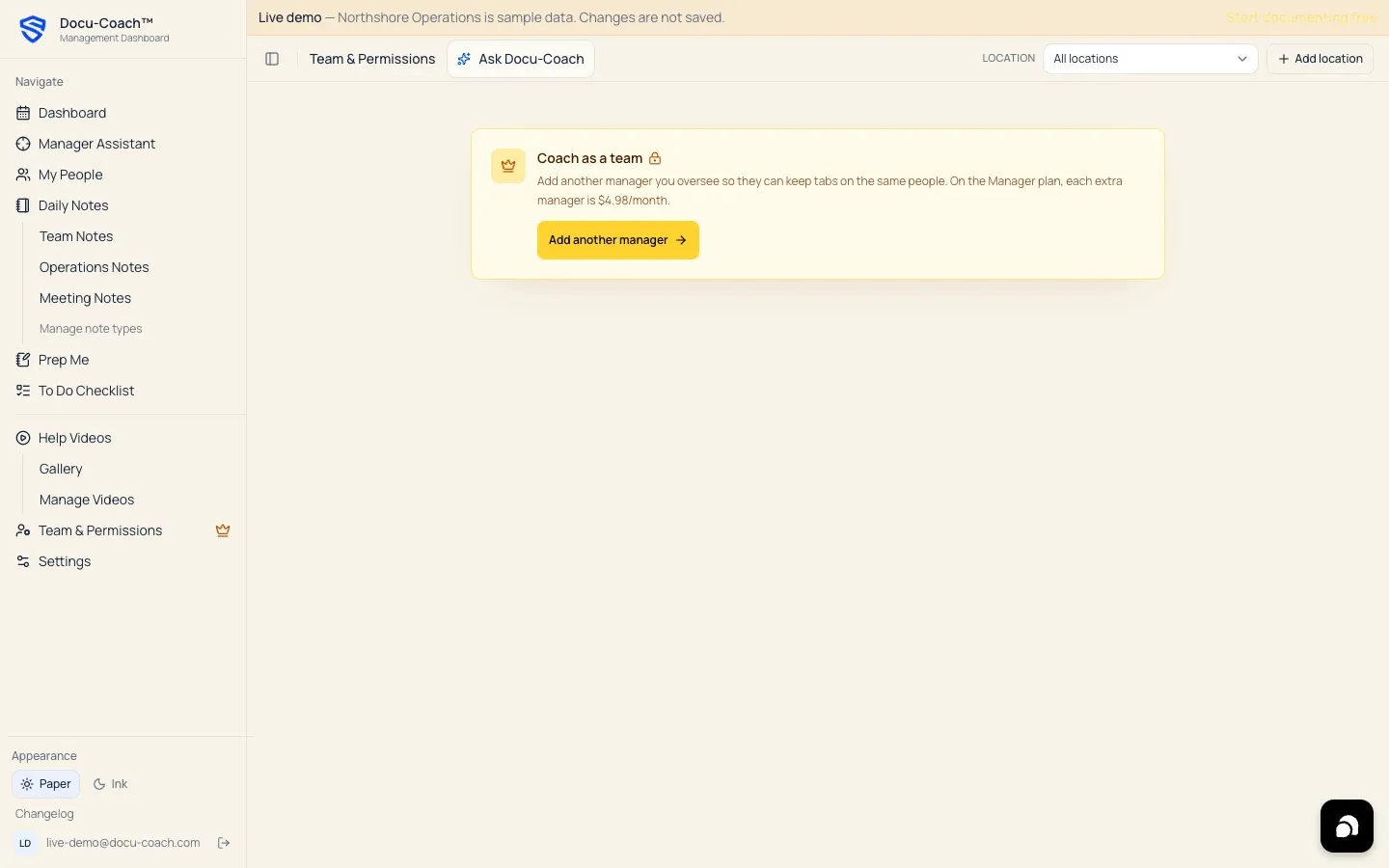
Section titled “What is this?”Team & Permissions (/admin/team) lets you add manager sign-ins to your organization, assign roles, control whether a manager can see all shared organization notes or only the notes they wrote themselves, and link a manager’s login to their own employee roster record so no one can ever see coaching notes written about themselves.
When would I use it?
Section titled “When would I use it?”- Adding another manager, shift lead, corporate trainer, or HR administrator to your workspace.
- Restricting a shift lead so they only see the coaching notes they personally recorded (Only their own coaching notes).
- Linking a promoted shift lead or manager to their employee record in My People so any coaching notes their supervisor writes about them remain permanently hidden from their login.
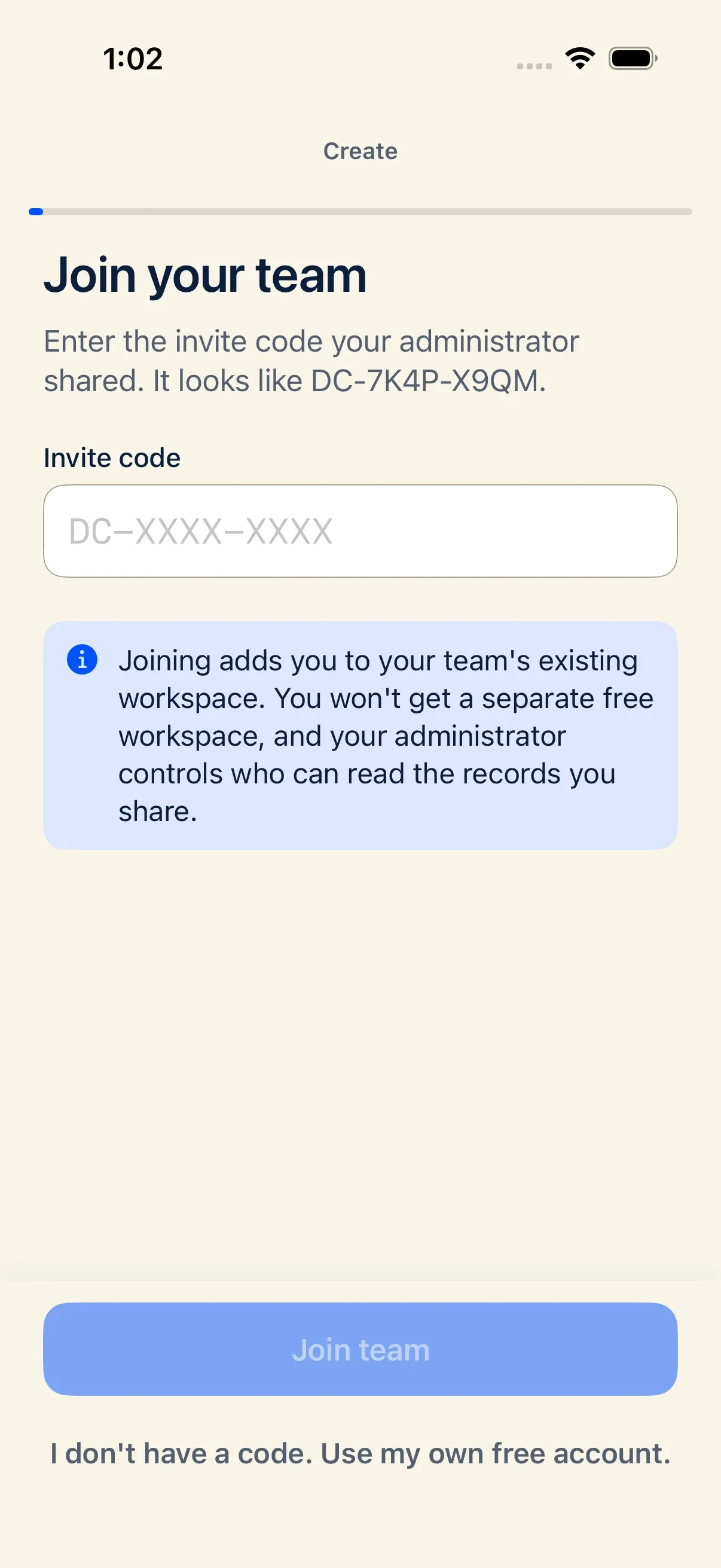
- Sending a quick manager invite code or link from the iPhone app.
Where is it?
Section titled “Where is it?”- Web Management Dashboard: Click Team & Permissions in the left sidebar (
/admin/team). - iPhone app: Open Settings → Invite a manager to generate a shareable invite link/code.
How do I use it?
Section titled “How do I use it?”Add a user and set permissions on the web
Section titled “Add a user and set permissions on the web”- Open Team & Permissions (
/admin/team) and click + Add user. - Enter the user’s Email and Display name.
- Configure their role and permissions:
- Role:
- Admin (
manager) — Full access to roster, locations, settings, Note Types, company guidance, and team administration. - Corporate trainer (
corporate_trainer) — Organization-wide read/write access and guidance/Note Types configuration, with no fixed home site. - Observer (
observer) — Reads the roster and writes coaching notes only; cannot alter workspace settings, Note Types, or company guidance.
- Admin (
- Only their own coaching notes: Toggle On (
notesVisibility = own) if this user should only see notes they personally recorded and nothing written by anyone else. Toggle Off (notesVisibility = all) if they may read records shared with the organization. - Daily coaching digest emails: Toggle On or Off to control whether this user receives the evening coaching summary email.
- Link to their employee record: If this user is also an employee on your roster, select their name from the dropdown. Any coaching notes written about that employee record are permanently hidden from their account.
- Role:
- Click Add user.
- Copy the generated Email and one-time Password immediately (the password is shown only once) and hand it to the new user so they can sign in and change their password.
Edit or remove a team member
Section titled “Edit or remove a team member”- Click the Pencil icon on any member row in Team & Permissions to change their role, note visibility, digest setting, or linked employee record. Changes take effect on their next page load.
- Click the Trash icon to remove a member from the organization. They lose access to the group immediately, while the coaching notes they wrote stay in the organization’s record.
Invite a manager from the iPhone app
Section titled “Invite a manager from the iPhone app”- In the Docu-Coach™ iPhone app, open the Settings tab and tap Invite a manager (visible to manager/admin accounts).
- Optional: Link the invite to an active employee record on your roster so the invitee cannot see coaching notes about themselves.
- Tap to generate the server-issued invite code/link (with expiration), then use ShareLink or Copy Link to send it.
- The recipient taps Have an invite code? on the iPhone Welcome screen (or opens the link) to join.
What happens after I do it?
Section titled “What happens after I do it?”- Seat usage (
used of limit managers) updates at the top of Team & Permissions. - Organization Row-Level Security (RLS) enforces role boundaries, own-notes-only visibility, and linked-employee self-note hiding across the web app, iPhone app, and Ask Docu-Coach.
Permissions, plans, and platform limitations
Section titled “Permissions, plans, and platform limitations”- Seats by plan:
- Free: 1 manager seat.
- Manager: 1 manager seat included; add extra managers for $4.98/month each (up to 10 extra seats).
- Teams: 10 manager accounts included; add extra managers beyond 10 for $5/month each (up to 40 extra seats).
- Full Team & Permissions administration in the sidebar is included with the Teams plan (clicking Team & Permissions on non-Teams plans opens
/billingwhere you can upgrade or add manager seats).
What can go wrong?
Section titled “What can go wrong?”- Seat limit reached when adding a user: Click Add a manager in Team & Permissions (or go to
/billing#seats) to add a manager seat, or remove an inactive member first.