

Ask Docu-Coach™ & Coaching Briefs
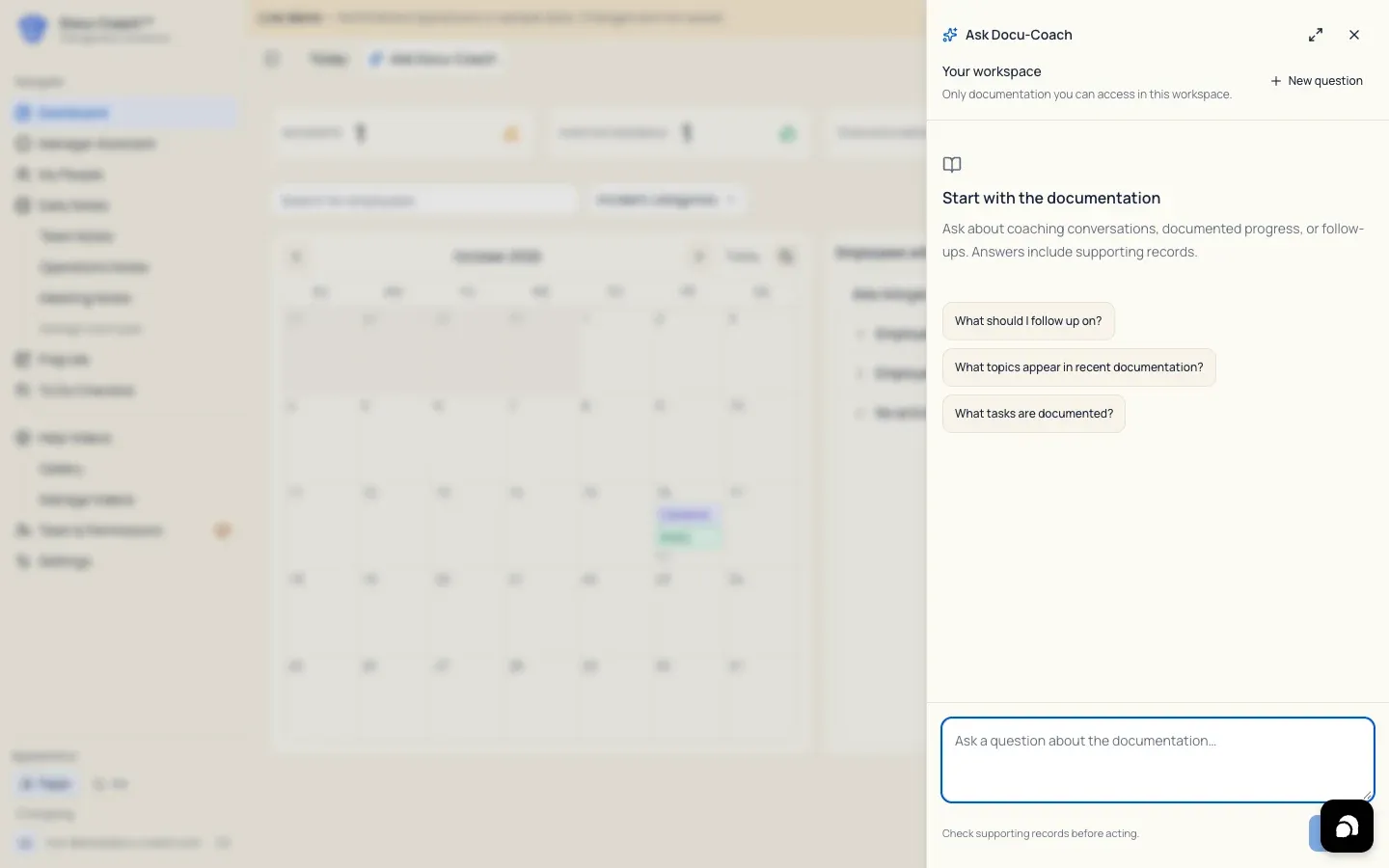
What is this?
Section titled “What is this?”Ask Docu-Coach is the intelligence interface for interpreting your authorized management history. You can ask questions in plain English—or tap a suggested coaching topic—and receive a structured Coaching Brief or factual history summary grounded strictly in the records you are authorized to read.
Important: Ask Docu-Coach ties every factual claim back to saved records with numbered citations, clearly separates documented facts from coaching suggestions, and never decides discipline or employment actions.
When would I use it?
Section titled “When would I use it?”- Asking “What coaching have we done with Alex over the last 60 days?” or “How should I frame a 1:1 about repeated late arrivals?”
- Getting a practical conversation script (Try saying this) and rewriting its tone (Softer, More direct, or More supportive) before a tough conversation.
- Turning a recommended next step directly into a task on your private To-Do Checklist.
Where is it?
Section titled “Where is it?”Ask Docu-Coach can be opened in three distinct scopes on both the Web Management Dashboard and the iPhone app:
- Workspace scope (
Your workspace):- Web: Click Ask Docu-Coach in the top header bar on
/admin/dashboard(or any admin page). - iPhone: Tap Ask Docu-Coach from the Home tab.
- Web: Click Ask Docu-Coach in the top header bar on
- Employee scope (
Ask about this employee):- Web: Click Ask about this employee at the top of an employee’s Employee Command Center (
/admin/employees/[id]). - iPhone: Open People → [Select Employee] and tap Ask about this employee (or tap one of the prefetched coaching topic cards).
- Web: Click Ask about this employee at the top of an employee’s Employee Command Center (
- Recording scope (
Ask about this recording):- Web / iPhone: Tap Ask about this recording from a saved recording detail view.
How do I use it?
Section titled “How do I use it?”Ask a question and use the Coaching Brief
Section titled “Ask a question and use the Coaching Brief”- Open Ask Docu-Coach in your desired scope (Workspace, Employee, or Recording).
- Tap a suggested coaching topic card (on an employee profile) or type your question in the composer and press Send (
↑). - Review the structured Coaching Brief sections:
- Facts & Counts: Exact counts of employee records, incidents, positive feedback, progress updates, daily notes, or tasks counted across authorized records in that scope.
- Meeting objective & Talking points (for preparation questions) or What the records support (for pattern questions).
- Coach’s take: The primary coaching recommendation labeled clearly as a Coaching suggestion with the number of supporting records.
- Try saying this: A suggested conversation script (clearly labeled “Suggested language, not a quotation from the record”).
- Click Copy to copy the script to your clipboard.
- Click Softer, More direct, or More supportive to rewrite only the script’s tone using the exact same underlying evidence without regenerating the entire brief.
- Questions to ask: Open-ended questions to ask the employee during the conversation.
- Your next move: Actionable next steps. Click Add to my to-do list, edit the task title if desired, and click Save to my list to add it to your personal To-Do Checklist.
- Based on your documentation & Evidence gaps: Numbered source citations and any gaps in the reviewed records.
What happens after I do it?
Section titled “What happens after I do it?”- Conversation continuity: Conversations are scoped to your user account and exact context (
global,employee:<id>, orrecording:<kind>:<id>). When you reopen Ask Docu-Coach in that same scope, you can continue your recent conversation or click New (+) to start fresh. - No training or provider retention: Ask Docu-Coach requests are sent with provider storage disabled (
store: false). AI calls are logged with metadata only—never your note text or briefs. - Not added to the employee record: Coaching Briefs, scripts, and tasks you save to your to-do list are private to you and are never written into the employee’s personnel timeline.
Permissions, plans, and platform limitations
Section titled “Permissions, plans, and platform limitations”- Strict authorization boundary: Ask Docu-Coach retrieves only records your signed-in account is currently authorized to read under organization RLS and Record sharing. If your access to a scope changes, the panel clears immediately.
- iPhone AI consent: On iPhone, using Ask Docu-Coach requires Settings → AI privacy to be enabled.
What can go wrong?
Section titled “What can go wrong?”- “Not enough documented information”: If the employee or workspace has too few saved records to answer your question, Ask Docu-Coach tells you directly and lists the Evidence gaps rather than guessing or inventing history.
- “Could not change the wording. The current suggestion is unchanged.” If a tone-rewrite request fails due to a momentary network issue, your original script remains on screen so you can click Softer, More direct, or More supportive again.