

Sign in & 4-digit mobile PIN
What is this?
Section titled “What is this?”Docu-Coach™ uses one account across the desktop Management Dashboard, mobile web recorder, and native iPhone app. On mobile web browsers, you can also set up a 4-digit PIN so you can unlock the floor recorder quickly without typing your full password during a busy shift.
When would I use it?
Section titled “When would I use it?”- Signing in to review records, prepare 1:1s, or manage settings on your computer.
- Signing in to the native iPhone app for floor capture.
- Setting or changing your 4-digit mobile web PIN, or resetting a forgotten password.
Where is it?
Section titled “Where is it?”- Web sign-in:
https://www.docu-coach.com/login - Web PIN settings: Settings → Account → Security & PIN Access (
/admin/settings?tab=account) - iPhone sign-in: Tap Sign in on the Welcome screen of the Docu-Coach™ iPhone app.
How do I use it?
Section titled “How do I use it?”Sign in on the web
Section titled “Sign in on the web”- Open
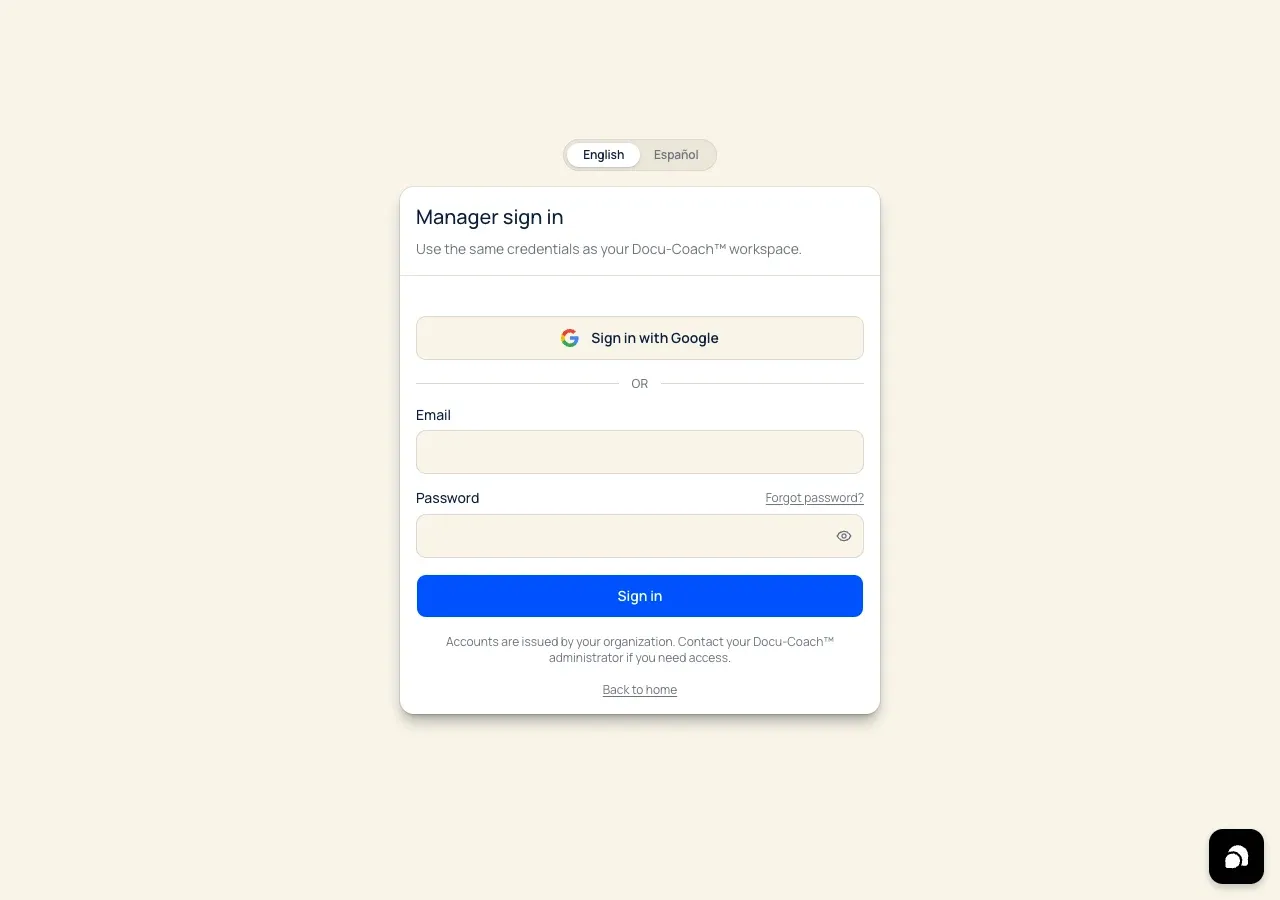
https://www.docu-coach.com/login. - Optional: Use the sliding English / Español switch above the sign-in card. The selected language slides into place and the sign-in form updates immediately.
- Enter your Email and Password and click Sign in (or click Continue with Google on desktop browsers).
- Use the eye icon inside the password field if you want to verify what you typed.
Sign in on iPhone
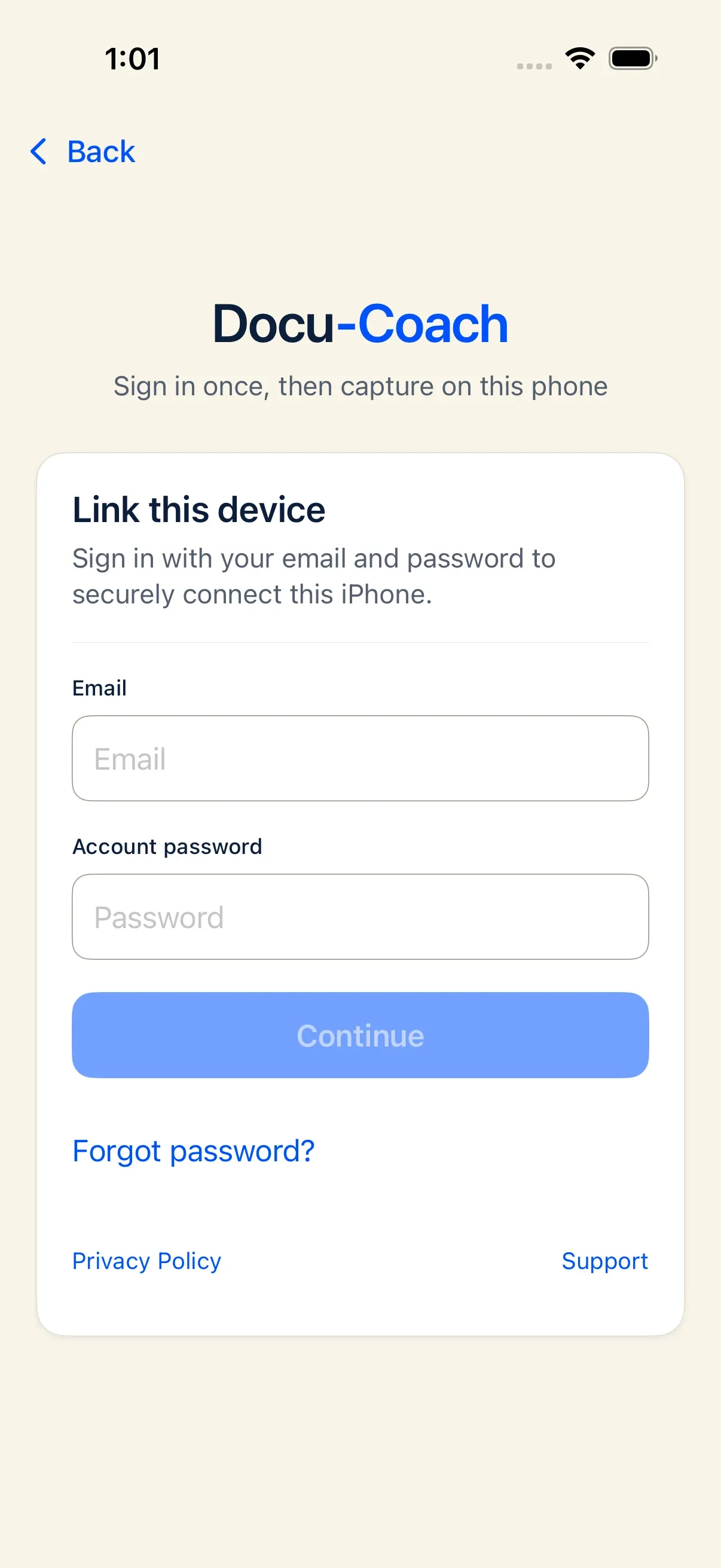
Section titled “Sign in on iPhone”- Open the Docu-Coach™ iPhone app and tap Sign in.
- Enter the same email and password you use on the web.
- Your session is stored securely in the iOS Keychain so you stay signed in across app launches.
Set up or change your 4-digit mobile web PIN
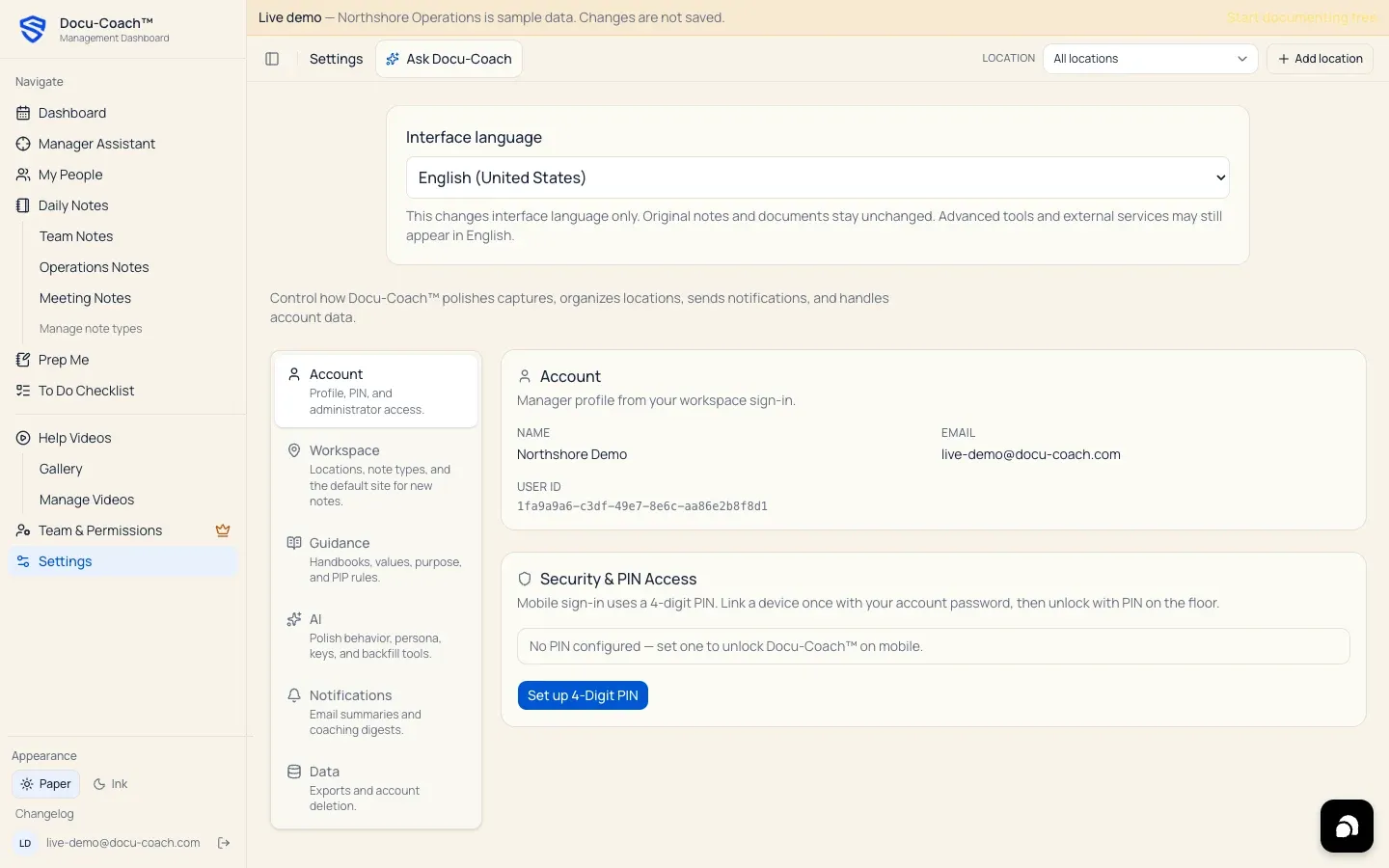
Section titled “Set up or change your 4-digit mobile web PIN”- On the desktop web dashboard, open Settings → Account.
- In the Security & PIN Access card, click Set up 4-Digit PIN (or Change 4-Digit PIN if one is already enabled).
- Enter a 4-digit PIN twice on the keypad to confirm.
- Once your mobile browser is linked with your password, you can unlock
/recordon mobile web using those 4 digits. To turn PIN sign-in off, toggle Disable PIN authentication.
Reset a forgotten password
Section titled “Reset a forgotten password”- On the web sign-in screen (
/login), enter your email address and click Forgot password?. - Docu-Coach™ displays a confirmation (“If that address has an account, a reset link is on the way.”).
- Open the reset link in your email to open the Set a new password screen, enter your new password twice, and click Update password.
- In the iPhone app, you can also open account recovery from Settings.
What happens after I do it?
Section titled “What happens after I do it?”- Desktop web browsers redirect to
/admin/dashboard(or the page you originally requested). - Mobile web browsers redirect to
/recordfor floor capture. - iPhone app opens directly to the Record tab if your account has already completed setup.
Permissions, plans, and platform limitations
Section titled “Permissions, plans, and platform limitations”- 4-digit PIN is for mobile web only: The native iPhone app uses iOS Keychain session storage and device security rather than the web PIN pad.
- Signing out on iPhone with unsent audio: If you have an unsent offline recording on your iPhone when you tap Sign out, the app warns you and asks for confirmation before clearing local unsent audio.
What can go wrong?
Section titled “What can go wrong?”- “Sign-in was rejected”: If you just created your account, make sure you clicked the confirmation link in your email first. Otherwise, click Forgot password? to reset your password.
- PINs do not match: When setting a new 4-digit PIN, you must enter the exact same 4 digits on both confirmation steps.