

Record & review Daily Notes
What is this?
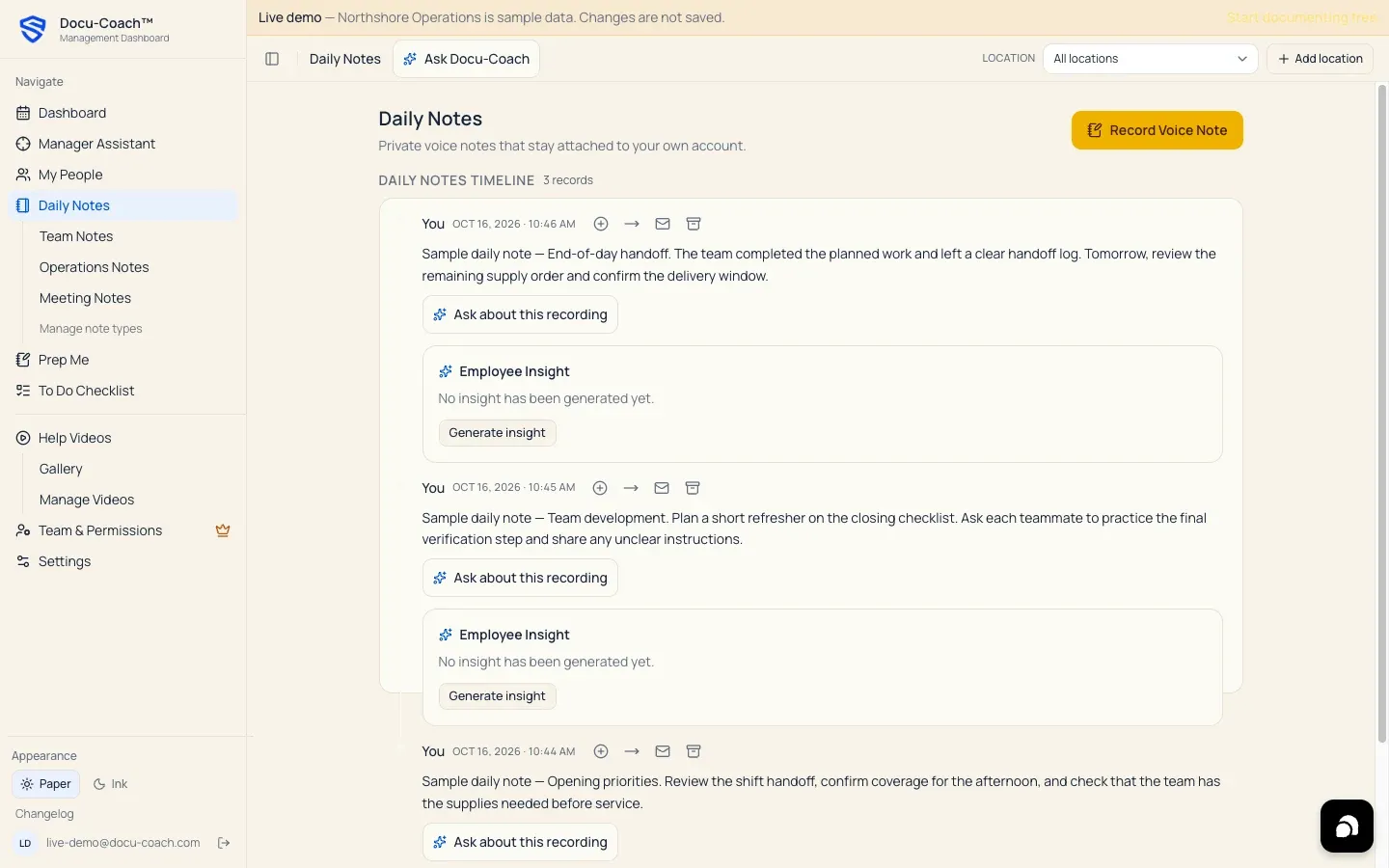
Section titled “What is this?”Daily Notes are your private manager notebook inside Docu-Coach™. Unlike employee incidents—which belong to a specific person’s timeline and can be shared with your organization—Daily Notes are always private to the manager who recorded them.
They are designed for shift handoffs, pre-shift huddles, operational observations, meeting notes, and quick thoughts that include follow-up tasks you need to remember.
When would I use it?
Section titled “When would I use it?”- Recording pre-shift huddle talking points, staffing notes, or equipment/vendor issues.
- Capturing notes from a leadership meeting or manager sync.
- Speaking a quick voice memo with two or three action items you want Docu-Coach™ to turn into a To-Do Checklist automatically.
Where is it?
Section titled “Where is it?”- Web Management Dashboard: Click Daily Notes in the left sidebar (
/admin/daily-notes), or click any of your active Note Types underneath it (such as Team Notes, Operations Notes, Meeting Notes, or custom categories). - Web Voice Recorder for Daily Notes: Click the yellow Record Voice Note button inside Daily Notes (
/daily-notes/record). - iPhone app:
- Capture: Tap (or long-press) the yellow Daily note button on the Record tab.
- Review: Open the Notes tab in the bottom navigation bar (or review Recent records on the Record tab).
How do I use it?
Section titled “How do I use it?”Record a Daily Note on iPhone
Section titled “Record a Daily Note on iPhone”- On the Record tab, tap the yellow Daily note button to record audio (or long-press to type a note).
- Speak your shift, team, operational, or meeting notes, including any tasks you need to follow up on.
- Tap Stop, then tap Save daily note. (Daily Notes never ask you to pick an employee.)
Record or review Daily Notes on the web
Section titled “Record or review Daily Notes on the web”- In the left sidebar, click Daily Notes to view all of your Daily Notes, or click a specific category underneath Daily Notes (such as Team Notes, Operations Notes, or Meeting Notes).
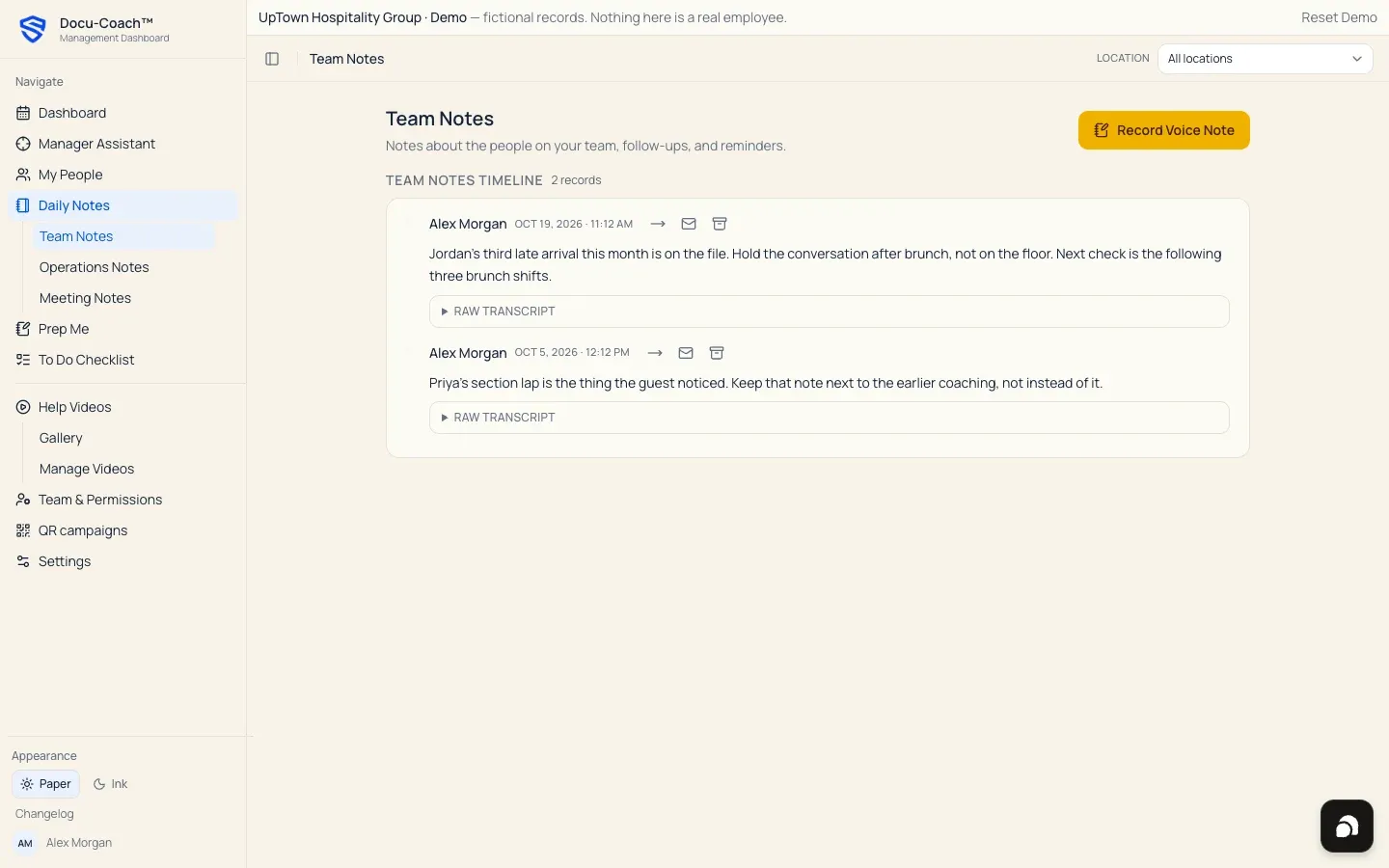
- Click Record Voice Note in the top-right corner to record a new Daily Note from your browser.
- On any existing Daily Note card in the timeline, you can:
- Read the polished summary and raw transcript.
- Move the note to a different active Note Type category using the move menu on the card.
- Edit or delete the note.
What happens after I do it?
Section titled “What happens after I do it?”- Polished summary + automatic task extraction: When AI processing is enabled, Docu-Coach™ summarizes your Daily Note and automatically extracts actionable follow-ups into your To-Do Checklist (
/admin/todoon web and Notes → To-Dos on iPhone), linking each task back to the source Daily Note and resolving relative due dates in your capture timezone. - Strictly private: Daily Notes are never visible to other managers or administrators in your organization, and they cannot be switched to organization-shared in Record sharing.
Permissions, plans, and platform limitations
Section titled “Permissions, plans, and platform limitations”- Available on all plans: Daily Notes and automatic task extraction are available on Free, Manager, and Teams.
- Moving notes between Note Types: You can move any Daily Note to another active Note Type configured in Settings → Workspace → Note Types.
What can go wrong?
Section titled “What can go wrong?”- Want a note to appear on an employee’s timeline instead: Daily Notes are personal manager notes and do not attach to an employee profile. Use Record incident, Positive feedback, or Progress update when documenting a specific employee.