

Assign a person or save Unassigned
What is this?
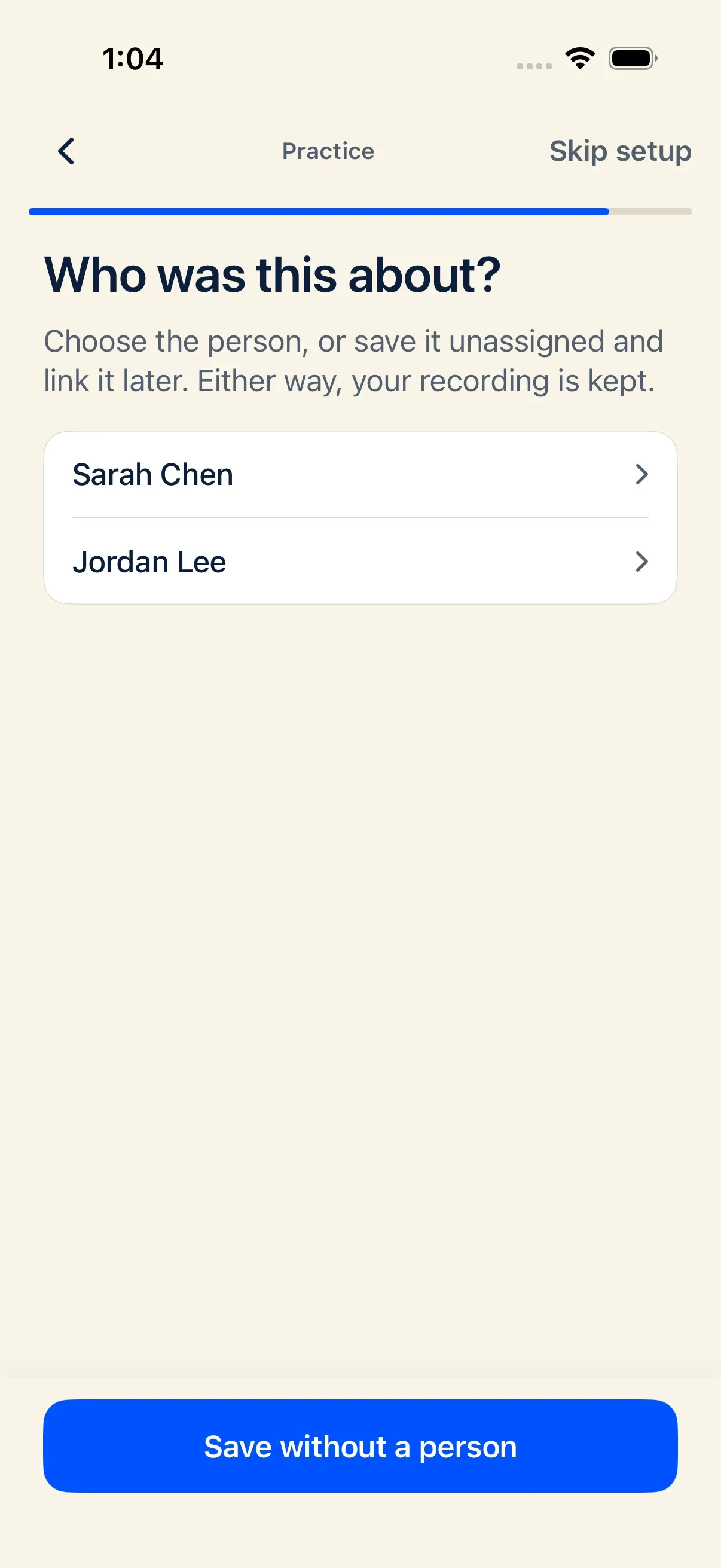
Section titled “What is this?”Docu-Coach™ uses a capture-first workflow for employee records (Record incident, Positive feedback, and Progress update). You record or type the note first while the moment is fresh, and then choose which person on your roster the note belongs to—or save it as Unassigned (Assign later) and link the person later.
When would I use it?
Section titled “When would I use it?”- Assign immediately when the person is already on your roster.
- Save as Unassigned (
Assign later) when:- A new hire is not in your directory yet.
- You are in a rush and want to save the audio immediately.
- Your workspace has reached its active-person limit on the Free plan (unassigned captures always save).
Where is it?
Section titled “Where is it?”- Immediately after recording: The Choose a person routing sheet opens automatically when you stop an Incident, Positive feedback, or Progress update recording.
- On an existing record: Open any unassigned (or assigned) record in the iPhone app (Notes or Record → Recent records) or on the Web Management Dashboard to assign or update the person.
How do I use it?
Section titled “How do I use it?”Route a recording right after capture
Section titled “Route a recording right after capture”- Tap Stop to finish your recording.
- In the Choose a person sheet:
- Search or tap the employee’s name to link the record to their timeline, or
- Tap Assign later / Save as unassigned to save the recording without an employee link.
Assign or change the person later
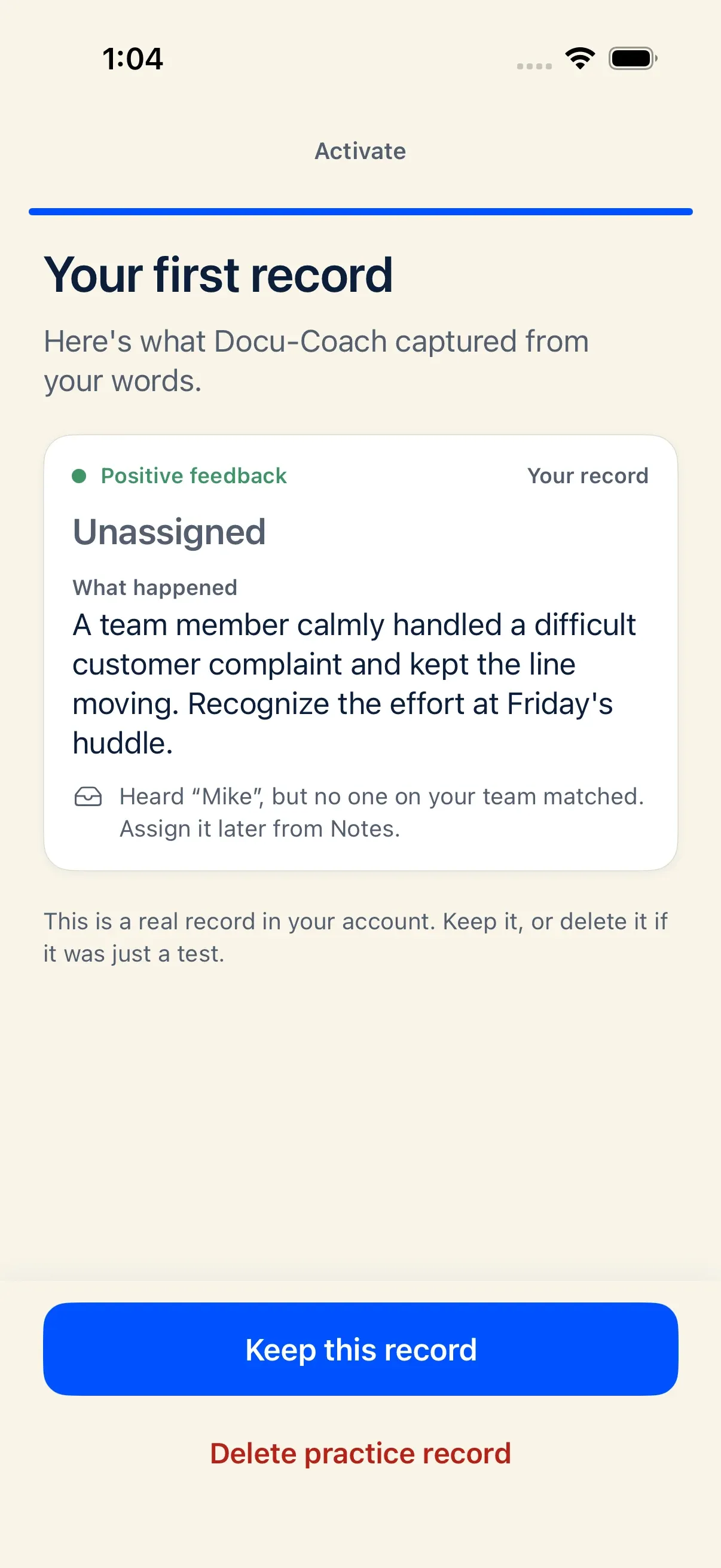
Section titled “Assign or change the person later”- Open the saved recording from Recent records or the Notes tab on iPhone (or from the Management Dashboard on the web).
- Choose the teammate from your active roster and confirm.
- If Docu-Coach™ detects a roster name mentioned in your note and offers a person suggestion, confirming that suggestion links the person to the record.
- Suggestions to add someone who is not on the roster are limited to nouns: a person, place, or thing. A title such as Registered Nurses suggests Nurses. Mental Health Directors suggests Directors. Describing words such as Registered or Mental are not offered as people.
What happens after I do it?
Section titled “What happens after I do it?”- Employee timeline: Once assigned, the record appears on that person’s Employee Command Center timeline, counts toward their documented history, and is included when you run Prep Me, HR Ready, PIP Builder, or Ask Docu-Coach for that employee.
- Visibility stays unchanged: Assigning, changing, or clearing a person on a record you own updates the person link (
employee_idandemployee_name_snapshot/record_subjects) without changing who owns the note (manager_id), which organization it belongs to (organization_id), or its sharing scope (share_scope). Linking a person never exposes a private record to other managers unless you explicitly share it in Record sharing. - No automatic employee creation: AI polish and name matching never create stub employees on your roster automatically. Only people you explicitly add or confirm are on your roster.
Permissions, plans, and platform limitations
Section titled “Permissions, plans, and platform limitations”- Free plan active-person cap: On the Free plan (up to 2 active employees), if your active directory has more than 2 active employees, assigning a new capture to a specific employee is blocked until you archive extra employees or upgrade—but Docu-Coach™ always lets you Save as Unassigned so your audio and note are never lost.
- Daily Notes do not route to employees: Daily note captures skip the employee routing sheet because Daily Notes are private operational/shift notes for the manager.
What can go wrong?
Section titled “What can go wrong?”- App closes before you pick a person: Because Docu-Coach™ persists your audio to disk before opening the routing sheet, relaunching the app recovers the unrouted recording and lets you finish assigning and saving it.