

Voice capture vs. typed notes
What is this?
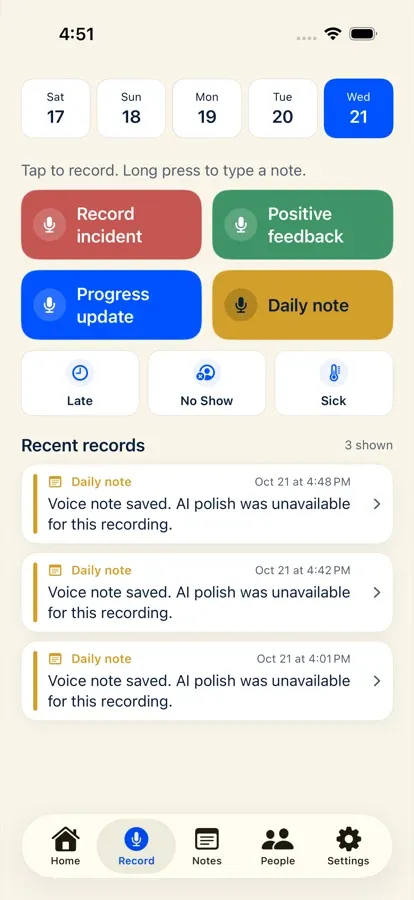
Section titled “What is this?”Every capture action in Docu-Coach™ (Record incident, Positive feedback, Progress update, and Daily note) supports two ways to enter a note without creating separate buttons or separate histories:
- Tap to record (Voice capture): Uses your microphone to record a voice memo, transcribes it, and polishes it into a structured note.
- Long-press to type (Typed capture): Opens a written note sheet where you can type or paste your note when speaking out loud is impractical.
When would I use it?
Section titled “When would I use it?”- Use Voice capture (tap) when walking off the floor, sitting in your office, or right after a 1:1 when speaking for 20 seconds is faster than typing on a phone keyboard.
- Use Typed capture (long-press) when you are in a quiet room, still in a meeting, or in a noisy environment where speaking into your phone is inappropriate.
Where is it?
Section titled “Where is it?”- iPhone app: On the Record tab, right above the four capture buttons, you will see: “Tap to record. Long press to type a note.”
- Android companion (
testing): Offers both a primary Record button and a Type a note button.
How do I use it?
Section titled “How do I use it?”Record a voice note
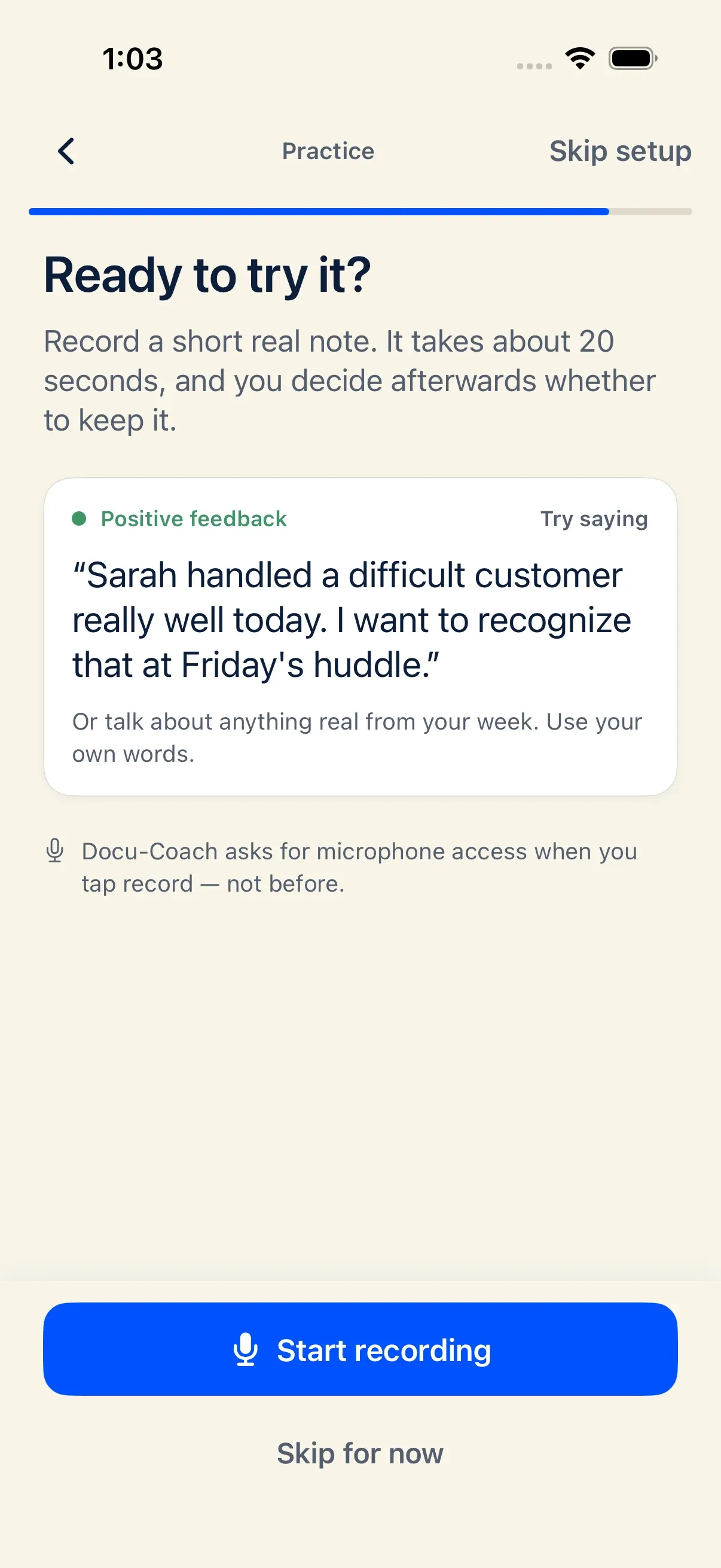
Section titled “Record a voice note”- Tap Record incident, Positive feedback, Progress update, or Daily note.
- Speak your note. On iPhone, the recorder monitors audio levels and can automatically stop after sustained silence, or you can tap Stop at any time.
- For employee records, select a teammate or tap Assign later. For a Daily note, tap Save daily note.
Enter a typed note
Section titled “Enter a typed note”- Long-press (touch and hold for ~0.5 seconds) Record incident, Positive feedback, Progress update, or Daily note.
- Type your note into the text sheet.
- For Record incident, Positive feedback, or Progress update, choose a teammate or select Assign later, then tap Save.
- For Daily note, tap Save to file it directly to your private Daily Notes.
What happens after I do it?
Section titled “What happens after I do it?”- Same timeline and structure: Voice captures and typed captures save to the exact same tables (
incidentsordaily_notes), use the selected date from the Record calendar strip, and appear together in Recent records, Notes, and the employee’s timeline. - Idempotent retries: If your network drops while saving a typed note, the text stays on your iPhone until the server confirms the save, and retrying uses a stable client ID so tapping Save again never creates a duplicate record.
- Task extraction: Both voice notes and typed notes can extract follow-up tasks to your To-Do Checklist when AI processing is enabled.
Permissions, plans, and platform limitations
Section titled “Permissions, plans, and platform limitations”- AI processing consent: In the iPhone app, both voice capture and typed capture check that Settings → AI privacy is enabled before starting.
- No audio player on typed records: Because a typed note has no audio file (
audio_storage_pathis empty), viewing a typed record shows the written text without an audio playback bar.
What can go wrong?
Section titled “What can go wrong?”- Long-press opens voice recording instead: Make sure you press and hold the button until you feel the haptic shift and see the typed-note sheet appear, rather than tapping quickly.
- Microphone permission denied: If iOS microphone access is off for Docu-Coach™, tapping a voice capture button shows an alert with Open Settings and Not now. You can still use long-press typed capture once AI processing is enabled, or enable Microphone access in iOS Settings.