

Custom Note Types & industry setups
What is this?
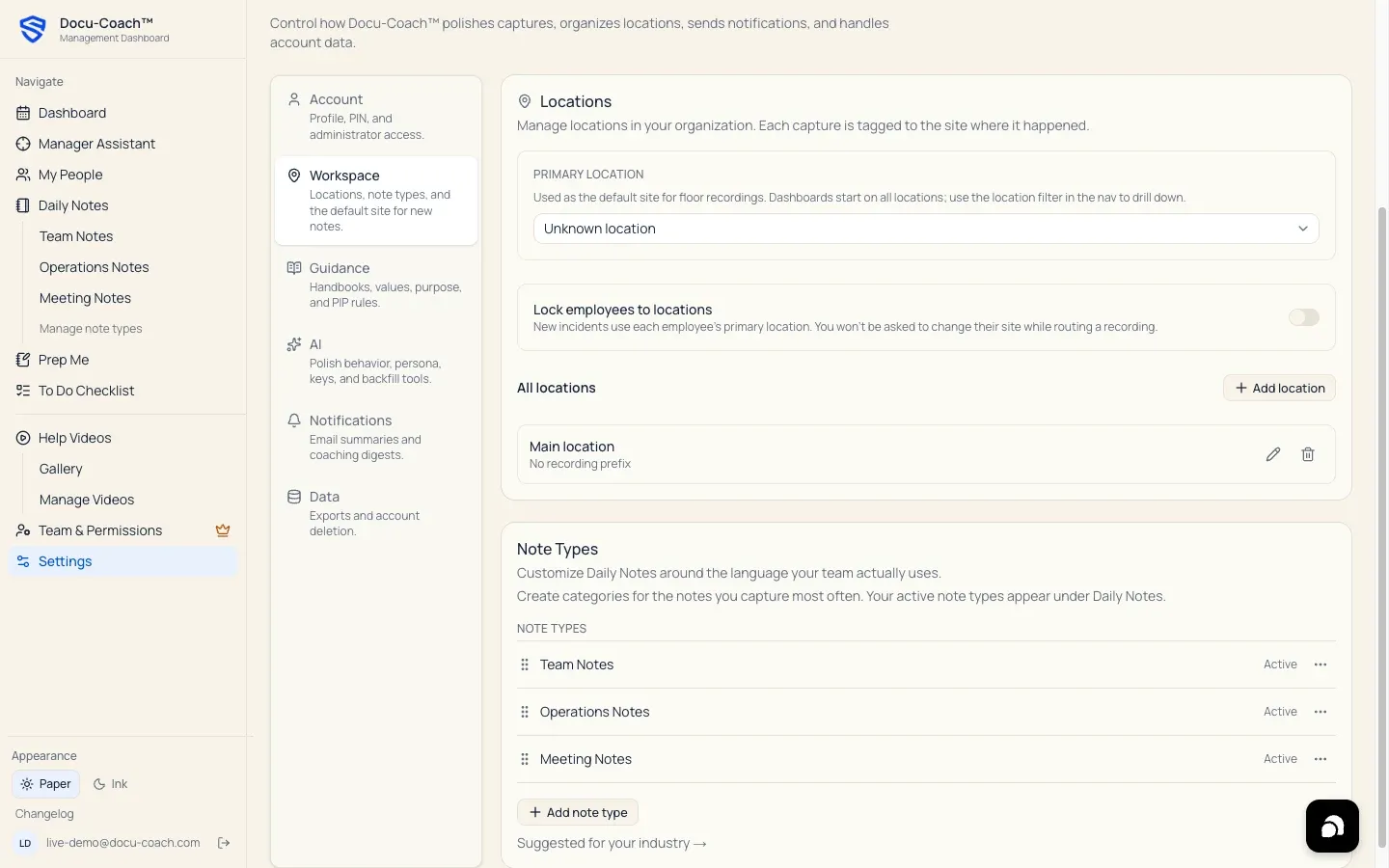
Section titled “What is this?”Note Types let you customize the categories under Daily Notes around the exact language and workflows your team uses.
Every workspace starts with three built-in Daily Note categories:
- Team Notes (
team) — Notes about the people on your team, follow-ups, and reminders. - Operations Notes (
operations) — Notes about how the work is running, handoffs, and open operational items. - Meeting Notes (
meeting) — Notes from 1:1s, huddles, and meetings, including what you committed to do next.
Workspace administrators can add custom Note Types (up to 24 total), pick from curated industry suggestions, drag-and-drop to reorder how they appear in the left sidebar, edit names and descriptions, archive unused types, or delete a type and reassign its notes.
When would I use it?
Section titled “When would I use it?”- You want your Daily Notes sidebar menu to reflect your daily routine (for example, Pre-Shift Huddle, Guest Recovery, Daily Site Log, Toolbox Talk, Shift Handoff, or Queue / Volume).
- You want to adopt Docu-Coach™’s recommended categories for your industry without typing each one by hand.
- You want to retire an old category without losing any of the notes filed under it.
Where is it?
Section titled “Where is it?”- Sidebar shortcut: Under Daily Notes in the left sidebar, click Manage note types (or Set up your Daily Notes if no active types remain).
- Settings path: Settings → Workspace → Note Types (
/admin/settings?tab=workspace#note-types).
How do I use it?
Section titled “How do I use it?”Add a custom Note Type
Section titled “Add a custom Note Type”- Open Settings → Workspace and scroll to the Note Types card.
- Click + Add note type.
- Enter a Note type name (up to 40 characters, e.g.,
Pre-Shift Huddle) and an Optional description (up to 200 characters, e.g.,Quick notes from lineup, staffing assignments, and service priorities.). - Click Create note type. The new category immediately appears under Daily Notes in the left sidebar (
/admin/daily-notes/area/<slug>).
Add industry-suggested Note Types
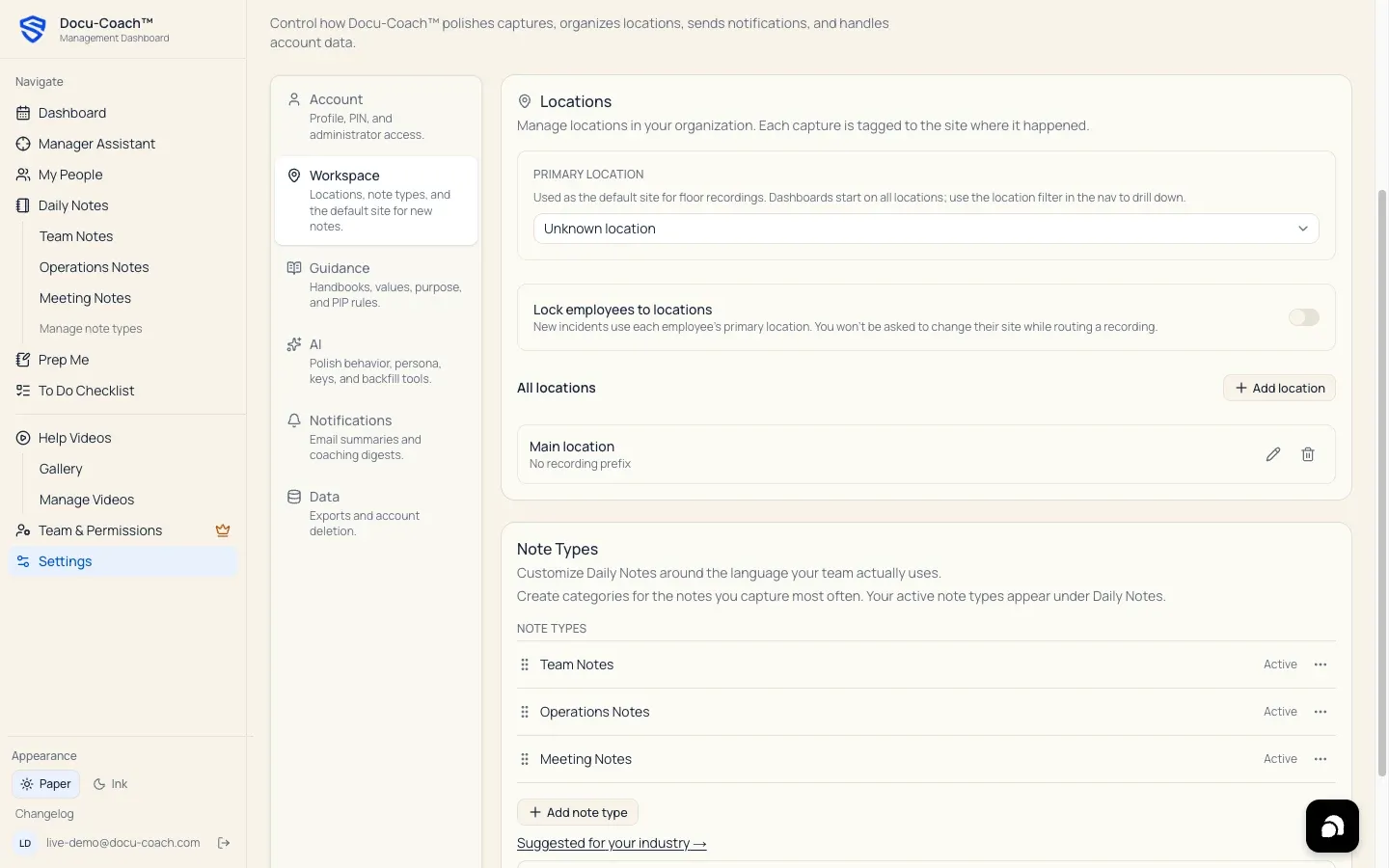
Section titled “Add industry-suggested Note Types”- In the Note Types card, click Suggested for your industry → (or Suggested for [Industry] →).
- Choose your Industry from the dropdown:
- General operations
- Restaurant / hospitality (Shift Notes, Pre-Shift Huddle, Guest Recovery, Kitchen / BOH, Staffing, Vendor / Delivery, Closing Notes)
- Hotel (Daily Operations, Front Desk, Guest Recovery, Housekeeping, Maintenance, Occupancy / Arrivals, Shift Handoff)
- Retail (Opening Notes, Floor Coverage, Merchandising, Inventory, Customer Issues, Loss Prevention, Closing Notes)
- Construction (Daily Site Log, Toolbox Talk, Safety Observations, Site Conditions, Subcontractors, Inspections, Material / Delivery)
- Healthcare (Shift Handoff, Staffing, Unit Operations, Safety Observations, Facilities, Leadership Huddle — with staff-only / non-PHI descriptions)
- Property management (Property Operations, Maintenance, Resident Issues, Vendor Notes, Inspections, Leasing, Turn / Make Ready)
- Call center (Shift Notes, Team Huddle, Queue / Volume, Escalations, Quality, Staffing, System Issues)
- Grocery (Opening Notes, Department Huddle, Inventory / Stock, Vendor / Delivery, Safety, Customer Issues, Closing Notes)
- Click + Add (or Restore if previously archived) next to any suggested category you want to activate. Choosing an industry never overwrites or removes the Note Types you already use.
- If your active Note Types list is completely empty and an industry is set, you can also click Use recommended setup on the empty-state banner in Daily Notes to populate the full industry list in one click.
Reorder, edit, archive, or delete a Note Type
Section titled “Reorder, edit, archive, or delete a Note Type”- Reorder: Drag any active Note Type by its grip handle (
⋮⋮) or open its⋯menu and click Move up or Move down. The left sidebar updates to match your saved order. - Edit: Open the
⋯menu on a Note Type and click Edit to rename it or update its description. - Archive: Click Archive in the
⋯menu. Archiving removes the category from the active Daily Notes sidebar while keeping every historical note intact. Archived types appear under the Archived section at the bottom of the card with a View notes link and a Restore button. - Delete: Click Delete in the
⋯menu:- If the Note Type has 0 notes, you can permanently delete it immediately.
- If the Note Type has existing notes, Docu-Coach™ protects your history by asking you either to Archive it or select another active Note Type under Move existing notes to and click Delete and move notes.
What happens after I do it?
Section titled “What happens after I do it?”- Active Note Types appear in your exact chosen order under Daily Notes in the left navigation rail and in the Move note menu on every Daily Note card.
- If Healthcare is selected as your industry (and regulated-data mode is off), the Note Types card displays a reminder not to include patient names, record numbers, diagnoses, or treatment details (PHI) in notes.
Permissions, plans, and platform limitations
Section titled “Permissions, plans, and platform limitations”- Who can manage Note Types: Workspace administrators (
AdminandCorporate trainerroles) can add, edit, reorder, archive, and delete Note Types. Members with theObserverrole see: “Workspace admins manage note types. You can still file notes under the active categories.” - Limits: Up to 24 Note Types per catalog (
MAX_NOTE_TYPES = 24); names up to 40 characters; descriptions up to 200 characters. Reserved system slugs (general,foh,boh,area,record) cannot be used as custom slugs, and duplicate names (case-insensitive) are prevented.
What can go wrong?
Section titled “What can go wrong?”- “Delete and move notes” button is disabled: You must select a destination Note Type from the Move existing notes to dropdown before permanently deleting a Note Type that already contains notes, or click Archive instead.