

Employee Command Center & timeline
What is this?
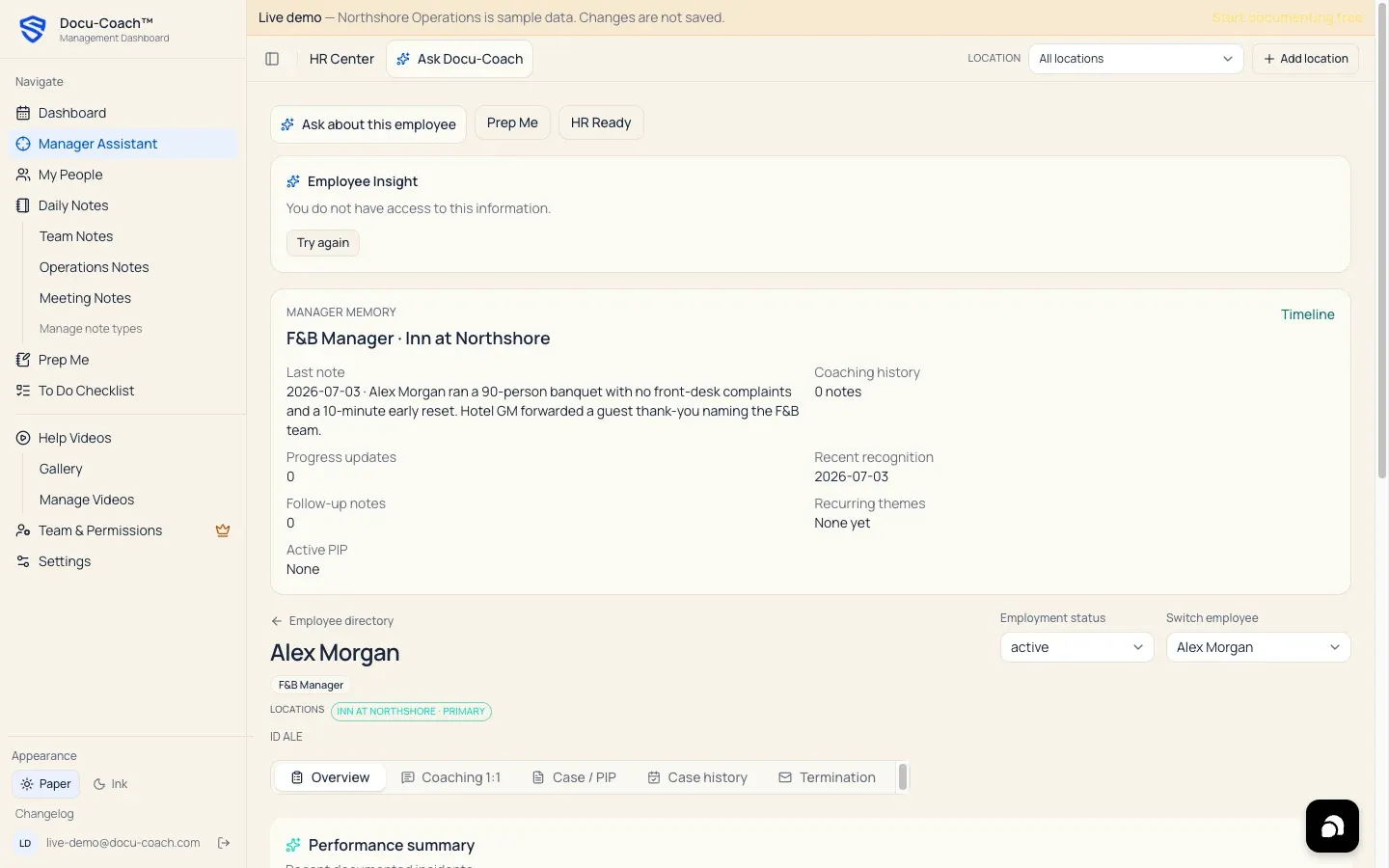
Section titled “What is this?”Clicking any person in My People opens their Employee Command Center (/admin/employees/[id]) on the web—or their Employee Profile on iPhone. It brings together everything you have documented about that person in one chronological workspace.
When would I use it?
Section titled “When would I use it?”- Reviewing an employee’s full history of Incidents, Positive feedback, and Progress updates before a 1:1 or review.
- Adding a follow-up note to an earlier incident, playing back original audio, or editing a polished note.
- Building a 1:1 Coaching Session, opening an HR Ready chronology, or drafting a PIP in the PIP Builder.
- Uploading supporting employee documents (such as signed acknowledgments or schedules) or exporting the person’s timeline to Word (
.docx) or PDF.
Where is it?
Section titled “Where is it?”- Web Management Dashboard: My People → [Click Employee Row] (
/admin/employees/[id]) - iPhone app: People → [Tap Employee]
How do I use it?
Section titled “How do I use it?”On the Web Employee Command Center
Section titled “On the Web Employee Command Center”- Header & Status: View or update the employee’s Employment status (such as Active, On leave, or Separated), role tags, start date, and location badges, or click Ask about this employee to open Ask Docu-Coach scoped to this person.
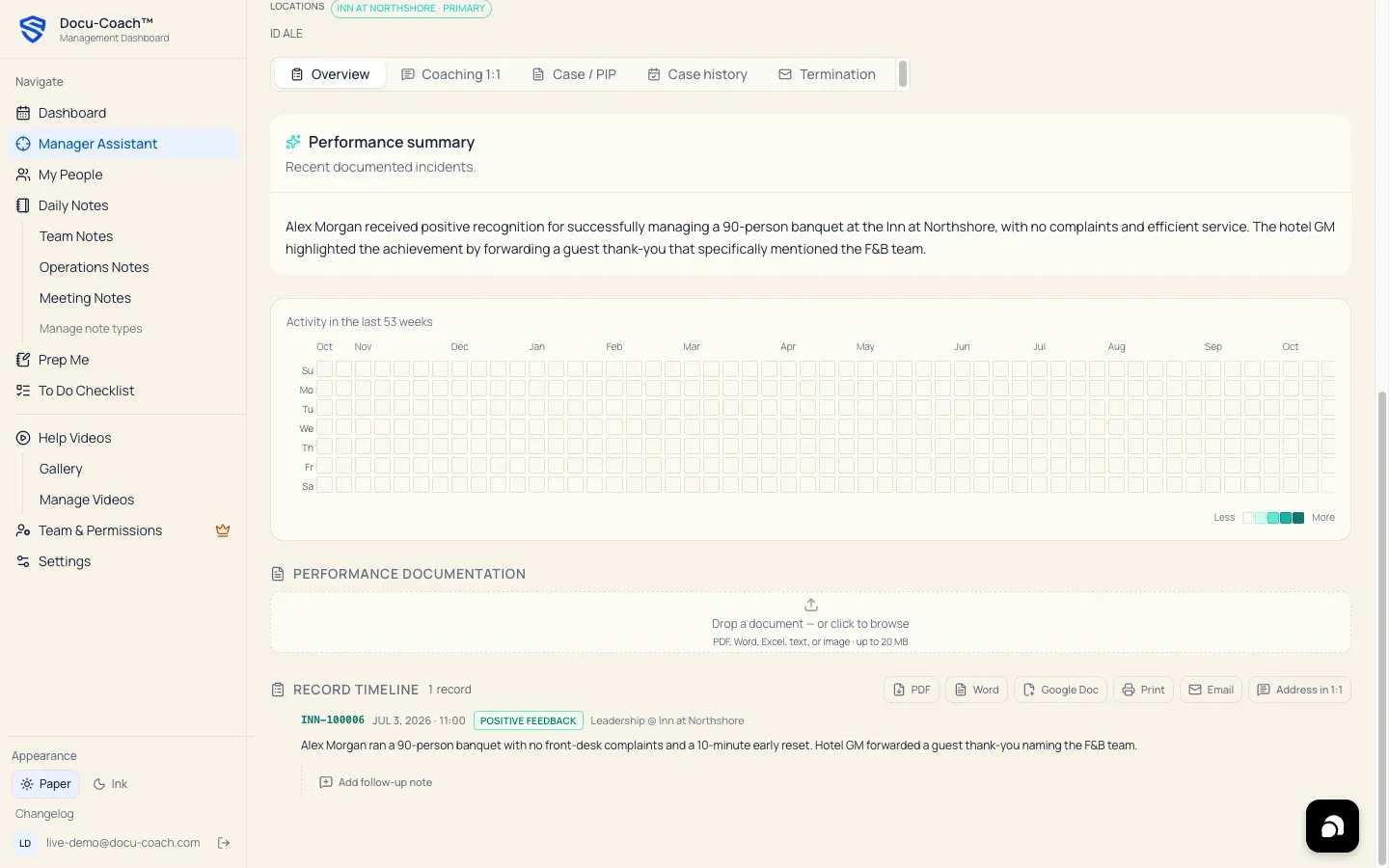
- Activity Heatmap: Scan the visual calendar heatmap to spot clusters of incidents, positive feedback, and progress updates over time.
- 1:1 Coaching Session Builder & PIP Builder: Prepare structured 1:1 talking points or open the PIP Builder directly from the employee’s profile.
- Chronological Record Timeline: Scroll to the record timeline to:
- Filter or inspect every Incident, Positive feedback, and Progress update with its reference code (
REC-######or location prefix), category, and severity pill. - Play back the original voice recording or inspect the raw transcript alongside the polished note.
- Add a dated entry to the Incident Follow-Up Thread under any record.
- Click HR Ready (
/admin/employees/[id]/hr-ready) or export the timeline to Word (.docx), PDF / Print, Plain text, or Email.
- Filter or inspect every Incident, Positive feedback, and Progress update with its reference code (
- Supporting Documents: Use the Employee Document Dropzone to attach relevant files to the employee’s profile.
On the iPhone Employee Profile
Section titled “On the iPhone Employee Profile”- Open the People tab and tap an employee.
- Review the summary counters at the top (Incidents, Positive feedback, Progress updates) alongside the Attendance card (🤒 Sick, 🚫 No Show, ⏰ Late).
- Tap Ask about this employee (or tap one of the prefetched coaching topic cards) to ask Ask Docu-Coach a question grounded in this employee’s records.
- Tap any record in the dated timeline to read the full note, view the original transcript, edit the prose, or reclassify the record among Incident, Positive feedback, and Progress update.
What happens after I do it?
Section titled “What happens after I do it?”- Every follow-up note, status update, or reclassified record updates your organization’s authorized view immediately.
- When a 1:1 Coaching Session is marked complete, the incidents covered in that session display a
Covered in sessiondate badge on the timeline.
Permissions, plans, and platform limitations
Section titled “Permissions, plans, and platform limitations”- Note visibility rules:
- Managers whose account is set to Only their own coaching notes in Team & Permissions see only the records they authored on an employee’s timeline.
- Records with Private to you sharing scope (
share_scope = author) are visible only to the author until shared in Record sharing. - A manager whose login is linked to their own employee record in Team & Permissions can never view coaching notes written about themselves.
- Word & PDF exports: Included on the Manager (and 30-day trial) and Teams plans.
What can go wrong?
Section titled “What can go wrong?”- Expected record is missing from an employee’s timeline: Check whether the record was saved as Unassigned (assign the employee from the record detail), whether a Location filter is active in the top bar, or whether another manager authored the note and kept it Private in Record sharing.