

Incident, Positive Feedback & Progress Update
What is this?
Section titled “What is this?”Every employee-linked record in Docu-Coach™ belongs to one of three canonical record types:
- Incident (
record_kind = incident) — A coaching conversation, policy deviation, attendance issue, safety concern, or workplace event that requires factual documentation. - Positive feedback (
record_kind = positive_feedback) — Specific recognition of strong work, guest/customer recovery, teamwork, or leadership. - Progress update (
record_kind = progress_update) — A follow-up observation on how an employee is progressing after prior coaching, training, or a 1:1 commitment.
(The fourth capture button, Daily note, creates a private manager shift/operational note rather than an employee timeline record.)
When would I use it?
Section titled “When would I use it?”| Capture button | When to use it | Where it appears |
|---|---|---|
| Record incident | Tardiness patterns, cash/inventory issues, conduct or safety coaching, standard operating procedure misses | Dashboard Incidents KPI, Employee Command Center timeline, HR Ready Prior Coaching |
| Positive feedback | Above-and-beyond execution, peer support, positive customer/guest callouts | Dashboard Positive Feedback KPI, Employee Command Center timeline, HR Ready Positive Context |
| Progress update | Checking in on a goal, noting steady improvement, documenting a routine coaching touchpoint | Dashboard Progress Updates activity, Employee Command Center timeline, HR Ready Progress Updates |
Where is it?
Section titled “Where is it?”- Capture: The top three buttons on the Record screen (iPhone and mobile web).
- Review & Reclassification:
- iPhone: People → [Select Employee] → [Tap Record] or Notes → [Tap Record]
- Web: My People → [Select Employee] (
/admin/employees/[id])
How do I use it?
Section titled “How do I use it?”Record and review a note
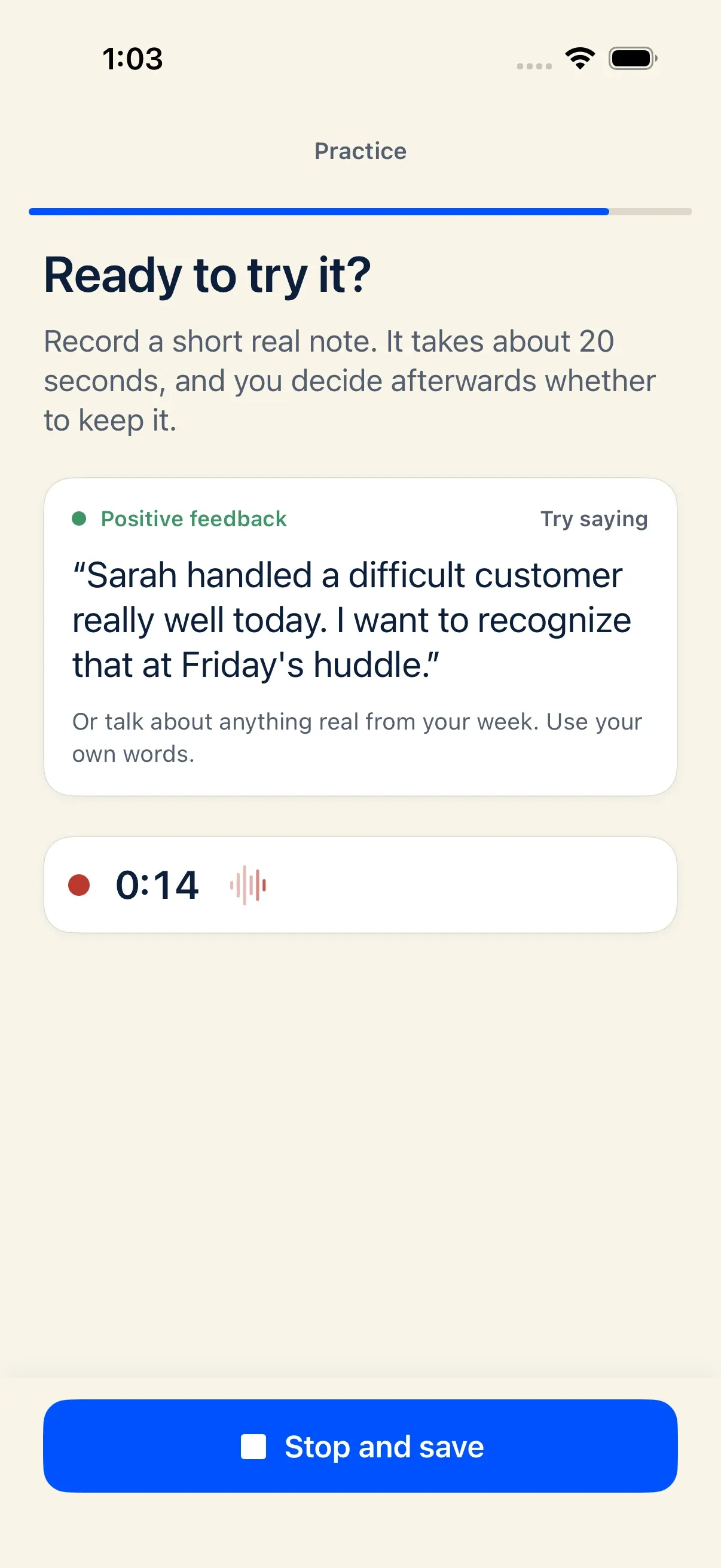
Section titled “Record and review a note”- Tap Record incident, Positive feedback, or Progress update on the Record screen.
- Speak the facts: what happened, when it occurred, what standard applies, and what you discussed with the employee.
- Tap Stop, then select the employee (or tap Assign later).
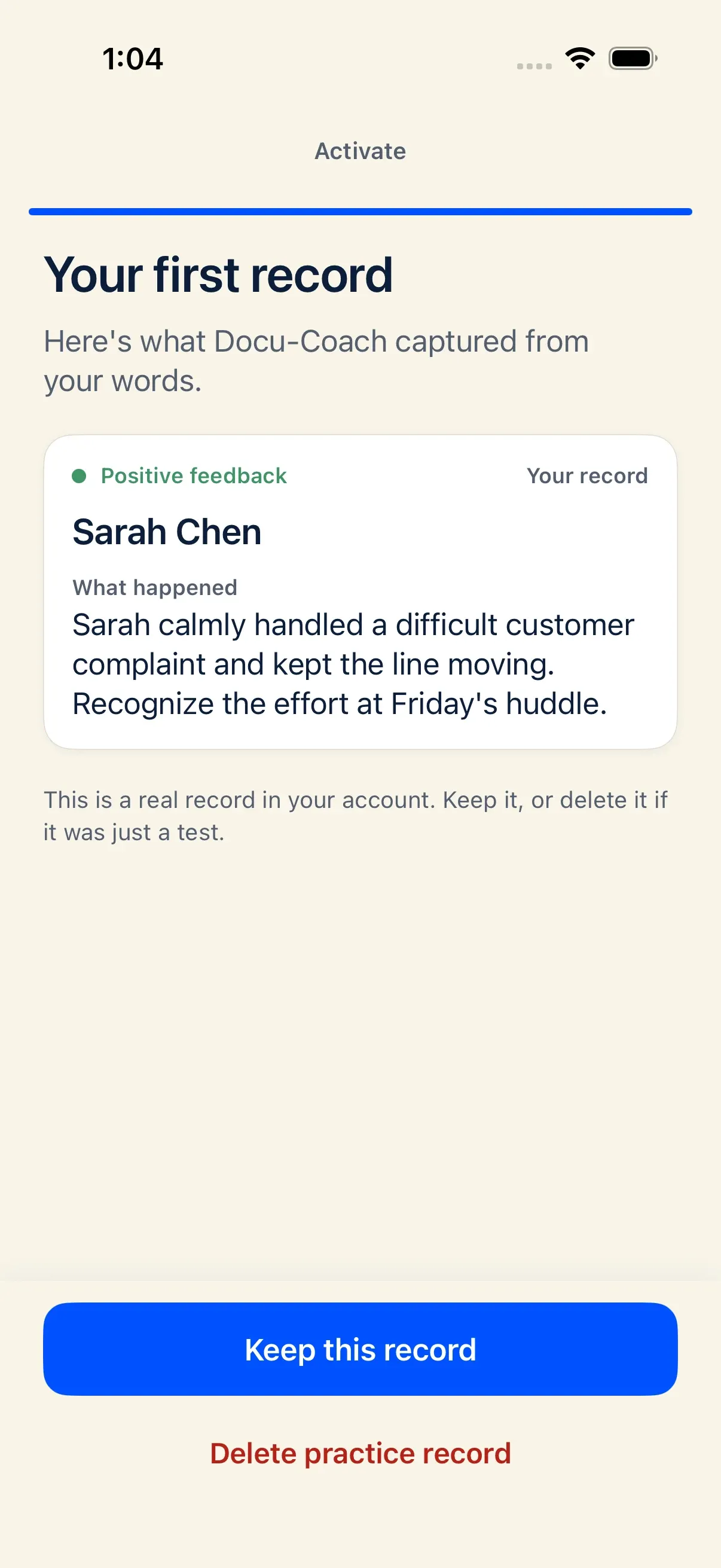
- Review the polished note, category, and original transcript disclosure.
Change the record type after saving
Section titled “Change the record type after saving”If you accidentally tapped Record incident for a Progress update (or vice versa), you do not need to delete and re-record the note:
- In the iPhone app, open People, select the employee, and tap the saved recording in their timeline.
- Select the new record type (Incident, Positive feedback, or Progress update).
- Docu-Coach™ updates the record’s type in place while preserving its reference code, timestamp, audio file, and original transcript.
What happens after I do it?
Section titled “What happens after I do it?”- Incident records receive a category classification and severity level (
1to4) during AI polish so HR Center can surface high-severity items or conversations owed. - Positive feedback and Progress update records appear alongside Incidents on the employee’s timeline so your documentation reflects the full picture of their performance—not only problems.
- Prep Me and HR Ready automatically group these records into their respective sections (Prior coaching, Positive context, and Progress updates).
Permissions, plans, and platform limitations
Section titled “Permissions, plans, and platform limitations”- Daily Notes cannot be converted into employee incidents: Because Daily Notes are stored in a separate private table (
daily_notes), reclassifying a record among Incident, Positive feedback, and Progress update applies only to employee records (incidents). - Editing text vs. original evidence: You can edit the polished note text on a saved record, while the original audio and raw transcript remain preserved as source evidence.
What can go wrong?
Section titled “What can go wrong?”- Type change fails while offline: Changing a saved record’s type requires a network connection. If the update fails, the screen restores the previous type and lets you try again when online.