

To-Do Checklist & extracted tasks
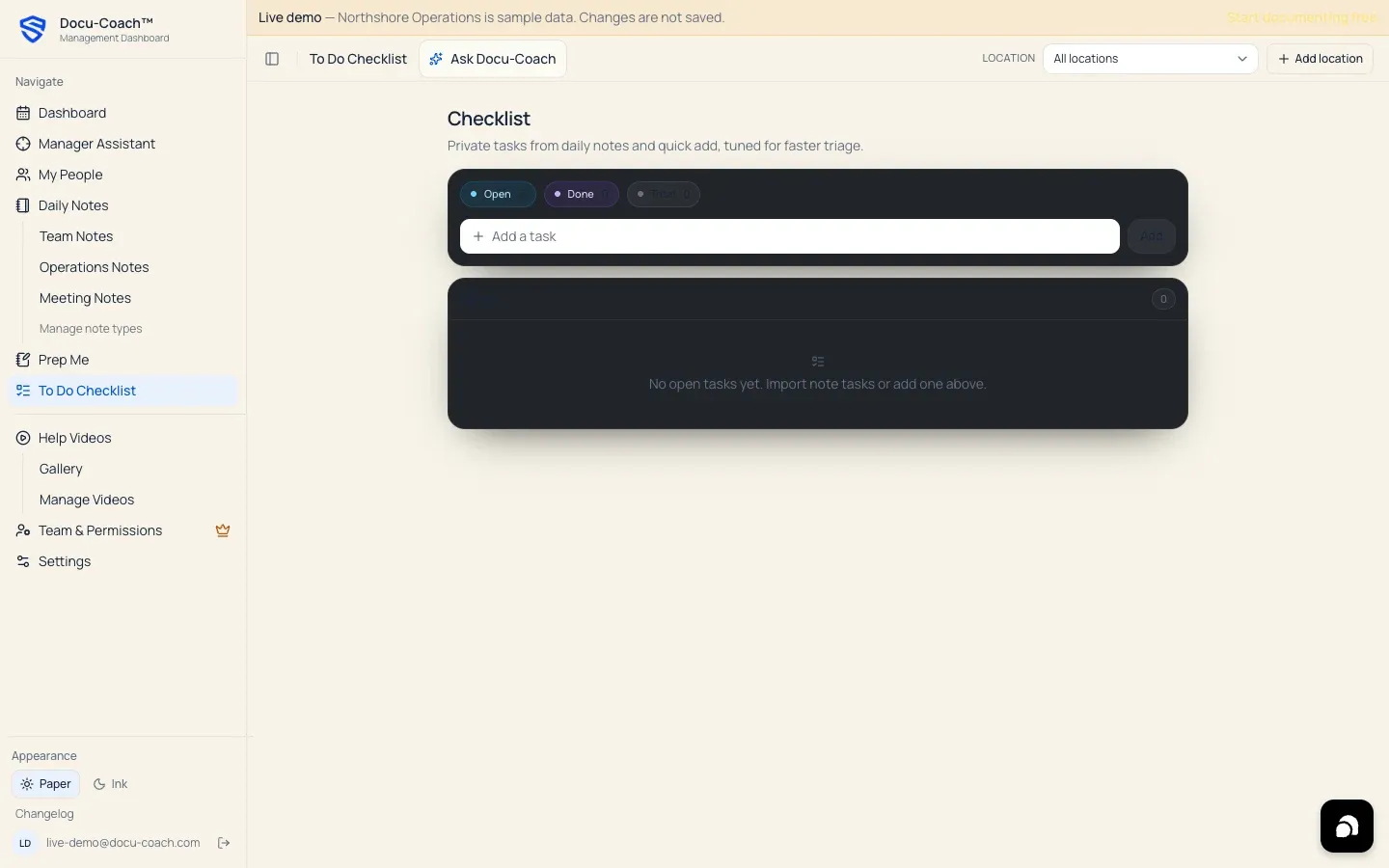
What is this?
Section titled “What is this?”The To Do Checklist (todo_items) is your private manager task list. It combines:
- AI-extracted follow-ups: Action items automatically extracted when you record a Daily note or employee recording (for example, “Check in with Jordan on Friday about the closing checklist” or “Order replacement thermometer for the prep line”).
- Coaching Brief next moves: Tasks you save from Ask Docu-Coach (
Add to my to-do list). - Manual tasks: Tasks you type directly into the quick-add bar on the web or iPhone app.
When would I use it?
Section titled “When would I use it?”- Reviewing every commitment you mentioned out loud during your shift recordings so nothing slips through the cracks.
- Prioritizing, checking off, or setting due dates on your daily management tasks.
Where is it?
Section titled “Where is it?”- Web Management Dashboard: Click To Do Checklist in the left sidebar (
/admin/todo). - Mobile web (
/record): Swipe to the To-Do panel on the mobile web recorder. - iPhone app: Tap the Notes tab in the bottom navigation bar and switch the top segmented control to To-Dos.
How do I use it?
Section titled “How do I use it?”Add, reorder, and complete tasks on the web
Section titled “Add, reorder, and complete tasks on the web”- Open To Do Checklist (
/admin/todo). - Quick add: Type a new task in the top input bar and press Enter (or click Add).
- Complete: Click the checkbox next to any item to mark it completed. Completed items move below your open tasks.
- Prioritize & edit: Reorder open tasks by priority (
priority_order), edit task text, or remove tasks you no longer need. - Source links: Tasks extracted from a Daily Note display their source group/topic label and creation date so you can trace why the task was created.
Manage To-Dos on iPhone
Section titled “Manage To-Dos on iPhone”- Open the Notes tab and select To-Dos in the segmented control at the top.
- Tap to check off completed tasks, add a new task, or pull to refresh.
- Simply refreshing or opening your To-Dos list never invokes AI; extraction runs once on the server when a note is saved.
What happens after I do it?
Section titled “What happens after I do it?”- Timezone-accurate due dates: When you mention a relative day in a voice note (such as “follow up on Tuesday”), Docu-Coach™ uses the capture timestamp and timezone stored with the recording to calculate the calendar due date deterministically. Ambiguous date expressions remain unscheduled rather than guessing.
- Private to you: Your To Do Checklist is scoped to your
manager_id. Tasks saved to your checklist—including tasks added from an Ask Docu-Coach Coaching Brief—stay on your personal list and are never written onto an employee’s official record.
Permissions, plans, and platform limitations
Section titled “Permissions, plans, and platform limitations”- Available on all plans: Automatic task extraction and the To-Do Checklist are included on Free, Manager, and Teams.
- AI consent required for extraction: Automatic task extraction from new recordings requires AI processing to be enabled. Manual tasks work regardless of AI settings.
What can go wrong?
Section titled “What can go wrong?”- “That task is already in your checklist.” When saving a suggested next step from Ask Docu-Coach, Docu-Coach™ prevents duplicate open tasks with the same title.