

Record on the floor
What is this?
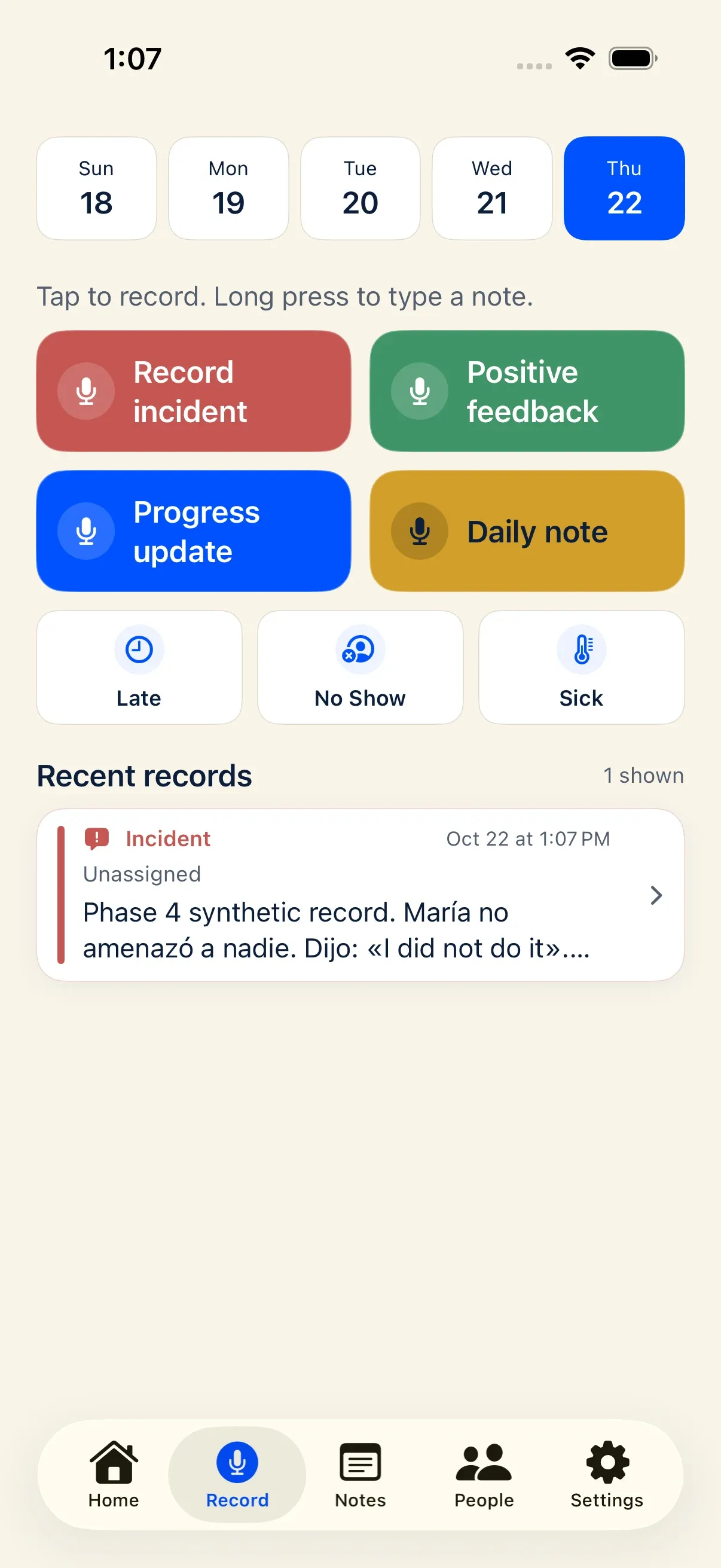
Section titled “What is this?”The Record screen is the starting screen of the Docu-Coach™ iPhone app and mobile web recorder. It gives you four large capture actions so you can record what happened in your own words without stopping to fill out a multi-field form:
- Record incident (Red) — Workplace incidents, policy issues, or coaching conversations that need a clear factual record.
- Positive feedback (Green) — Recognition, praise, and strong execution worth preserving on a person’s timeline.
- Progress update (Blue) — Check-ins and observations on how an employee is progressing against a goal or prior coaching.
- Daily note (Yellow) — Private manager shift notes, pre-shift huddles, operational reminders, and meeting notes.
When would I use it?
Section titled “When would I use it?”Use Record immediately after a conversation or observation while the details—who, what happened, when, and what you agreed on next—are fresh in your mind.
Important: Docu-Coach™ is designed for the manager’s own voice summary after a conversation. It does not join live meetings and is not a tool for covertly recording other people. Always follow the consent rules where you work.
Where is it?
Section titled “Where is it?”- iPhone app: Launches directly on the Record tab (center microphone icon in the bottom bar).
- Mobile web: Open
https://www.docu-coach.com/record. - Desktop web (Daily Notes): Click Record Voice Note inside Daily Notes (
/daily-notes/record).
How do I use it?
Section titled “How do I use it?”- Check the date strip: By default, Today is selected at the top of the Record screen. Tap an earlier day in the strip if you are logging something from earlier in the week.
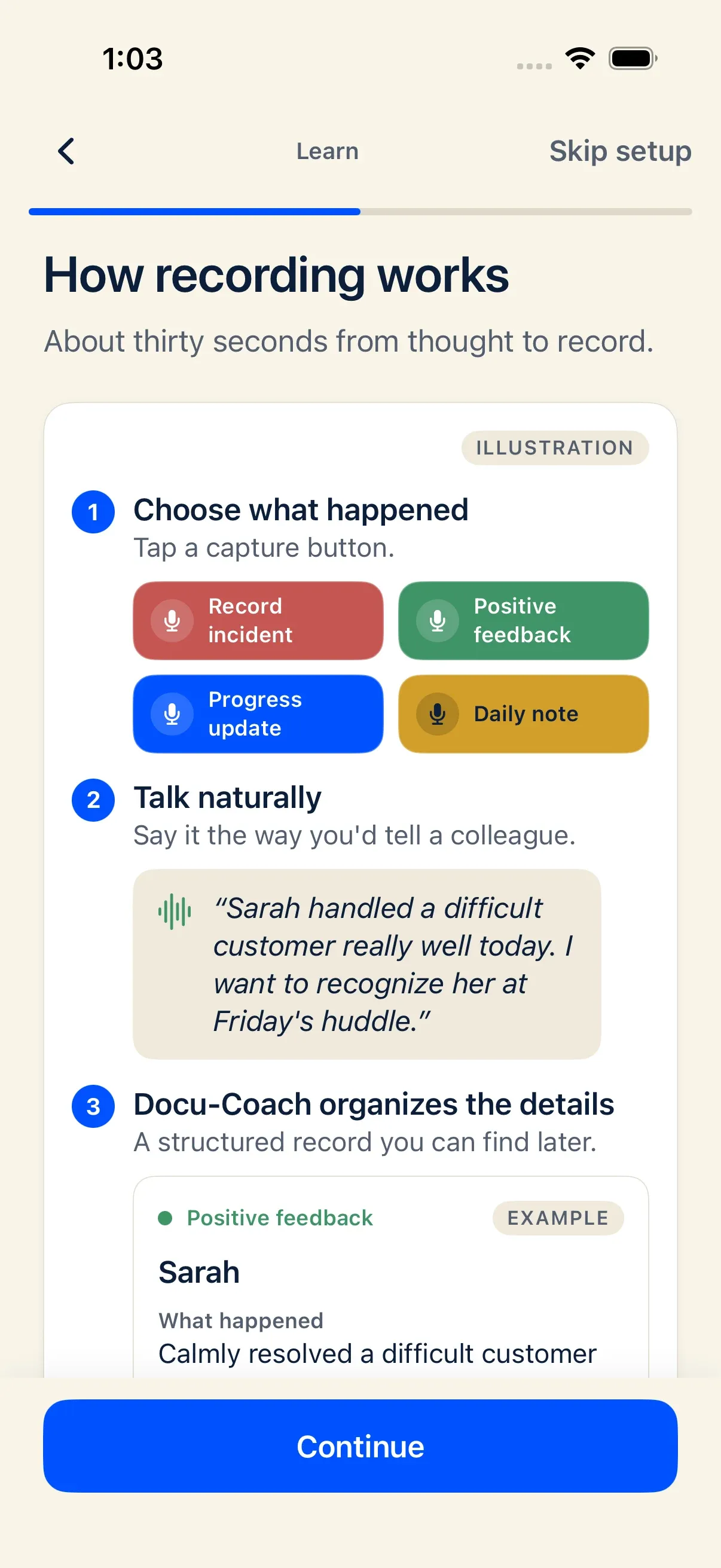
- Start capturing:
- Tap any of the four large buttons to start recording audio.
- Long-press (press and hold) any of the four buttons to open a typed note modal instead of using the microphone.
- Speak naturally: State what happened, what was observed, and any follow-up commitments. Tap Stop when finished (or let automatic silence detection finish the recording on iPhone).
- Route the note:
- For Record incident, Positive feedback, and Progress update, choose the employee from your roster or tap Assign later to save the note as Unassigned.
- For Daily note, confirm Save daily note (no employee selection is needed because Daily Notes are private to you).
What happens after I do it?
Section titled “What happens after I do it?”- Local-first durability: On iPhone, your audio is written to a protected local
.m4afile before any network upload begins. On the web recorder, audio chunks are stored in IndexedDB immediately. - Upload & AI polish: When AI processing is enabled, Docu-Coach™ transcribes the audio and polishes it into a structured, neutral management note using the FACTS Framework, assigns a reference code (such as
REC-100001or your location’s custom prefix), and extracts any follow-up tasks. - Timeline & Recent records: The saved note appears immediately under Recent records on the Record tab, in the Notes tab, and (when assigned to a person) on that person’s timeline.
Permissions, plans, and platform limitations
Section titled “Permissions, plans, and platform limitations”- AI processing consent required on mobile: Before starting a recording or typed note in the iPhone app, Settings → AI privacy must be turned on. If it is off, a modal prompts: “AI processing should be turned on in Settings before recording.”
- Active employee limit on Free plan: The Free plan includes up to 2 active employees. If your active roster exceeds your plan limit, you can still save a capture as Unassigned so you never lose a recording.
- Custom button labels: Even if you or your workspace admin customized the button labels in Settings → Capture, new users with no saved personal capture preferences always start with the original four actions (Record incident, Positive feedback, Progress update, and Daily note).
What can go wrong?
Section titled “What can go wrong?”- No network connection when you finish recording: Your audio stays safely stored on your phone. A recovery card appears above the capture buttons with Finish saving or Retry saving once you are back online.
- Transcription or AI polish fails: Once your audio is stored on the server, the recording is kept even if transcription or AI polish fails. You can listen to the original audio and edit the note text manually.