

Attendance quick actions (Late, No Show, Sick)
What is this?
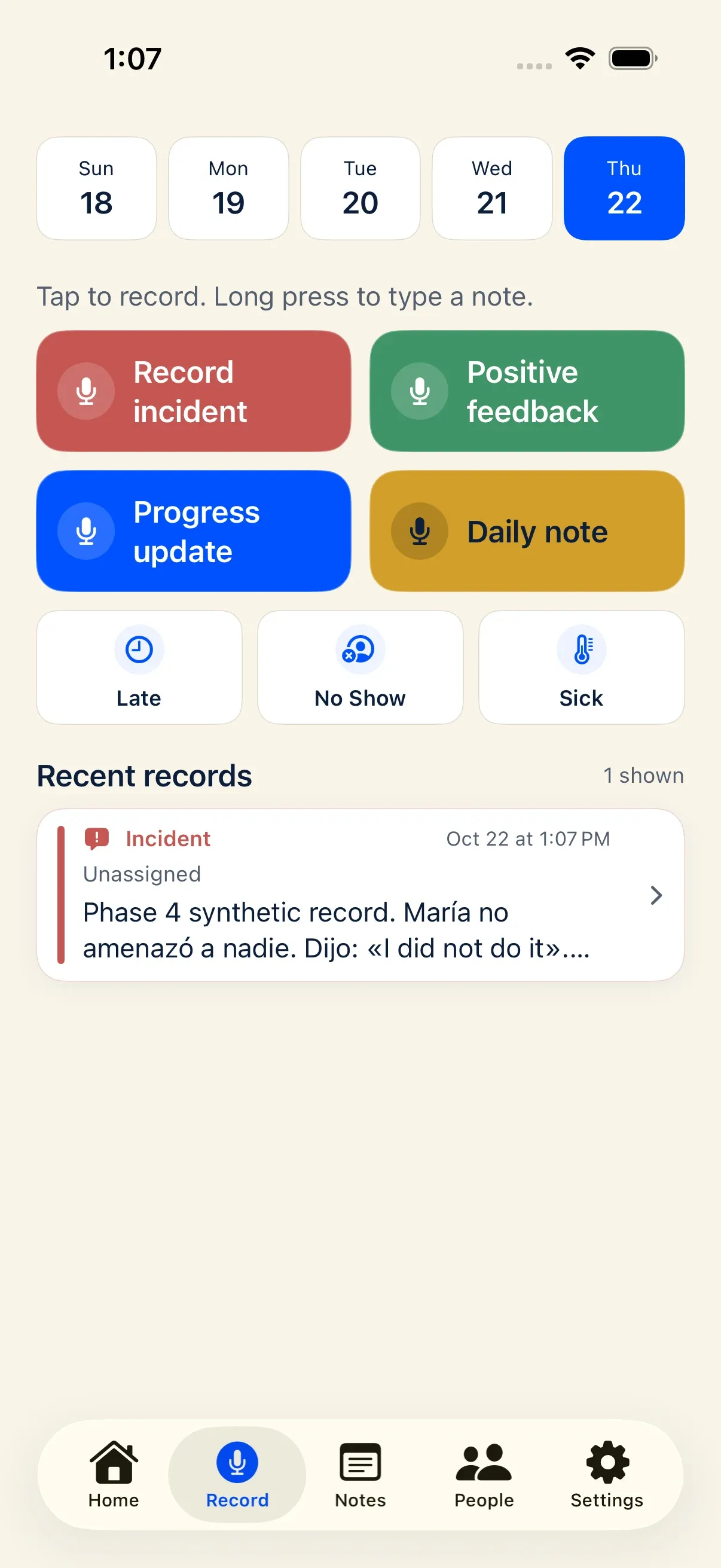
Section titled “What is this?”Beneath the four main capture buttons on the Record screen, Docu-Coach™ provides three one-tap attendance quick actions:
- Late (
late) — The employee arrived late for their scheduled shift. - No Show (
no_show) — The employee missed their shift (No Call / No Show). - Sick (
sick_day) — The employee called out sick.
Unlike the four main capture buttons, attendance quick actions do not record audio—they log a structured attendance event directly for the selected employee and date.
When would I use it?
Section titled “When would I use it?”Use Late, No Show, or Sick when you want to log a fast attendance marker on the floor without recording a voice memo. If an attendance issue also involved a coaching conversation you want transcribed and polished, you can either add an optional note inside the attendance action or record a full Record incident voice note.
Where is it?
Section titled “Where is it?”- Log attendance: The Late, No Show, and Sick row directly below the 2×2 capture grid on the Record screen (iPhone and mobile web).
- View attendance stats: Open People → [Select Employee] in the iPhone app to see the Attendance card beside their recording totals (displaying 🤒 Sick, 🚫 No Show, and ⏰ Late counts across all dates), or view their timeline in the web Employee Command Center.
- Show or hide the attendance row on iPhone: Settings → Show attendance quick actions in the iPhone app.
How do I use it?
Section titled “How do I use it?”Log a Late, No Show, or Sick event
Section titled “Log a Late, No Show, or Sick event”- Optional: On the Record screen date strip, select the day the attendance event occurred (defaults to Today).
- Tap Late, No Show, or Sick.
- Search for and select the employee from your active roster.
- Optional: Enter a brief written note (for example, “Arrived 25 minutes after lineup; traffic on I-90”).
- Tap Save.
Hide or show the attendance buttons on iPhone
Section titled “Hide or show the attendance buttons on iPhone”If you manage salaried or overtime-exempt teams and do not track shift attendance:
- Open the Settings tab in the Docu-Coach™ iPhone app.
- Toggle Attendance quick actions off.
- Hiding the row frees up vertical space on the Record tab without deleting any historical attendance data. You can turn it back on at any time.
What happens after I do it?
Section titled “What happens after I do it?”- Docu-Coach™ writes the event to
attendance_eventswith the selected date (occurred_on), your manager ID, the employee’s organization, and your default location. - The employee’s profile in People updates its Attendance card counts immediately.
- Attendance quick actions do not require AI processing consent because they do not send audio or text to OpenAI.
Permissions, plans, and platform limitations
Section titled “Permissions, plans, and platform limitations”- Employee selection is required: Unlike voice recordings (which can be saved as Unassigned), an attendance event always requires selecting an employee from your roster.
What can go wrong?
Section titled “What can go wrong?”- Don’t see the Late / No Show / Sick row on iPhone: Check Settings in the iPhone app and make sure the Attendance quick actions toggle is turned on.
- Employee is not in the search list: Tap the People tab (
+) to add the employee to your active roster first.