

Offline capture, recovery & audio playback
What is this?
Section titled “What is this?”Managers often record notes in walk-in coolers, basements, back hallways, or job sites with weak cellular and Wi-Fi coverage. Docu-Coach™ is built local-first so a dropped connection or a failed AI request never loses your recording.
When would I use it?
Section titled “When would I use it?”- You record a voice note or type a note while offline or on an unstable connection.
- The app closes or your phone restarts before you finish assigning and uploading a recording.
- You want to listen to the original audio of a saved incident on the web Management Dashboard or delete an audio file.
Where is it?
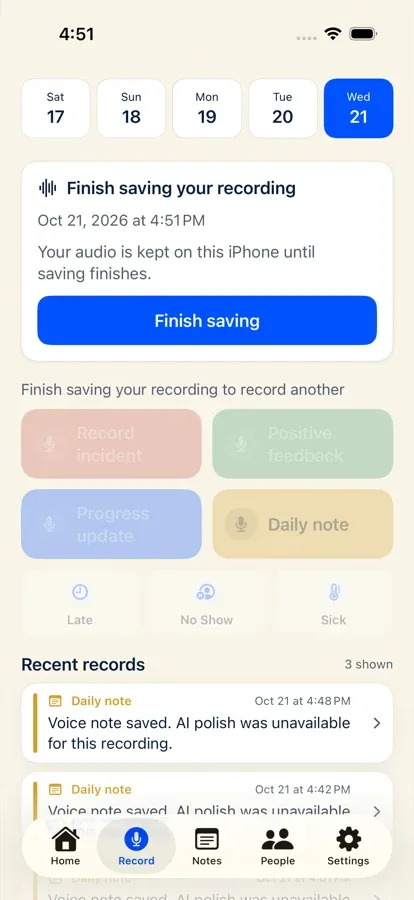
Section titled “Where is it?”- iPhone recovery card: Appears automatically at the top of the Record tab above the capture buttons whenever an unfinished or failed upload job belongs to your signed-in account.
- Web outbox sync: Runs automatically in the background on
/recordusing IndexedDB and Service Worker Background Sync. - Web audio playback: Inside any audio-backed incident card on the Management Dashboard or Employee Command Center (
/admin/employees/[id]).
How do I use it?
Section titled “How do I use it?”Finish or retry a pending recording on iPhone
Section titled “Finish or retry a pending recording on iPhone”- When you record while offline (or if an upload is interrupted), Docu-Coach™ saves the
.m4afile on your iPhone with iOScompleteUnlessOpenfile protection and shows a neutral recovery card above the capture buttons. - Once you are back online, tap Finish saving (if the recording still needs employee routing) or Retry saving on the recovery card.
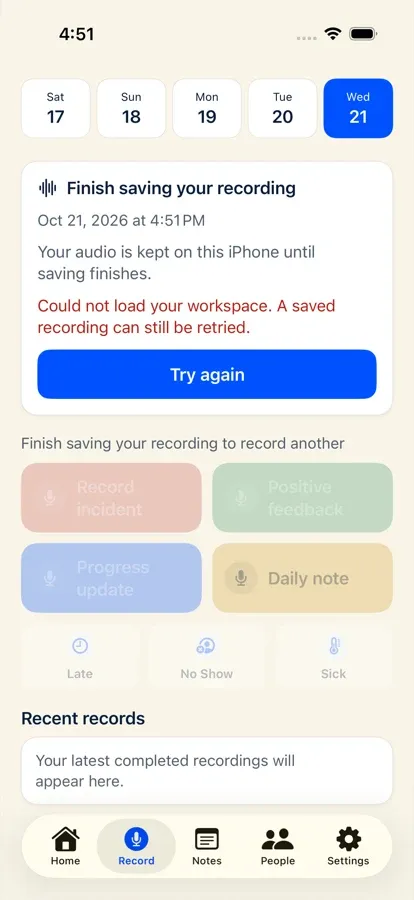
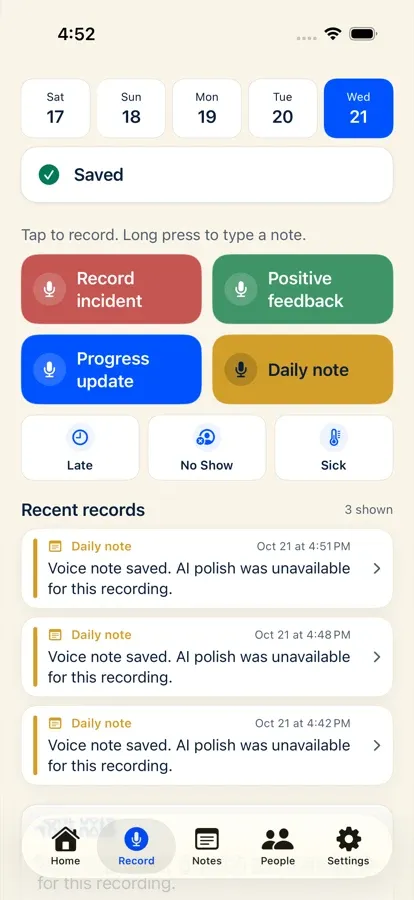
- Once the server confirms the record is stored, the recovery card clears, the finished note appears in Recent records, and the temporary local audio file on your iPhone is cleaned up.
Listen to or delete stored audio on the web
Section titled “Listen to or delete stored audio on the web”- Open the employee’s timeline in My People → [Select Employee] (or open the incident from Dashboard).
- In the Recording playback bar on the incident card, click Play (
▶) and use the slider to scrub through the recording. - If you want to remove the stored audio file while keeping the written transcript and note, click the delete audio icon and confirm.
What happens after I do it?
Section titled “What happens after I do it?”- Audio is kept even if transcription or polish fails: Once your audio file is stored in private cloud storage, the recording is saved—even if OpenAI transcription or polish times out. The card displays the fallback reason and lets you view the original transcript or edit the note prose manually.
- Backfill missing polish from Settings: If you saved recordings while Auto-polish was off or while AI polish was temporarily unavailable, you can go to Settings → AI → Polish recordings missing notes on the web to run Whisper + GPT polish on up to 5 unpolished recordings per click.
- Account-scoped recovery: Pending offline recordings on an iPhone are scoped to the manager and organization that recorded them. Another account signing in on the same device cannot see or upload your pending audio.
Permissions, plans, and platform limitations
Section titled “Permissions, plans, and platform limitations”- Signed URLs for audio: Stored recordings live in private Supabase Storage buckets and are opened with short-lived signed URLs (
3600seconds TTL) scoped to authorized organization members. - Deleting a recording vs. deleting only the audio:
- Deleting the audio file from the web player removes the
.m4a/.webmfile from storage while keeping the written transcript and note until you delete the record. - Long-pressing a card in the iPhone app (Notes or Record) and confirming Delete permanently deletes both the database row and its stored audio file.
- Deleting the audio file from the web player removes the
What can go wrong?
Section titled “What can go wrong?”- “Playback failed. Try again or reload.” Signed audio URLs expire after 1 hour. Reload the page to generate a fresh signed URL.
- Signing out with unsent recordings: Signing out on iPhone prompts you before deleting unsent local recordings. Always finish or retry pending uploads before signing out if you want to keep them.