

Common issues & recovery
What is this?
Section titled “What is this?”Use this guide to resolve the most common questions and error messages across the Docu-Coach™ iPhone app and web Management Dashboard.
1. “AI processing should be turned on in Settings before recording” (iPhone)
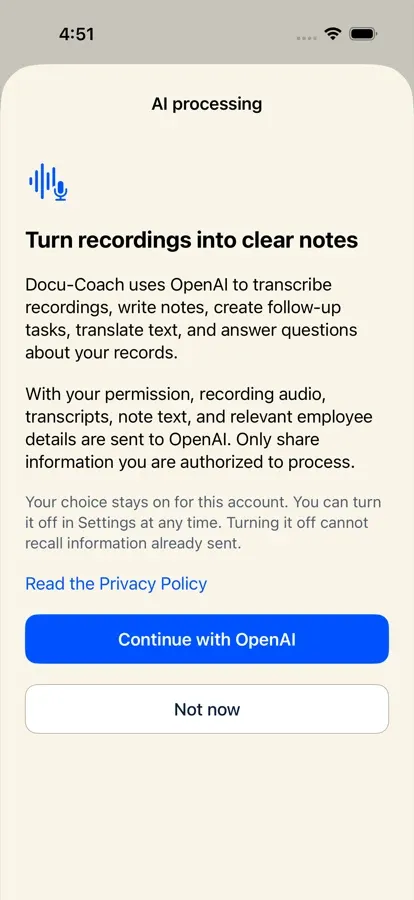
Section titled “1. “AI processing should be turned on in Settings before recording” (iPhone)”What happened: You tapped a capture button (or long-pressed to type a note) on iPhone while AI privacy was turned off for your account.
How to fix it:
- Tap Settings in the modal (or tap the Settings tab in the bottom navigation bar).
- Turn AI privacy on (Continue with OpenAI).
- Return to the Record tab and start your capture, or tap Retry saving on any pending local recording.
2. Microphone access is denied on iPhone or mobile browser
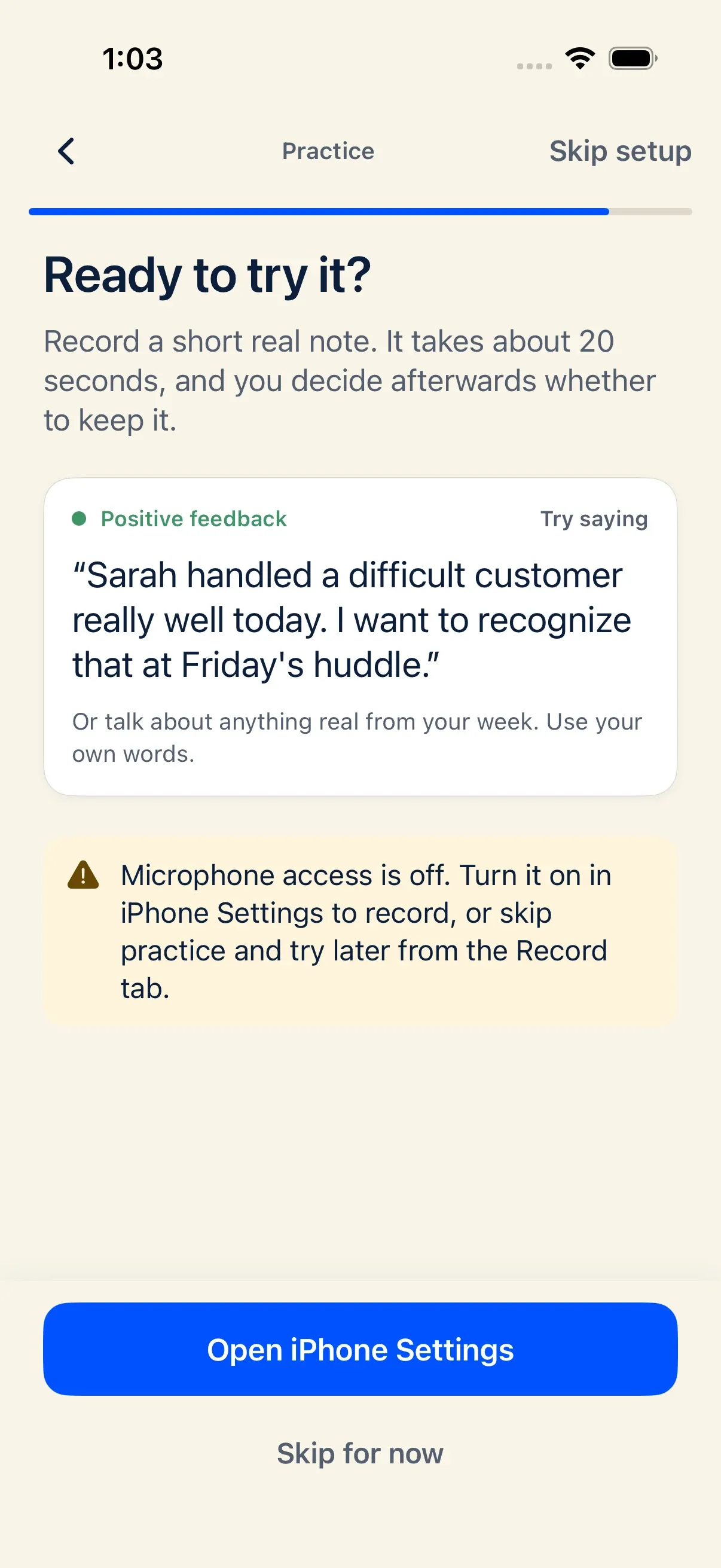
Section titled “2. Microphone access is denied on iPhone or mobile browser”What happened: iOS or your browser blocked microphone access when you tapped a voice capture button.
How to fix it:
- On iPhone: Tap Open Settings in the alert (or open iOS Settings → Apps → Docu-Coach) and toggle Microphone on. You can also long-press any capture button to type a note without using the microphone.
- On web browsers: Click the lock or site-settings icon in your browser’s address bar, allow Microphone, and reload the page.
3. Recording saved, but AI polish or transcription was unavailable
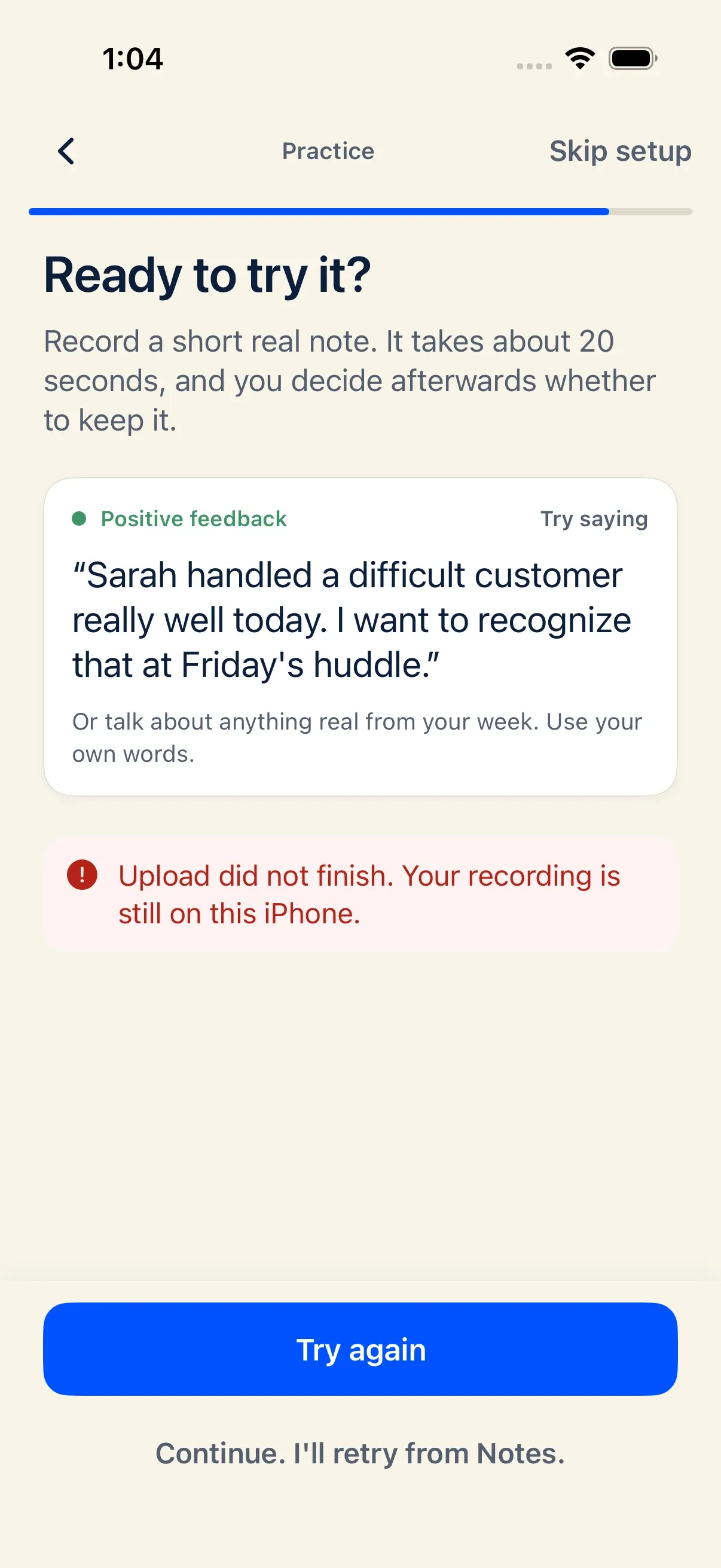
Section titled “3. Recording saved, but AI polish or transcription was unavailable”What happened: Your audio file was uploaded and stored safely, but OpenAI transcription or polish timed out or was temporarily unreachable.
How to fix it:
- Your recording is not lost. The audio file is stored with the record.
- On the web Management Dashboard, open Settings → AI (
/admin/settings?tab=ai) and click Polish recordings missing notes to backfill Whisper + GPT polish on up to 5 queued recordings per click. - Or open the record directly on the web or iPhone to edit the note text manually while keeping the original audio and transcript preserved.
4. Cannot add a new employee or assign a recording (“Plan limit reached”)
Section titled “4. Cannot add a new employee or assign a recording (“Plan limit reached”)”What happened: Your workspace has reached its active-person limit (2 on Free, 25 on Manager, 250 on Teams), or your 30-day Manager trial has ended.
How to fix it:
- In the moment on the floor: Tap Save as Unassigned (
Assign later) on the routing screen. Unassigned captures always save so you never lose a recording. - To free up roster slots: Open My People (
/admin/employees) on the web and click the Archive icon next to any departed employees. Archived employees keep their full historical timeline but do not count toward your active employee limit. - To increase your limit: Upgrade to Manager or Teams at
/billing.
5. A record or employee is missing from the web dashboard
Section titled “5. A record or employee is missing from the web dashboard”What happened: You saved a record or added an employee, but you do not see it in Dashboard, HR Center, or My People.
How to fix it:
- Check the Location filter: Look at the Location switcher in the top-right header bar and switch it to All locations.
- Check Unassigned records: If you tapped Assign later after recording, the note is saved as Unassigned rather than on a specific employee’s timeline until you assign the person.
- Check Archived employees: In My People, click View archived (
/admin/employees?archived=1) to see if the person was archived. - Check Record sharing & permissions: If another manager recorded the note, they may have kept it Private to you (
authorscope) in Record sharing (/admin/sharing), or your account may be set to Only their own coaching notes in Team & Permissions (/admin/team).
6. “Sign-in was rejected” on /login
Section titled “6. “Sign-in was rejected” on /login”What happened: The email/password combination did not match, or a brand-new registration has not confirmed its email address yet.
How to fix it:
- If you just created your account, check your inbox and click the email confirmation link first.
- Otherwise, enter your email on
https://www.docu-coach.com/loginand click Forgot password? to receive a password reset link.