

Create an account & onboarding
What is this?
Section titled “What is this?”New managers can create a Docu-Coach™ workspace either on the web or directly inside the native iPhone app, or join an existing organization workspace using an administrator’s invitation link or code.
When would I use it?
Section titled “When would I use it?”- You are setting up Docu-Coach™ for yourself or your organization for the first time.
- You want to start a 30-day Manager trial (no credit card required) or use the Free plan (1 manager, up to 2 active people).
- An administrator in your organization sent you an invite code or credentials to join their workspace.
Where is it?
Section titled “Where is it?”- Web: Visit
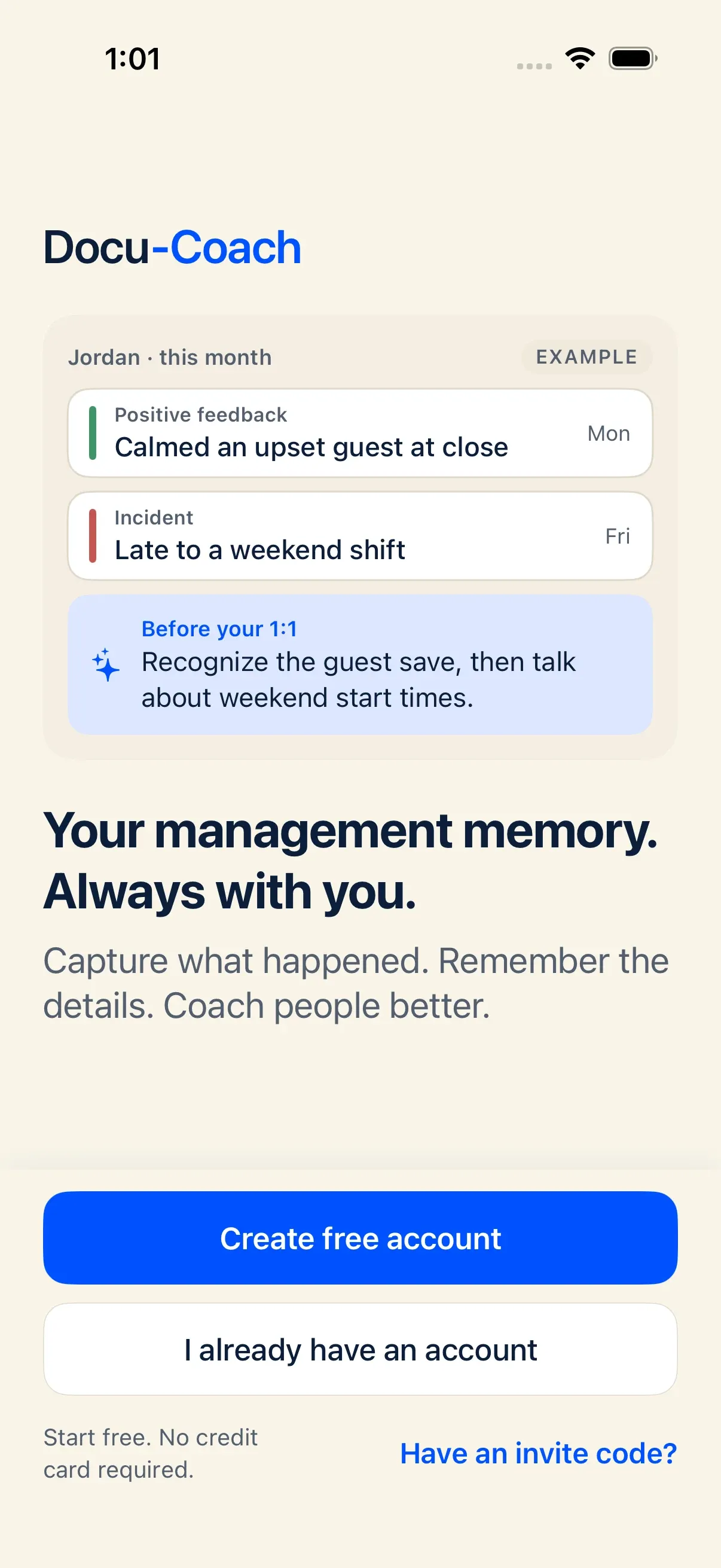
https://www.docu-coach.com/demo#trialto start a trial orhttps://www.docu-coach.com/loginto sign in. - iPhone app: Launch Docu-Coach™ on your iPhone to see the Welcome screen with Create free account, Sign in, and Have an invite code?.
How do I use it?
Section titled “How do I use it?”Create a new account on iPhone
Section titled “Create a new account on iPhone”- On the iPhone Welcome screen, tap Create free account.
- Enter your First name, Work email, and a Password, then tap Create account.
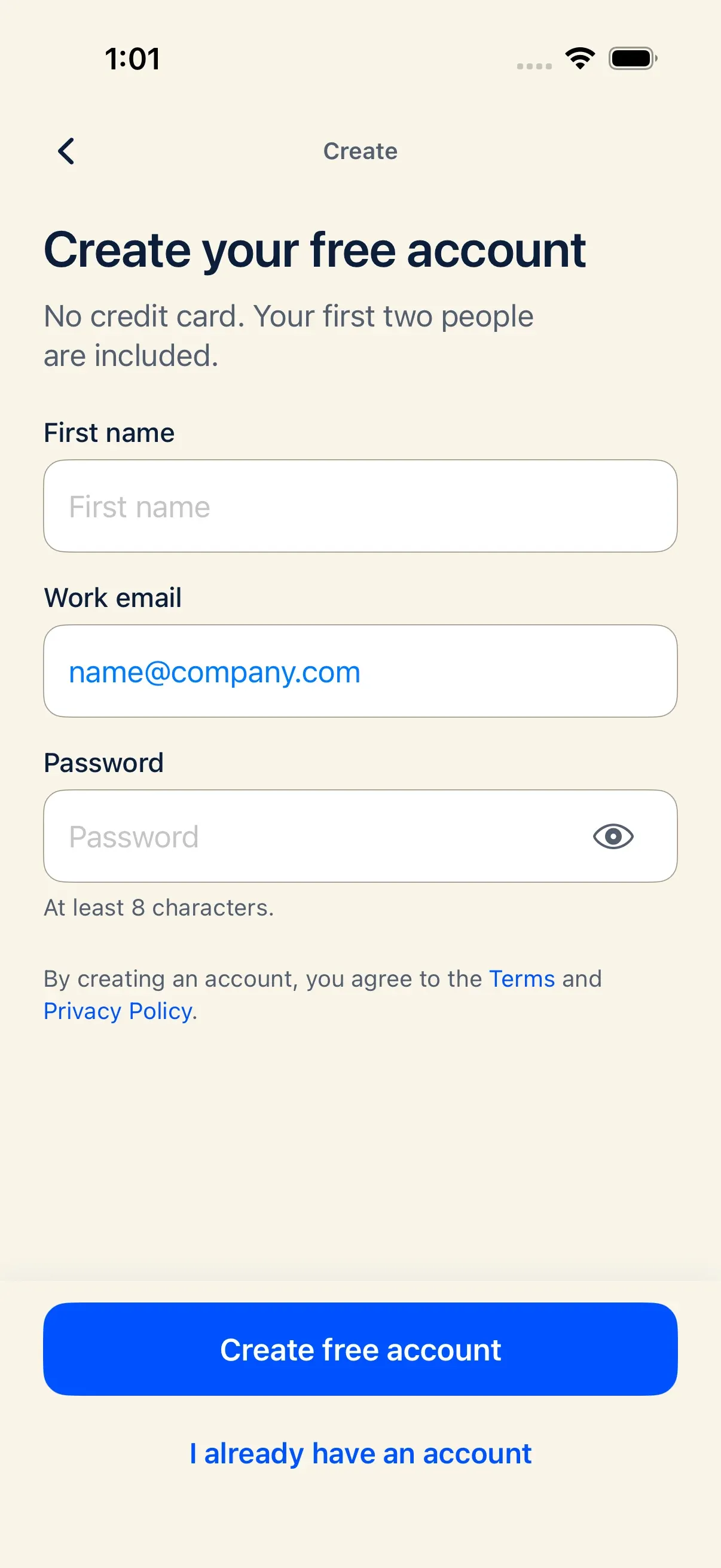
- Check your inbox and confirm your email address. If you close the app while waiting for the confirmation email, Docu-Coach™ remembers your pending email and resumes on the Confirm your email screen when you reopen the app.
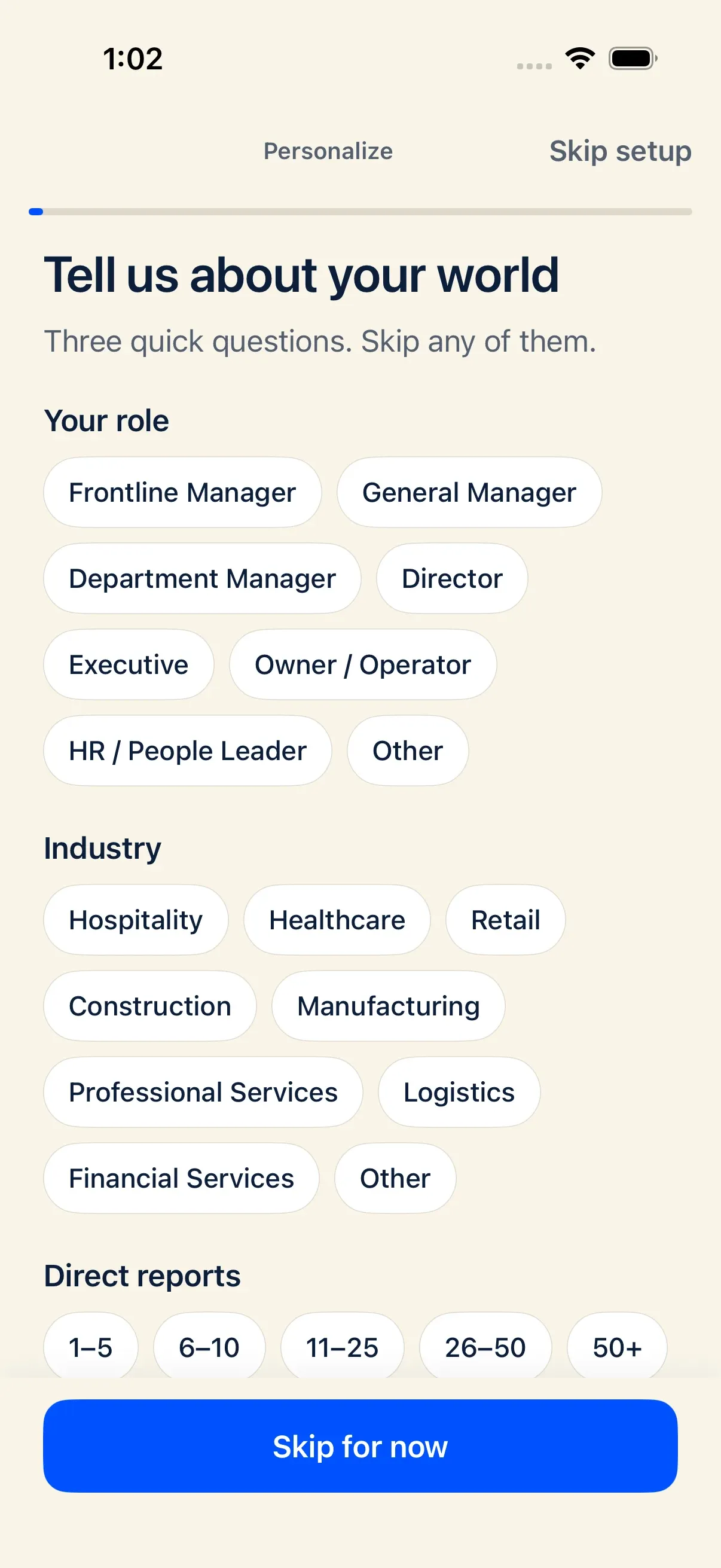
- Once confirmed and signed in, complete the brief guided onboarding steps:
- Your role & industry: Choose your role and industry (such as Restaurant / hospitality, Hotel, Retail, Construction, Healthcare, Property management, Call center, Grocery, or General operations).
- Healthcare notice (if Healthcare is selected): Docu-Coach™ displays a reminder that it is for employee management records only, is not HIPAA compliant, and does not detect or remove patient information (PHI).
- Capture actions preview: Review the four default capture actions (Record incident, Positive feedback, Progress update, and Daily note).
- Add your first person (optional): Add a teammate to your roster or skip until later.
- AI processing permission: Review how OpenAI processes audio and text and choose Continue with OpenAI or Explore without AI.
- Practice recording (optional): Try a real Positive feedback practice recording, then choose to keep or delete it.
Join an existing workspace with an invite code
Section titled “Join an existing workspace with an invite code”- If an administrator invited you from the iPhone app, tap Have an invite code? on the Welcome screen (or open the shared invite link).
- Sign in or create your account, enter the invite code, and confirm.
- If an administrator added you from Team & Permissions on the web, sign in at
https://www.docu-coach.com/loginusing the email and one-time password they gave you, then update your password.
What happens after I do it?
Section titled “What happens after I do it?”- Creating a new account provisions your workspace and primary location automatically.
- Onboarding progress is saved to your account (
manager_settings.onboarding_profile) as you complete each step. If you reinstall the app or sign in on a second iPhone, onboarding resumes at the exact step where you left off. - Once onboarding is complete (or skipped), the iPhone app opens directly to the Record tab on every launch.
- On the web Management Dashboard, a compact Getting Started checklist in the bottom-left sidebar tracks your first five milestones (capturing your first moment, adding an employee, preparing a 1:1, listening to audio playback, and reviewing by location).
Permissions, plans, and platform limitations
Section titled “Permissions, plans, and platform limitations”- No third-party social login on iPhone: The iPhone app uses email and password authentication. Google sign-in is available on desktop web browsers.
- 30-day Manager trial: Every new workspace can start a 30-day Manager trial (up to 25 active people) with no credit card required.
What can go wrong?
Section titled “What can go wrong?”- “Account already exists” during signup: Tap Sign in instead, or use Forgot password? on the sign-in screen to reset your password.
- Confirmation email not received: Check your spam or quarantine folder, verify the email address shown on the confirmation screen, or tap to resend the verification email.
- Invite code expired or invalid: Ask your workspace administrator to generate a fresh invite from Settings → Invite a manager on iPhone or Team & Permissions on the web.