

Customize your capture actions
What is this?
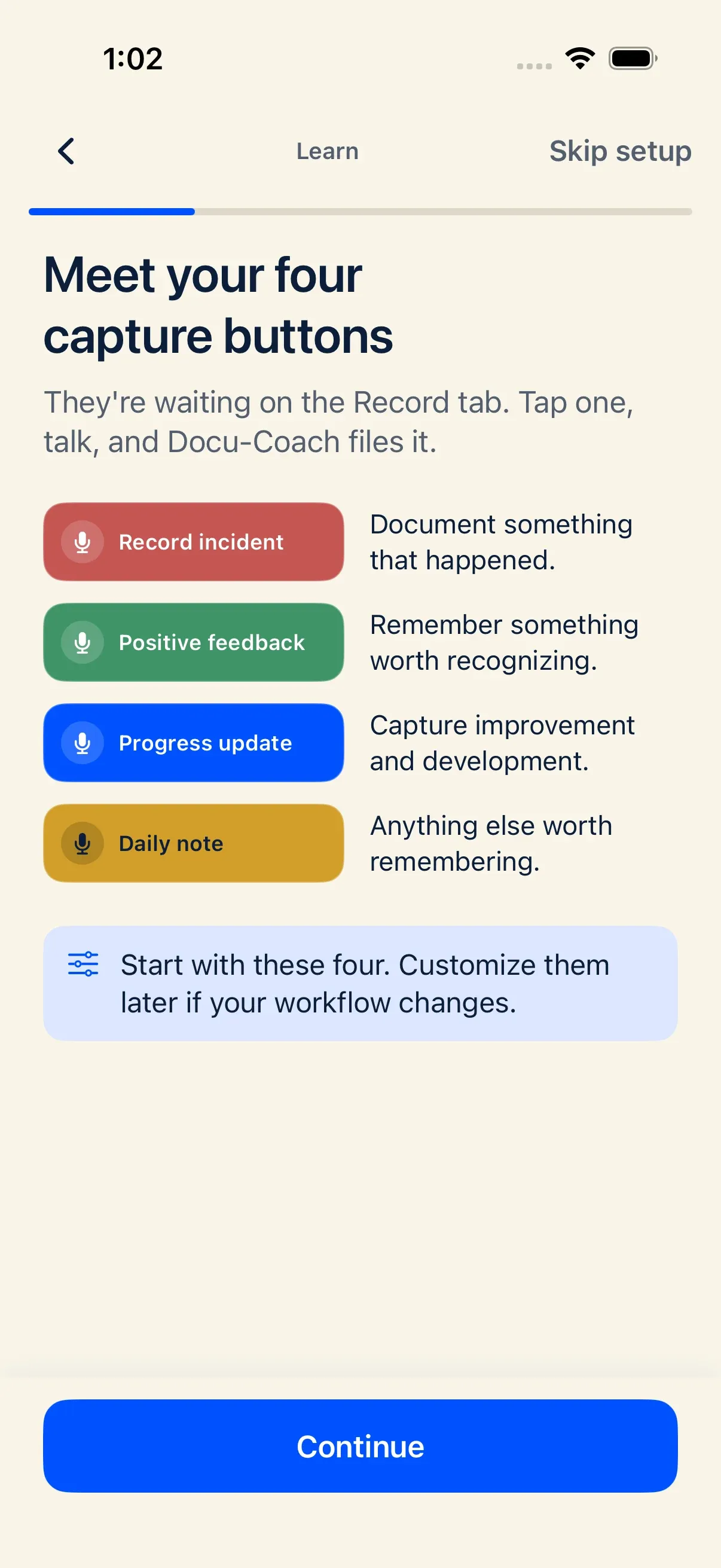
Section titled “What is this?”By default, every manager starts with Docu-Coach™’s four original capture actions:
- Record incident
- Positive feedback
- Progress update
- Daily note
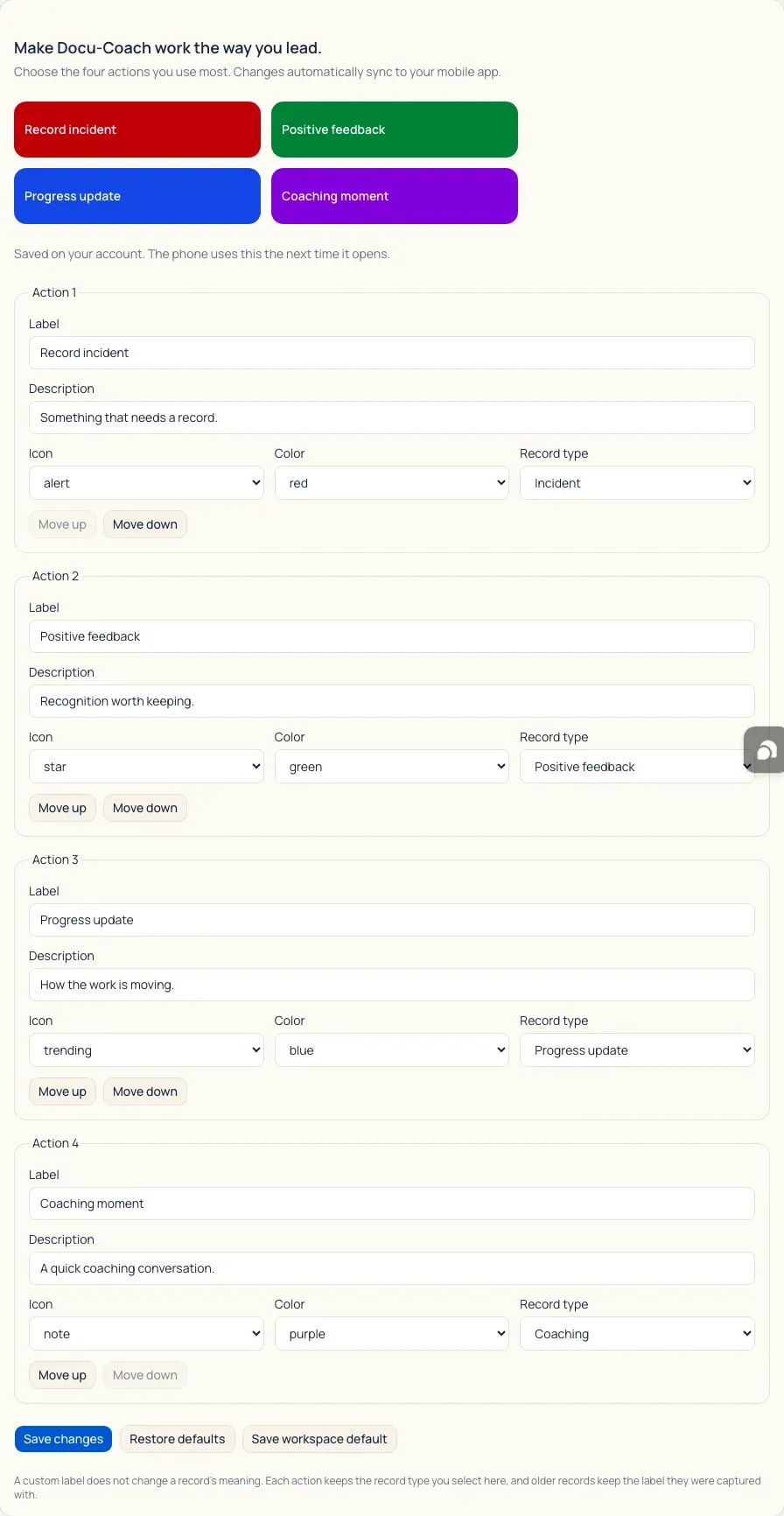
In Settings → Capture on the web, you can optionally customize the Label, Description, Icon, Color, Order, and mapped Record type for each of the four action slots on your phone. Workspace administrators can also save an optional workspace default.
When would I use it?
Section titled “When would I use it?”- Your team uses specific terminology (for example, “Safety observation”, “Guest shoutout”, “Coaching moment”, or “Shift handoff”) and you want your phone buttons to match that language.
- You want to reorder the 2×2 button grid so the action you use most often is in Slot 1 (top-left).
Note: Customizing capture actions is completely optional. You never need to configure anything before recording your first note.
Where is it?
Section titled “Where is it?”- Configure: Web Management Dashboard → Settings → Capture (
/admin/settings?tab=capture) - Use: The 2×2 capture grid on the Record tab of the iPhone app and mobile web recorder.
- iPhone Settings explains that these buttons are edited on the web. It does not include a link into the editor.
How do I use it?
Section titled “How do I use it?”- On the desktop web dashboard, go to Settings → Capture.
- Review the live 2×2 preview grid at the top of the page.
- In Action 1 through Action 4, edit any of the following fields:
- Label (up to 28 characters)
- Description (up to 80 characters)
- Icon (
Microphone,Alert,Star,Trend,Note,Shield,People, orFlag) - Color (
Red,Green,Blue,Yellow,Purple,Orange,Teal, orSlate) - Record type (maps the button to
Incident,Positive feedback,Progress update, orDaily note/Coaching) - Move up / Move down buttons to change the slot position (
1to4).
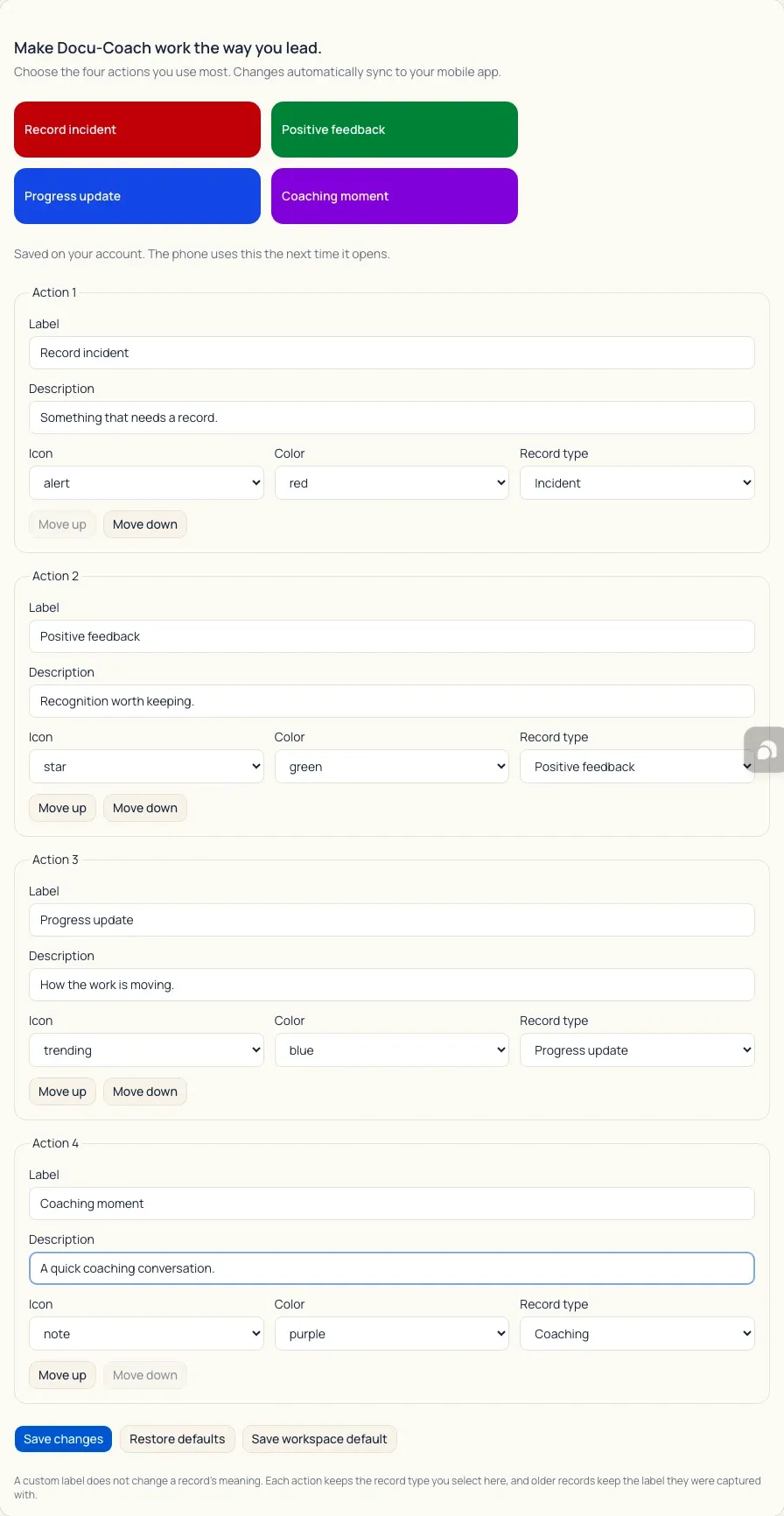
- Click Save changes to save the configuration to your personal account.
- Optional:
- Click Restore defaults at any time to return to the original four actions (Record incident, Positive feedback, Progress update, and Daily note).
- If you are a workspace administrator, click Save workspace default to save a workspace template.
What happens after I do it?
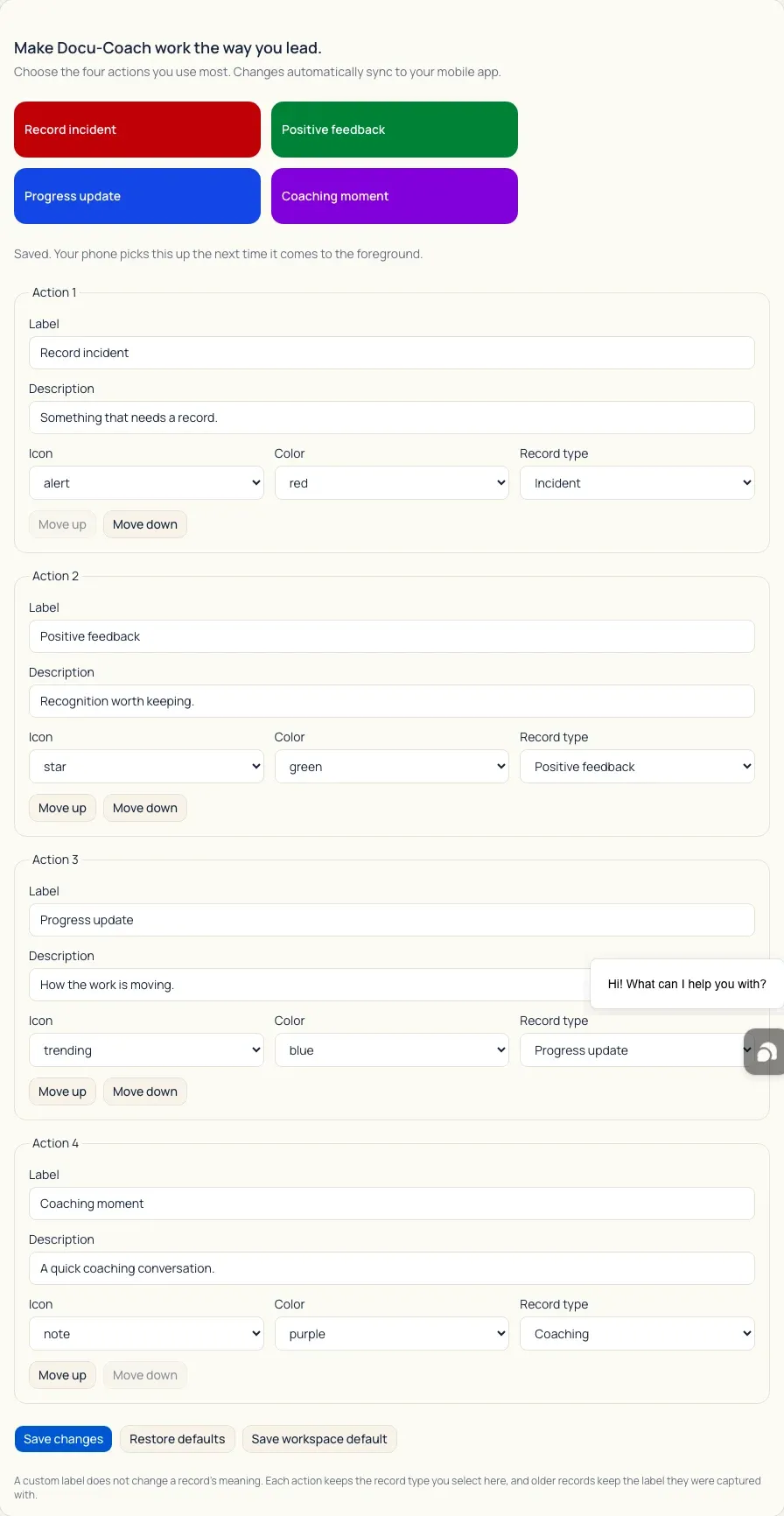
Section titled “What happens after I do it?”- Automatic mobile sync: Your iPhone app fetches your saved capture preferences the next time it opens or comes to the foreground and updates the four buttons on the Record tab.
- Offline resilience: If your phone opens offline or a preferences request fails, the app keeps your last validated configuration (or the original four actions)—it never wipes out your buttons.
- Canonical meaning stays intact: Changing a button’s display label does not change the underlying record type you selected, and older records keep the label they were captured with.
- First-run protection: New managers who have not saved personal capture preferences always see the original four actions (Record incident, Positive feedback, Progress update, and Daily note) on their first run, even if a workspace default exists.
Permissions, plans, and platform limitations
Section titled “Permissions, plans, and platform limitations”- Personal vs. workspace defaults: Any manager can customize their own four actions and click Save changes or Restore defaults. Only workspace admins (and corporate trainers) see Save workspace default.
- Language localization: When you keep the four default system labels, switching the interface to Español automatically translates those four labels into Spanish. Custom user-typed labels are displayed exactly as you typed them.
What can go wrong?
Section titled “What can go wrong?”- Phone still shows the old button labels: Bring the Docu-Coach™ iPhone app to the foreground while connected to the internet (or pull to refresh on the Record screen) so it fetches the updated
userVersion.