

Locations & recording prefixes
What is this?
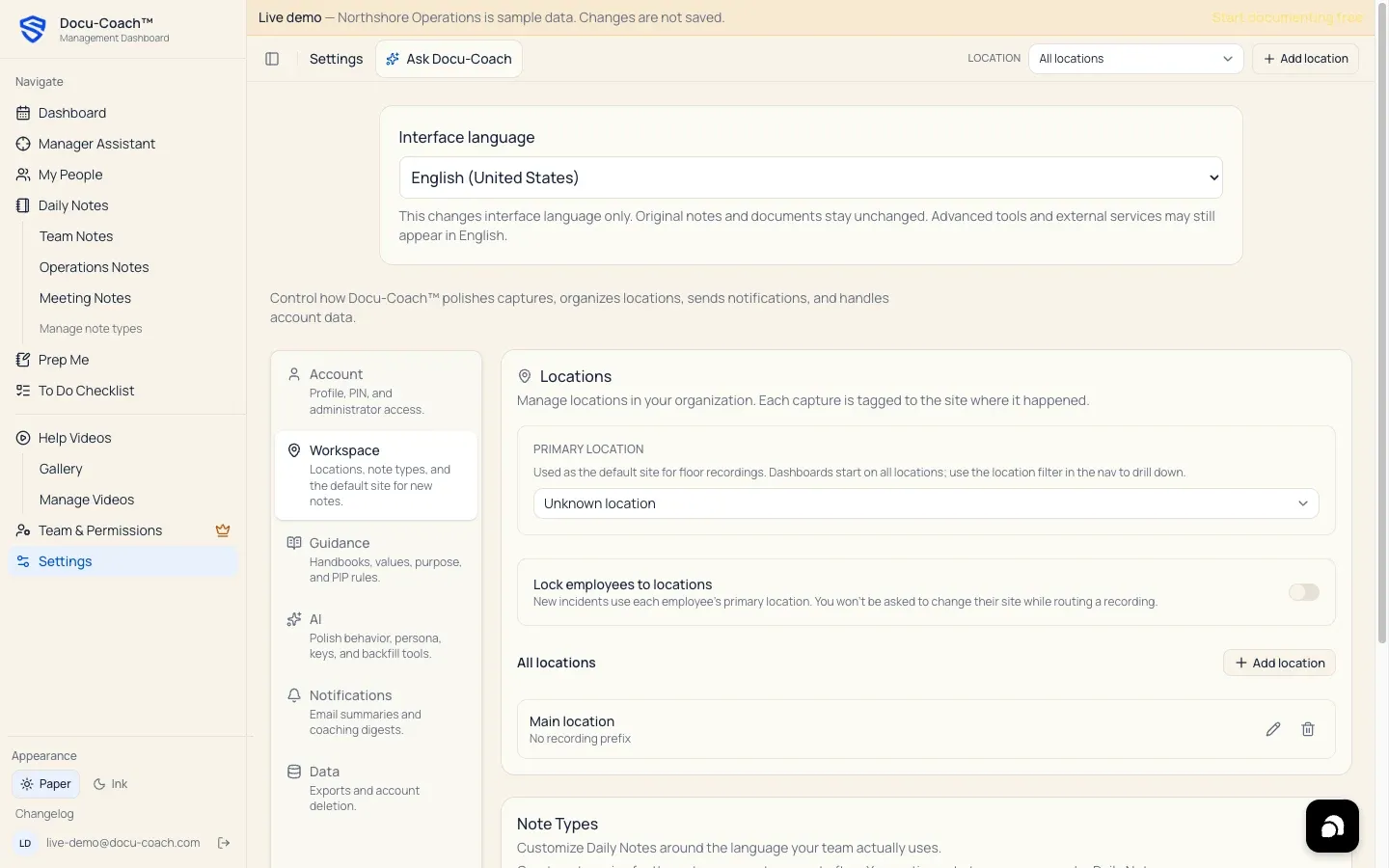
Section titled “What is this?”Docu-Coach™ organizes people and recordings by Location so single-site and multi-location organizations can filter dashboards, rosters, and coaching history by site. Each location can also have a custom Recording prefix (up to 5 uppercase letters, such as GTC-100001 or NSH-100001) for sequential reference codes on incidents.
When would I use it?
Section titled “When would I use it?”- Adding a second store, property, clinic unit, job site, or department location to your organization.
- Setting your Primary location so floor recordings default to your home site.
- Turning on Lock employees to locations so new incidents automatically use each employee’s primary location without prompting you to pick a site during routing.
- Filtering the Management Dashboard, HR Center, or My People to one location.
Where is it?
Section titled “Where is it?”- Top Header Switcher: The Location dropdown and + Add location button in the top-right header bar of
/admin/dashboard,/admin/command-center,/admin/employees, and other admin views. - Settings: Settings → Workspace → Locations (
/admin/settings?tab=workspace).
How do I use it?
Section titled “How do I use it?”Add or edit a location
Section titled “Add or edit a location”- Click + Add location in the top header bar, or go to Settings → Workspace → Locations and click + Add location.
- Enter the location details:
- Name (required, e.g.,
Inn at NorthshoreorDowntown Flagship) - Recording prefix (optional, 1–5 uppercase letters
A–Z, e.g.,NSH) - Location ID (optional, up to 5 digits, e.g.,
1042) - Address (optional street/city address)
- Name (required, e.g.,
- Click Save. To update an existing location, click the pencil icon next to it under All locations.
Set your Primary location and Location Lock
Section titled “Set your Primary location and Location Lock”- In Settings → Workspace → Locations:
- Primary location: Select your default home site from the dropdown. Floor recordings use this site by default, while web dashboards still open on All locations so you can see the big picture first.
- Lock employees to locations: Toggle this switch On if you want every new incident for an employee to automatically use that employee’s Primary location without asking you to choose a location during routing.
What happens after I do it?
Section titled “What happens after I do it?”- Reference codes (
ABC-100001): When an incident is saved at a location with a Recording prefix (e.g.,NSH), Docu-Coach™ allocates the next sequential reference code (NSH-100001,NSH-100002, etc.) using a serialized transaction lock so even locations that share a prefix never collide. Locations without a custom prefix receive aREC-######reference code. - Roster badges: In My People, each employee displays compact location badges showing their Primary site and any secondary sites they are rostered on.
Permissions, plans, and platform limitations
Section titled “Permissions, plans, and platform limitations”- Available on all plans: Multiple locations and location filtering are supported across plans (subject to your plan’s active employee limit).
- Corporate trainer role: Members with the Corporate trainer role have organization-wide visibility and are not mapped to a single home site; they use the top-bar Location switcher to focus a dashboard or pick a site when routing a recording.
- Deleting a location: Clicking the trash icon next to a location deletes it only if no incidents still reference that location.
What can go wrong?
Section titled “What can go wrong?”- Cannot delete a location: If historical incidents are tagged to a location, Docu-Coach™ prevents deleting that location so historical records never lose their site provenance. Rename the location instead if the site changed names.