

People directory & rostering
What is this?
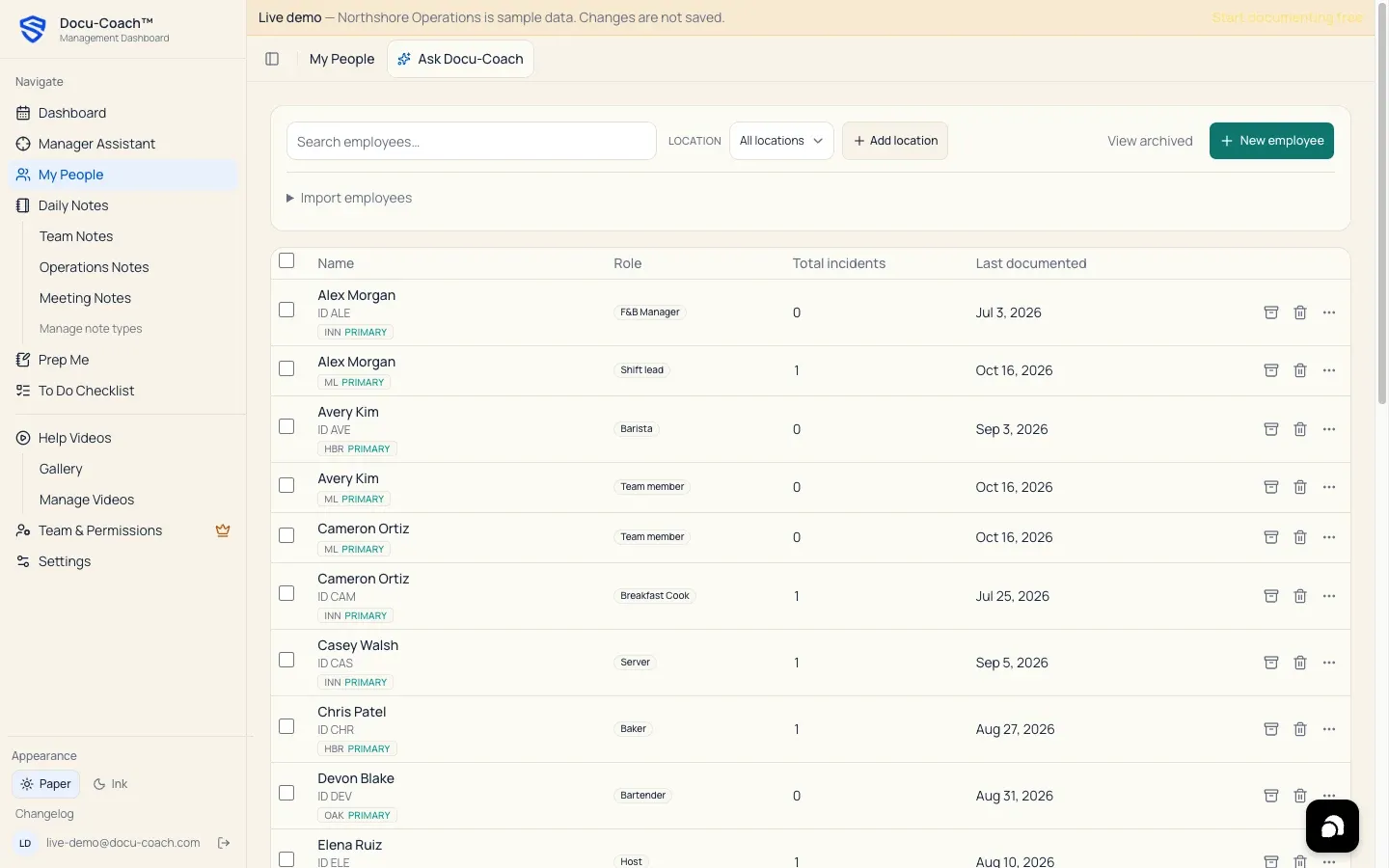
Section titled “What is this?”My People (on the web) and the People tab (on iPhone) hold your organization’s employee directory. Each person on your roster has a name, role(s), employment status, primary and optional secondary locations, relationship context, and a complete dated timeline of coaching records.
When would I use it?
Section titled “When would I use it?”- Adding a new hire on the floor from your iPhone or desktop so you can route recordings to them immediately.
- Importing an initial roster from a spreadsheet or file on the web.
- Filtering your directory by relationship (Direct reports, Indirect reports, Colleagues, Other relationships) or by Location.
- Archiving a former employee so their historical records stay intact while freeing up an active employee slot on your plan.
Where is it?
Section titled “Where is it?”- Web Management Dashboard: Click My People in the left sidebar (
/admin/employees). - iPhone app: Tap the People tab in the bottom navigation bar.
How do I use it?
Section titled “How do I use it?”Add a person on the web
Section titled “Add a person on the web”- Go to My People (
/admin/employees) and click + New employee. - Enter the employee’s Full name, optional Employee ID / code, Role, Start date, Employment status, Relationship context, and Primary location (plus any additional locations they work at).
- Click Save.
Import employees in bulk on the web
Section titled “Import employees in bulk on the web”- In My People, click Import employees below the search and filter bar to expand the dropzone.
- Drop your roster file or click to browse, review the parsed rows, and confirm the import.
Add a person from the iPhone app
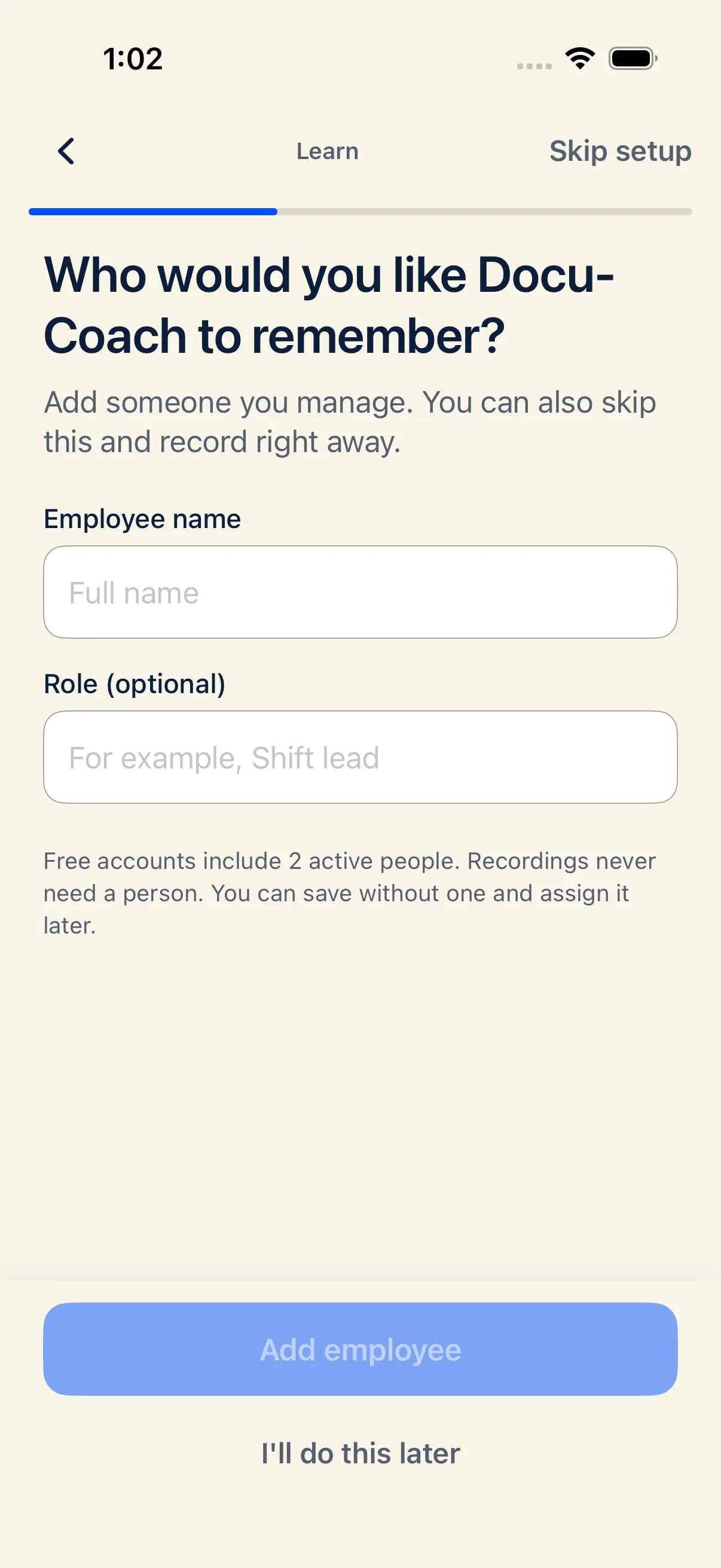
Section titled “Add a person from the iPhone app”- Open the People tab in the iPhone app (or during onboarding / post-record routing).
- Tap Add person (
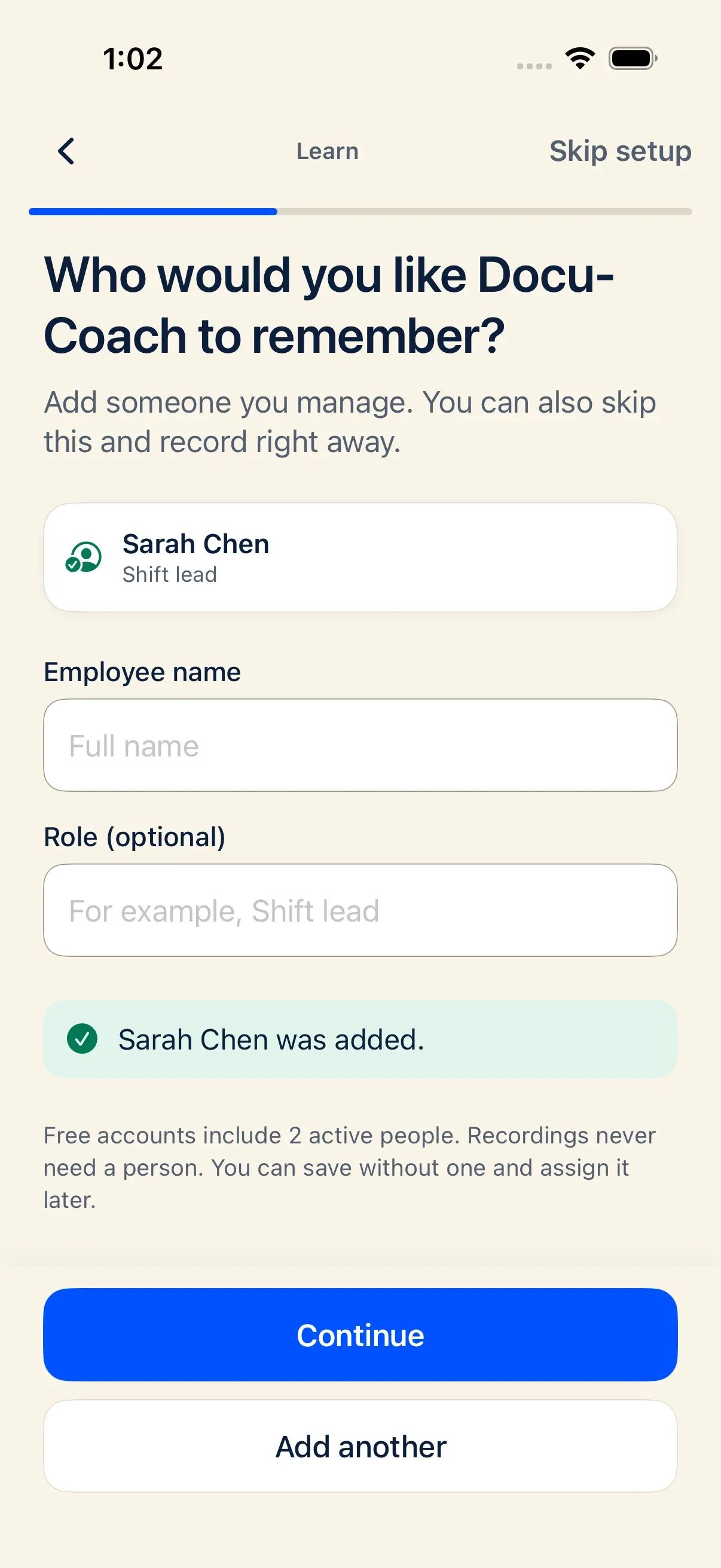
+), enter the person’s Name, optional Role, and Location, and tap Save.
- The server validates your active-person plan limit and adds the employee to your active roster immediately.
Archive, restore, or remove an employee
Section titled “Archive, restore, or remove an employee”- Archive (recommended when someone leaves): Click the Archive box icon on the employee’s row in My People. Archiving moves the person to View archived (
/admin/employees?archived=1), preserves every historical incident and coaching note, and frees up an active person slot under your plan limit. - Restore: Open View archived and click the Restore icon on the employee’s row (subject to available active-person capacity on your plan).
- Remove from directory: Click the trash icon (or select multiple checkboxes and click Delete selected). Removing an employee deletes the directory row while keeping existing incidents linked in your historical records.
What happens after I do it?
Section titled “What happens after I do it?”- Immediate routing: As soon as a person is added, they appear in the post-recording Choose a person sheet on iPhone and web, in Prep Me, and in Ask Docu-Coach.
- Location tagging: Each employee has a Primary badge on their home location. If Lock employees to locations is enabled in Settings → Workspace → Locations, new incidents for that employee automatically use their primary location.
Permissions, plans, and platform limitations
Section titled “Permissions, plans, and platform limitations”- Active employee limits by plan:
- Free: Up to 2 active people
- Manager (and 30-day trial): Up to 25 active people
- Teams: Up to 250 active people
- Archived employees do not count toward your active employee limit.
- Observer role: Members with the Observer role can read the roster and write coaching notes, while Admin and Corporate trainer members can manage roster settings.
What can go wrong?
Section titled “What can go wrong?”- Plan limit reached when adding or restoring a person: Archive any departed employees in My People to free up active slots, or upgrade your plan. If you are on the floor on iPhone and hit your active-person limit, you can still record and save the note as Unassigned so nothing is lost.