

Record sharing & visibility
What is this?
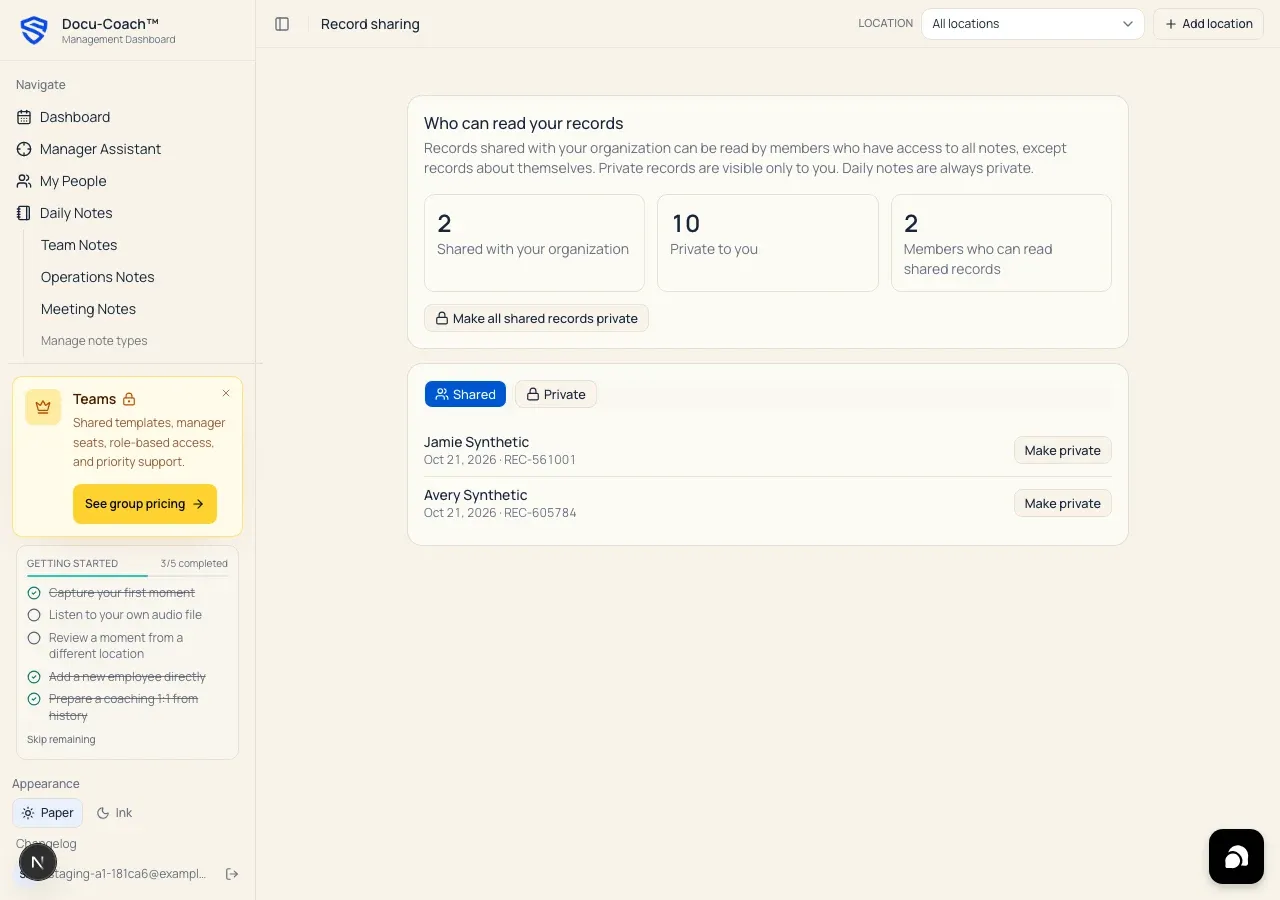
Section titled “What is this?”Record sharing gives every manager explicit visibility and control over who in their organization can read the employee records (Incidents, Positive feedback, and Progress updates) they author:
- Private to you (
author): Visible only to you (the author of the record). - Shared with your organization (
organization): Visible to members of your organization who have access to all notes (Sees all notesin Team & Permissions), except records written about themselves.
Note: Daily Notes are always private to the manager who recorded them and never appear in organization sharing.
When would I use it?
Section titled “When would I use it?”- Reviewing exactly how many of your records are Shared with your organization versus Private to you, and how many other members in your workspace can currently read shared records.
- Sharing a private record with your organization so HR or peer managers can see it on the employee’s timeline.
- Making a specific shared record—or all of your shared records—Private to you.
Where is it?
Section titled “Where is it?”- Web Management Dashboard: Click Record sharing in the left sidebar (
/admin/sharing). - iPhone app: Open Settings → Record sharing.
- Android companion (
testing): Settings explains record sharing and opens/admin/sharingon the web.
How do I use it?
Section titled “How do I use it?”Review and change sharing on the web
Section titled “Review and change sharing on the web”- Open Record sharing (
/admin/sharing) from the left sidebar. - At the top of the page, review the three summary counters under Who can read your records:
- Shared with your organization
- Private to you
- Members who can read shared records (If this number is
0, Docu-Coach™ notes: “Nobody else can read your shared records right now. That changes if a member is given access to all notes.”)
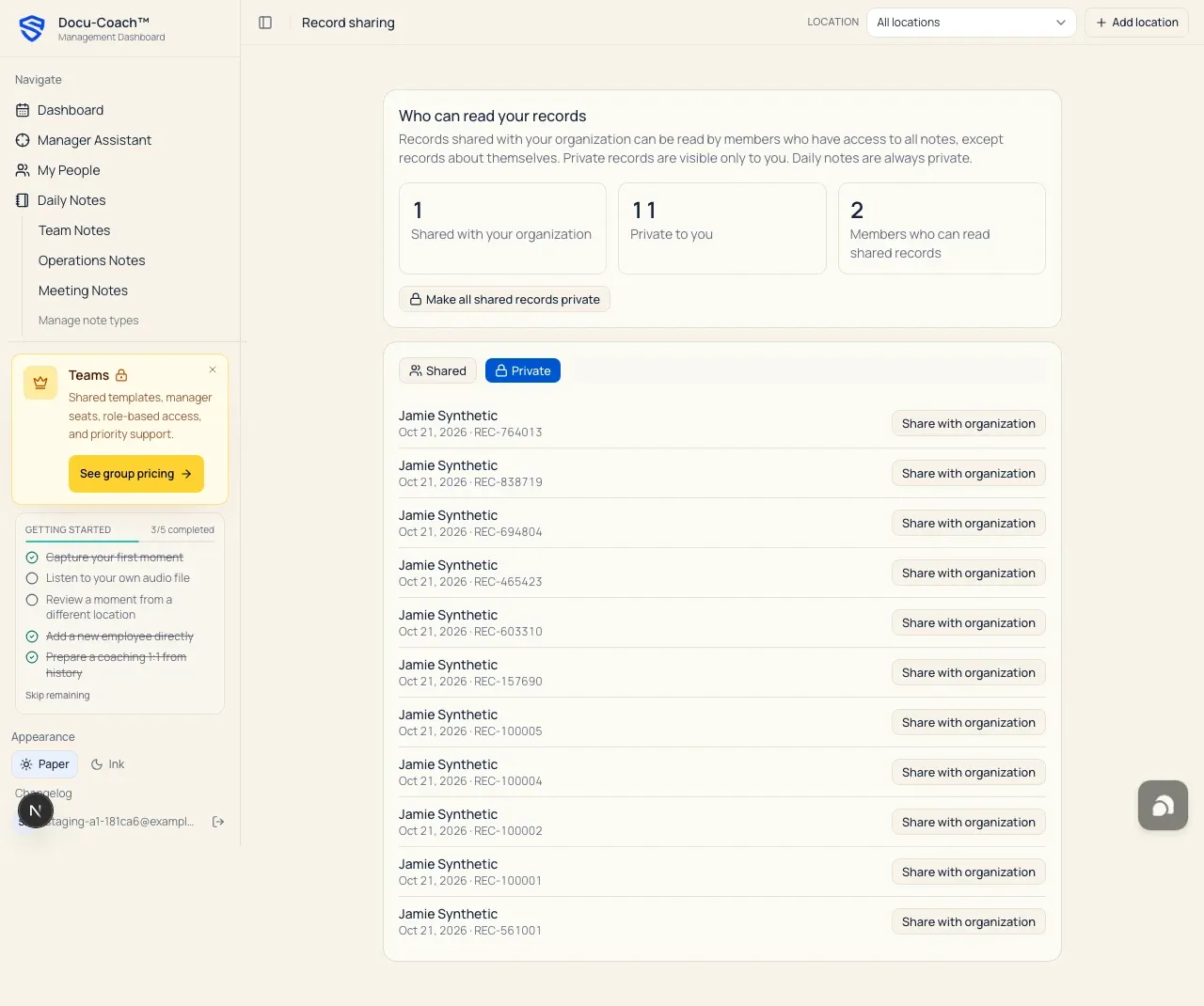
- Switch between the Shared and Private tabs in the lower card:
- On the Shared tab, click Make private next to any record to restrict it to yourself.
- On the Private tab, click Share with organization next to any record to make it visible to authorized organization readers.
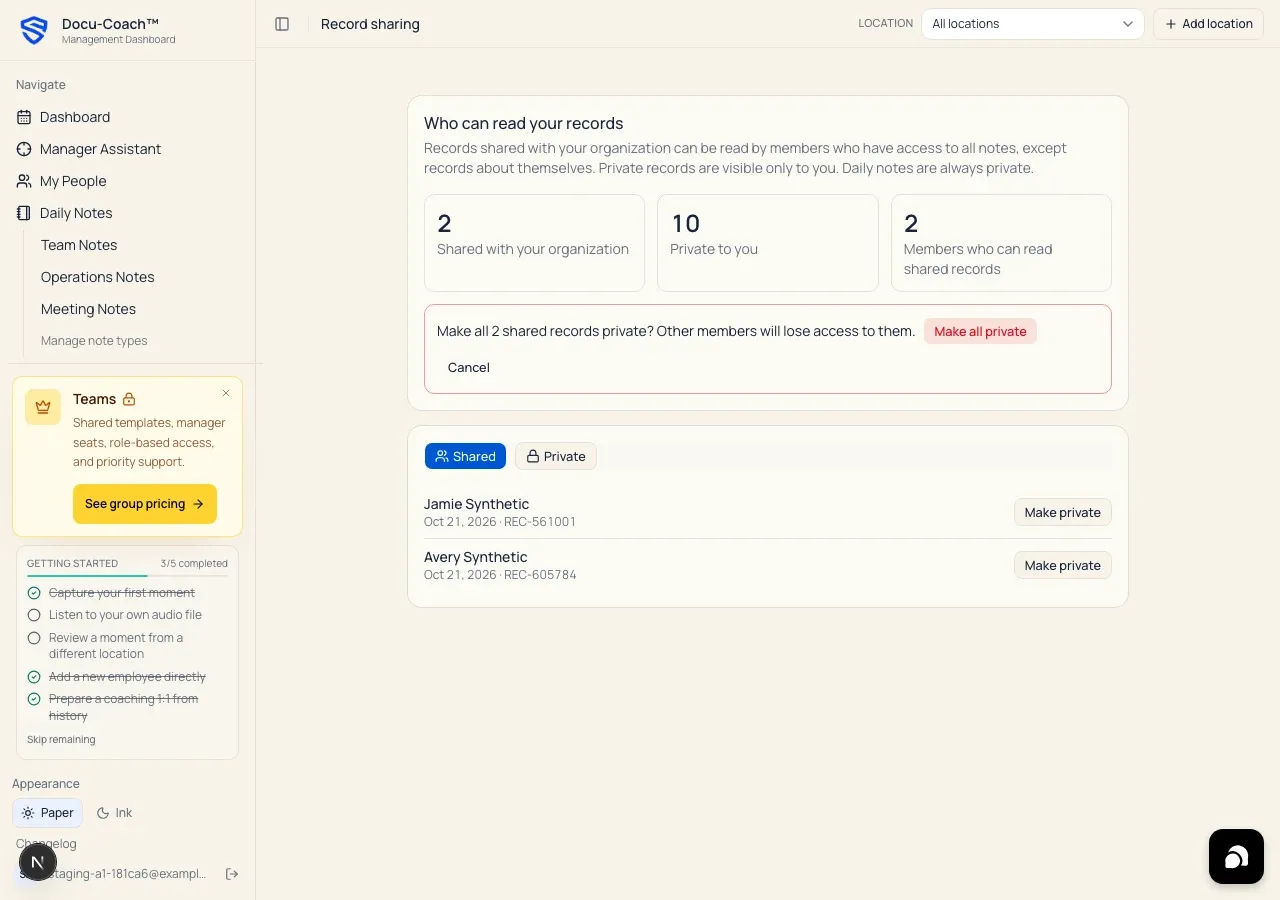
- Make all shared records private at once: Click Make all shared records private in the summary card, review the confirmation prompt (“Make all N shared records private? Other members will lose access to them.”), and click Make all private.
Manage Record sharing on iPhone
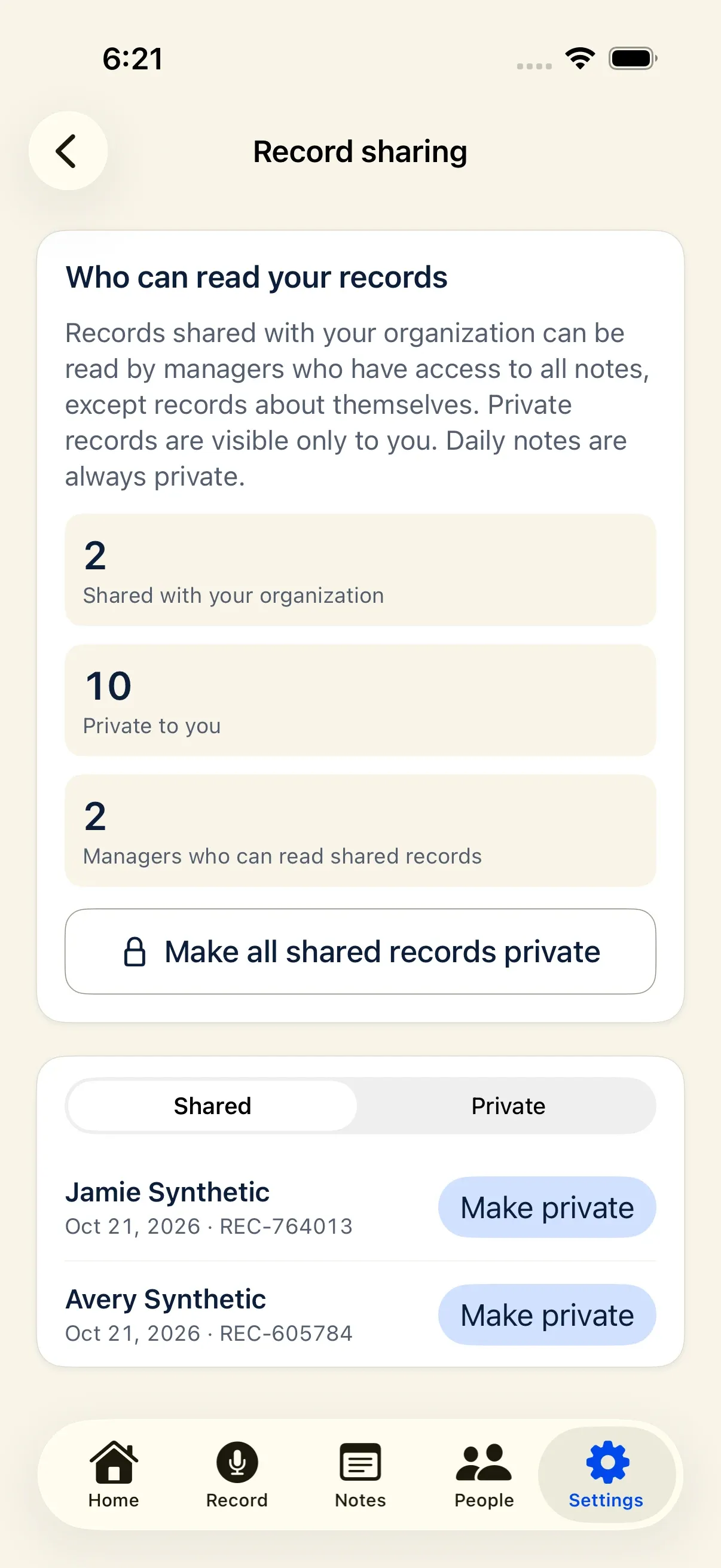
Section titled “Manage Record sharing on iPhone”- Open Settings → Record sharing in the Docu-Coach™ iPhone app.
- View the same Shared and Private counts and reader count.
- Tap Make private or Share again on individual records, or use Make all shared records private with confirmation.
What happens after I do it?
Section titled “What happens after I do it?”- Immediate enforcement everywhere: Changing a record’s sharing scope immediately updates who can see that record across the Management Dashboard, Employee Command Center, Prep Me, HR Ready, Ask Docu-Coach, and the Evening Daily Coaching Digest.
- Assigning a person never changes sharing scope: Linking or changing an employee on a record updates only the person link—it never flips a private record to shared or vice versa.
Permissions, plans, and platform limitations
Section titled “Permissions, plans, and platform limitations”- Only the author can change a record’s sharing scope: You manage sharing for the records you authored (
manager_id = your user ID). - Employee self-visibility block: Even when a record is Shared with your organization, a team member whose account is linked to that employee record in Team & Permissions can never read coaching records about themselves.
What can go wrong?
Section titled “What can go wrong?”- A peer manager cannot see a record you logged: Open Record sharing (
/admin/sharing), check the Private tab, and click Share with organization on that record (and verify the peer manager does not have Only their own coaching notes enabled in Team & Permissions).