

Find your way around
What is this?
Section titled “What is this?”Docu-Coach™ separates fast floor capture from deep desktop review:
- iPhone = capture + action: A five-tab native SwiftUI app that launches directly on Record so you can capture a note in one tap.
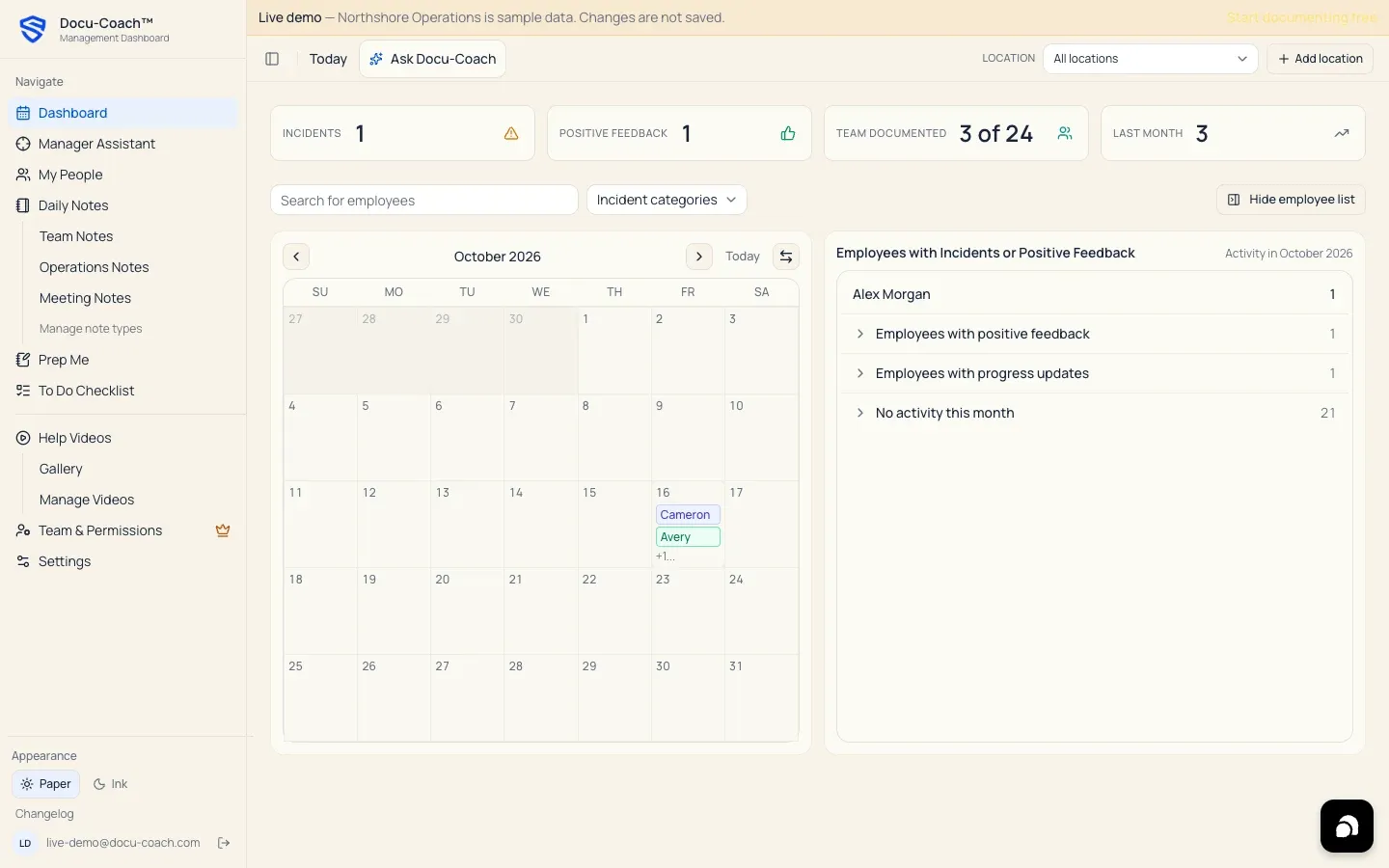
- Web = management: A full-width Management Dashboard for reviewing timelines, running Prep Me and HR Ready, building PIPs, managing People, and configuring Locations, Note Types, and Team & Permissions.
When would I use it?
Section titled “When would I use it?”Use the iPhone app (or mobile web recorder) when you are on the floor, between meetings, or walking the site. Use the Management Dashboard on a desktop or tablet (768px width or wider) when you are reviewing employee histories, preparing for a 1:1, or exporting records for HR.
Where is it?
Section titled “Where is it?”Web Management Dashboard (/admin/*)
Section titled “Web Management Dashboard (/admin/*)”The left sidebar is organized into two groups plus a footer:
Navigate
- Dashboard (
/admin/dashboard) — Monthly incident/feedback KPIs, interactive calendar board, and monthly employee activity breakdown. - Manager Assistant (
/admin/command-center) — The HR Center view showing conversations owed, critical 7-day incidents, documentation coverage, open 1:1s, PIP cases, and the Do today action queue. - My People (
/admin/employees) — Searchable roster with relationship filters, location badges, active/archived views, CSV/file import, and one-click access to each person’s Employee Command Center. - Daily Notes (
/admin/daily-notes) — Private manager notes organized by your active Note Types (such as Team Notes, Operations Notes, Meeting Notes, or custom categories) plus a shortcut to Manage note types. - Prep Me (
/admin/prep-me) — Instant briefings compiled from saved records for a 1:1, coaching follow-up, recognition check-in, team huddle, or leadership meeting. - To Do Checklist (
/admin/todo) — Your private task list combining AI-extracted follow-ups from Daily Notes/recordings and manual tasks.
Workspace & Administration
- Help Videos (
/admin/help-videos) — Walkthrough video gallery. - Team & Permissions (
/admin/team) — Manage Admin, Corporate trainer, and Observer seats, note visibility, and employee-record privacy links (Teams plan). - Record sharing (
/admin/sharing) — Review which of your records are Shared with your organization versus Private to you, and change sharing scope at any time. - Settings (
/admin/settings) — Configure Account, Capture, Workspace (Locations & Note Types), Guidance, AI, Notifications, and Data.
Top Header Bar & Footer
- Ask Docu-Coach button — Opens the Ask Docu-Coach intelligence panel scoped to your workspace, an employee, or a single recording.
- Location switcher — Filter the dashboard and tables to All locations or a single site, or click + Add location.
- Appearance toggle — Switch between Paper (warm light theme) and Ink (navy dark theme) in the sidebar footer.
- Changelog — View recent customer-facing improvements.
iPhone App Navigation
Section titled “iPhone App Navigation”The native iPhone app has five bottom tabs and always launches on Record:
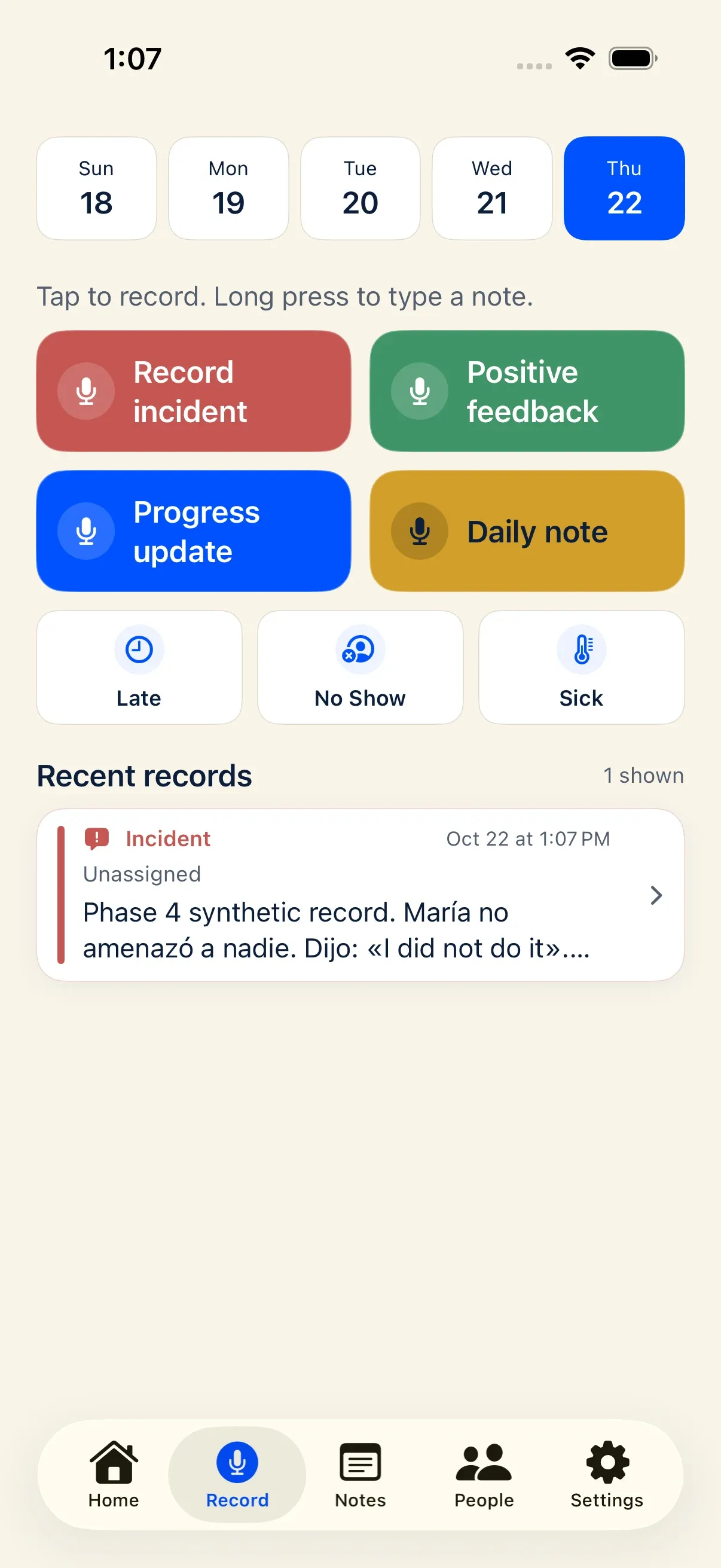
- Home — Company-wide stats, four-week note activity, team documentation coverage, and Ask Docu-Coach entry.
- Record — Fixed 5-day date strip, the four large capture buttons, Late / No Show / Sick attendance buttons, and your most recent records.
- Notes — Segmented view switching between your merged Notes history (Incidents, Positive Feedback, Progress Updates, and Daily Notes) and your To-Dos checklist.
- People — Searchable roster with Add person (
+) and each person’s dated timeline and attendance summary card. - Settings — Account status, AI privacy permission, Enable Spanish mode, attendance quick-action visibility toggle, Record sharing, manager invitations, privacy policy, and support.
Permissions, plans, and platform limitations
Section titled “Permissions, plans, and platform limitations”- Phone browser on
/admin/*: If you open/admin/dashboardon a narrow phone screen (< 768px), Docu-Coach™ prompts you to open the view on a tablet/desktop for the full sidebar or tap Record on the floor (/record) / Record Voice Note (/daily-notes/record).