

Word, PDF & CSV exports
What is this?
Section titled “What is this?”Because Docu-Coach™ works alongside your HRIS rather than replacing it, you can export your saved records in clean, portable formats whenever you need to attach documentation to an HRIS profile (such as Workday, Rippling, BambooHR, or ADP), share a file with HR or counsel, or keep an offline backup:
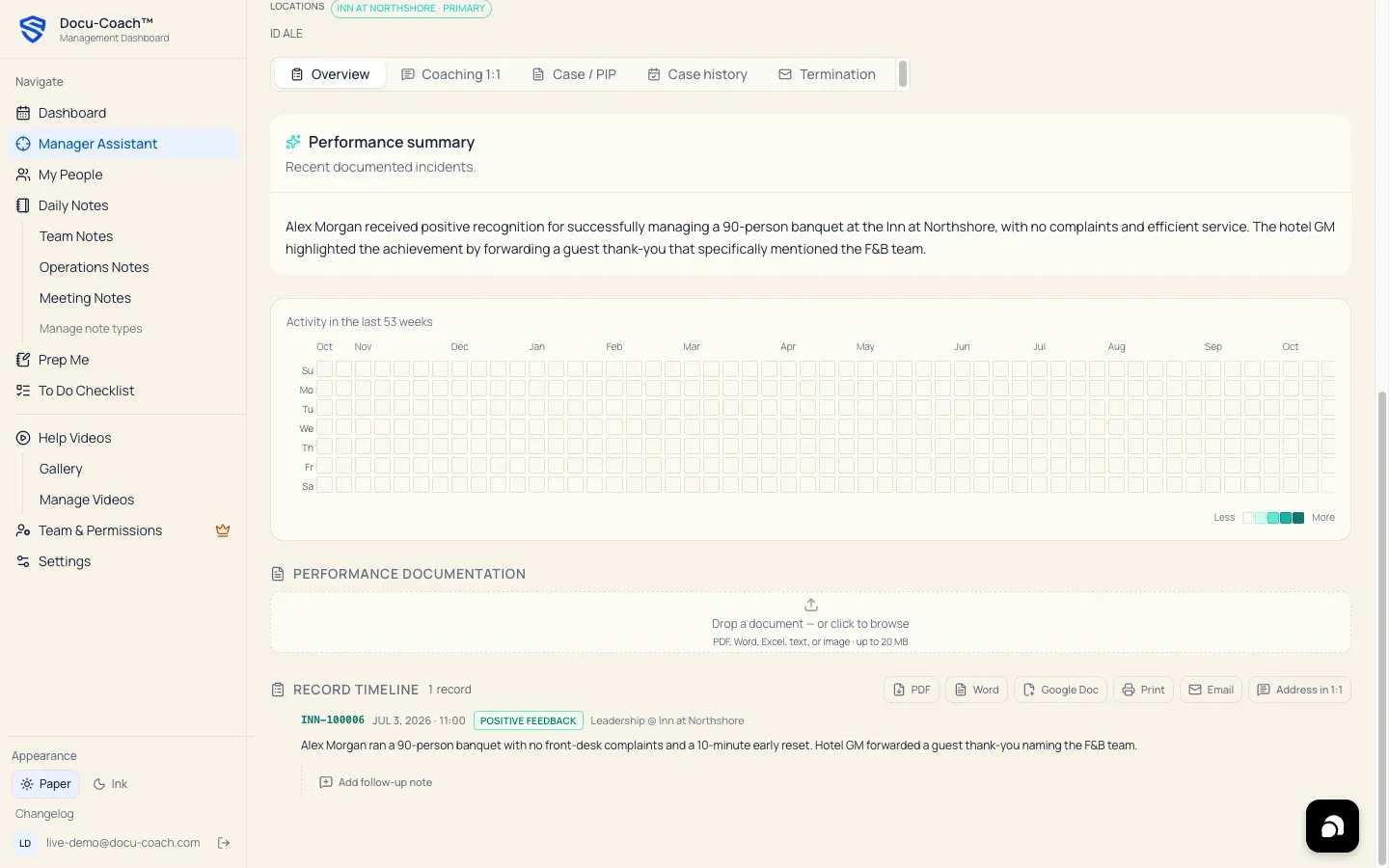
- Employee Timeline Exports: Word (
.docx), PDF / Print, Plain Text copy, and Email (mailto:). - PIP Document Exports: Word (
.docx), PDF / Print, Plain Text copy, and Email (mailto:). - Workspace CSV Backup: A complete
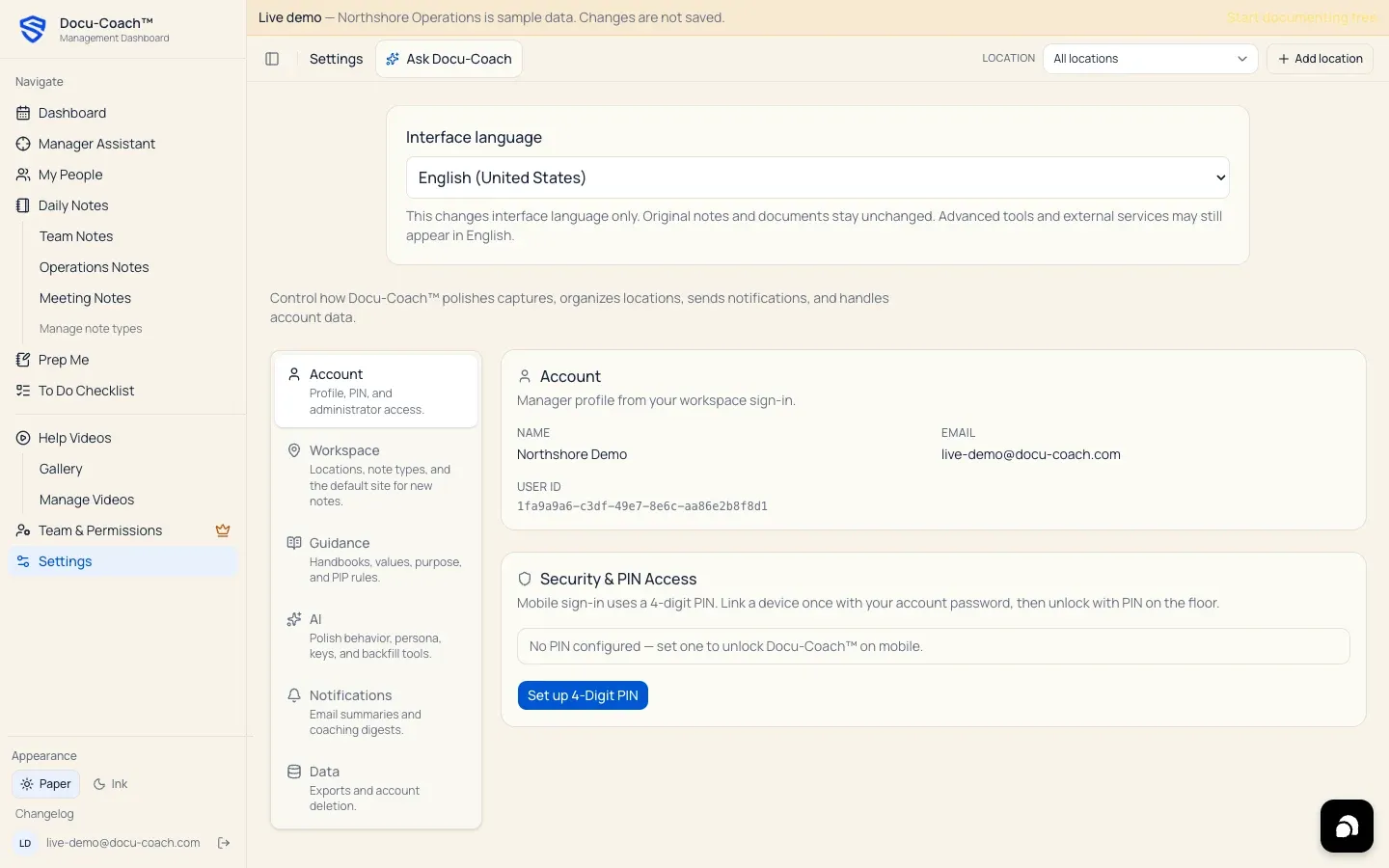
.csvdownload of your incident records from Settings → Data.
When would I use it?
Section titled “When would I use it?”- Filing an employee’s dated coaching history or a completed PIP into your company’s HRIS.
- Sharing a clean packet with HR or leadership before a formal review or unemployment hearing.
- Downloading a spreadsheet backup of all your documented incidents.
Where is it?
Section titled “Where is it?”- Employee Timeline & PIP Exports (
.docx/ PDF / Text / Email): Inside My People → [Select Employee] (/admin/employees/[id]). - Full CSV Export: Settings → Data → Data export (
/admin/settings?tab=data).
How do I use it?
Section titled “How do I use it?”Export an employee’s timeline or PIP to Word (.docx) or PDF
Section titled “Export an employee’s timeline or PIP to Word (.docx) or PDF”- Open My People and click the employee to open their Employee Command Center (
/admin/employees/[id]). - Scroll to the timeline export toolbar (or the PIP Builder export menu).
- Choose your export format:
- Word (
.docx): Downloads a formatted.docxfile containing the employee’s metadata, chronological records, reference codes, categories, severities, and follow-up notes. - PDF / Print: Opens a clean print/PDF view formatted for US Letter pages so you can save as PDF or print directly.
- Copy plain text: Copies a clean plain-text version to your clipboard.
- Email: Opens your default mail client with the formatted summary ready to send.
- Word (
Export all records to CSV
Section titled “Export all records to CSV”- Open Settings → Data (
/admin/settings?tab=data). - In the Data export card, click Export all to CSV.
- Your browser downloads
docu-coach-export-YYYY-MM-DD.csvcontaining your authorized records.
What happens after I do it?
Section titled “What happens after I do it?”- Export files are generated on demand from your current authorized records and downloaded directly to your device.
Permissions, plans, and platform limitations
Section titled “Permissions, plans, and platform limitations”- Plan requirements:
- Manager (including the 30-day Manager trial) and Teams include Word (
.docx) and PDF exports. - On the Free plan, clicking Word or PDF export displays an upgrade prompt explaining that exports are included with the Manager and Teams plans.
- Manager (including the 30-day Manager trial) and Teams include Word (
What can go wrong?
Section titled “What can go wrong?”- Word or PDF export shows a lock / upgrade message: Your workspace is currently on the Free plan (or your 30-day trial has expired). Upgrade to Manager or Teams to unlock Word and PDF exports.