

PIP Builder & check-ins
What is this?
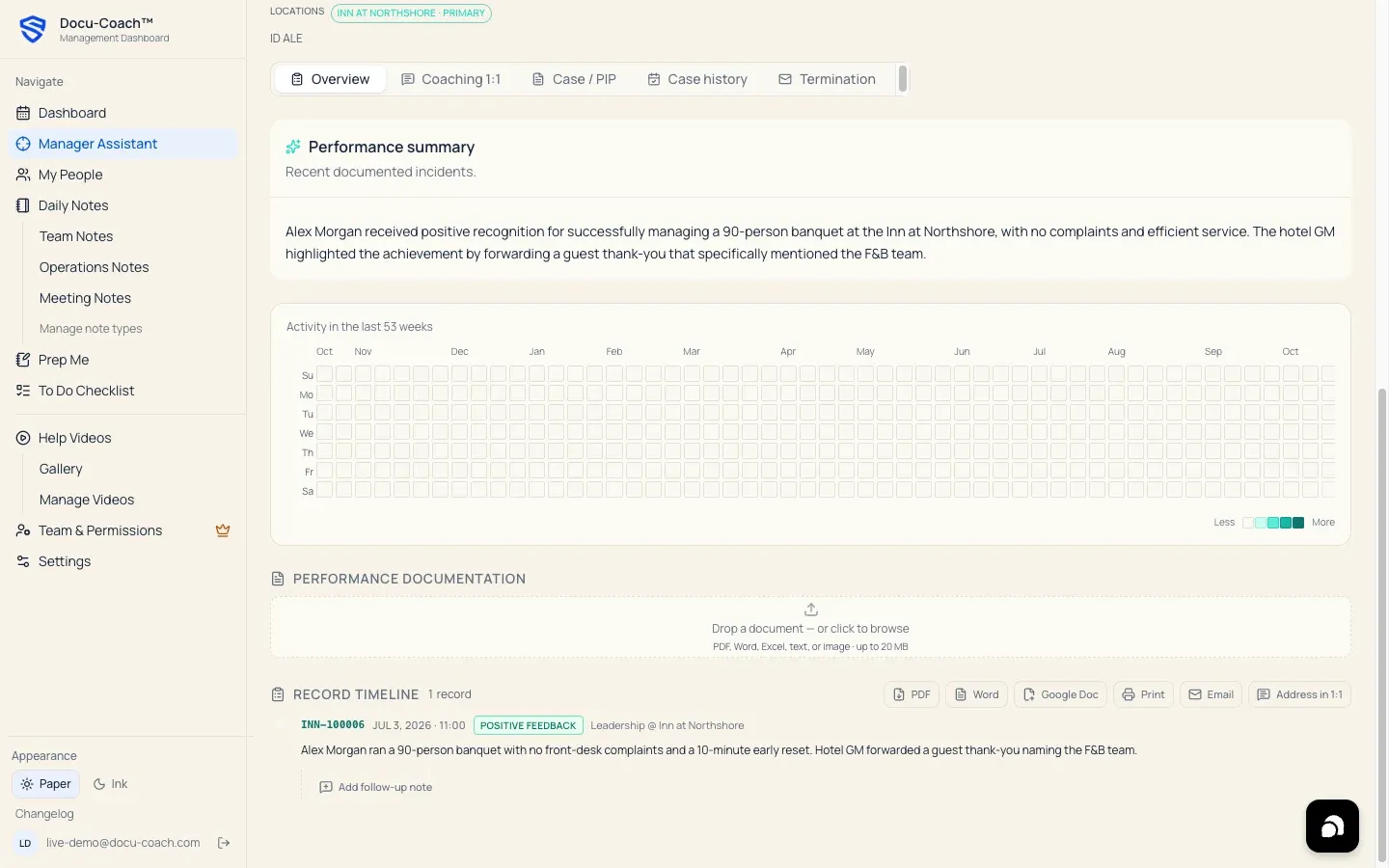
Section titled “What is this?”The PIP Builder inside an employee’s Employee Command Center (/admin/employees/[id]) helps you turn documented incidents and company expectations into a structured Performance Improvement Plan (PIP) with objective facts, SMART goals, support resources, a check-in schedule, and status tracking.
When would I use it?
Section titled “When would I use it?”- An employee has a documented pattern of performance or conduct issues and you are preparing a formal coaching plan or Performance Improvement Plan for HR review and delivery.
- You are logging scheduled PIP check-ins (
pip_check_ins) and updating the case status as the employee progresses.
Where is it?
Section titled “Where is it?”- Web Management Dashboard: My People → [Select Employee] (
/admin/employees/[id]) in the PIP Builder section, and summarized across your workspace in Manager Assistant / HR Center (/admin/command-centerunder the PIP cases KPI tile).
How do I use it?
Section titled “How do I use it?”1. Select incidents & review recommendations
Section titled “1. Select incidents & review recommendations”- Open the employee’s Employee Command Center (
/admin/employees/[id]). - In the PIP Builder, select the date range and check the specific documented Incidents to include (
pip_case_incidents). - Review the recommendation summary:
- Recommended action vs. Baseline action (based on severity, tenure bucket, and prior documented history).
- Zero-tolerance check: Highlights whether any selected incident involves a zero-tolerance category.
- Precedent matches: Shows how similar incidents/severities were handled previously in your organization so you can stay consistent.
- Override reason (if deviating): If you choose an action that differs from the baseline recommendation, select a Caveat override reason and add an explanatory note.
- Objective fact gaps: Highlights any missing factual details you should verify before finalizing.
2. Generate and edit the PIP draft
Section titled “2. Generate and edit the PIP draft”- Click to generate the structured PIP draft. When your organization has configured Company guidance (Settings → Guidance), the draft incorporates your company purpose, values, and PIP guardrails.
- Review and edit every section before relying on it:
- Decision summary & rationale
- Objective facts (grounded in the selected incidents)
- SMART goals (measurable expectations)
- Support resources (training, shadowing, or tools provided by management)
- Check-in schedule (
start_on,due_on, and milestone dates) - Constructive closing & consequence statement
- HR review notice
- Click Save to create or update the PIP case (
pip_cases).
3. Track check-ins and case status
Section titled “3. Track check-ins and case status”- As each scheduled check-in date arrives, log your check-in note and mark the check-in completed (
completePipCheckIn). - Update the PIP case status (such as
draft,hr_review,active, orcompleted). - Export the PIP document to Word (.docx), PDF / Print, Plain text, or Email (
mailto:).
What happens after I do it?
Section titled “What happens after I do it?”- Saved PIP cases and upcoming check-ins appear in Manager Assistant / HR Center (
/admin/command-center) under the PIP cases KPI tile and the Do today queue. - Active or historical PIPs are also listed under Relevant documents in the employee’s HR Ready chronology.
Permissions, plans, and platform limitations
Section titled “Permissions, plans, and platform limitations”- AI draft allowance on Free plan: On the Free plan, generating AI drafts (1:1 coaching drafts, HR assistant, and PIP drafts) draws from the organization’s allowance of 2 AI drafts per 30-day window. Manager (including the 30-day trial) and Teams include full access.
- Word (.docx) & PDF export: Exporting the PIP document to Word or PDF requires the Manager (or 30-day trial) or Teams plan.
- Human review required: AI drafts are drafts—always review and verify every statement with HR or leadership before delivering a PIP to an employee.
What can go wrong?
Section titled “What can go wrong?”- No candidate incidents available for PIP Builder: Positive feedback and progress updates are not used as disciplinary PIP triggers. Ensure the employee has at least one saved Incident record on their timeline.