

Docu-Coach™ for iPhone (SwiftUI)
What is this?
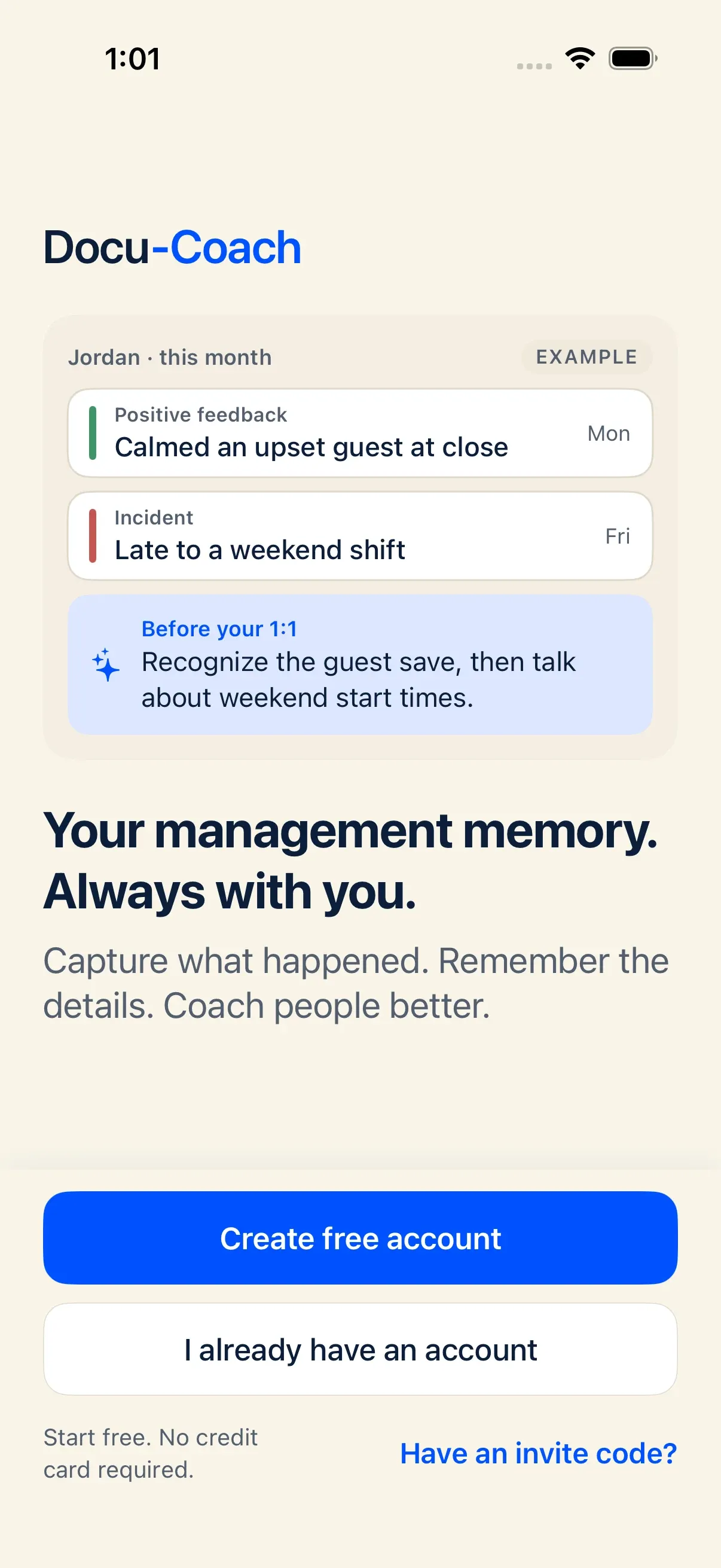
Section titled “What is this?”Docu-Coach™ for iPhone (version 2.0+) is a fully native SwiftUI application built for fast floor capture, offline resilience, quick history lookup, To-Dos, roster additions, and Ask Docu-Coach on the go.
It is a free native companion to your Docu-Coach™ workspace and shares the exact same backend, authentication, and security boundaries as the web Management Dashboard.
When would I use it?
Section titled “When would I use it?”Use the iPhone app whenever you are away from your desk:
- Recording an Incident, Positive feedback, Progress update, or Daily note by voice (tap) or typed note (long-press).
- Logging Late, No Show, or Sick attendance in seconds.
- Checking your To-Dos or an employee’s timeline and Attendance card before a shift conversation.
- Asking Ask Docu-Coach a coaching question from Home, an employee profile, or a saved recording.
Where is it?
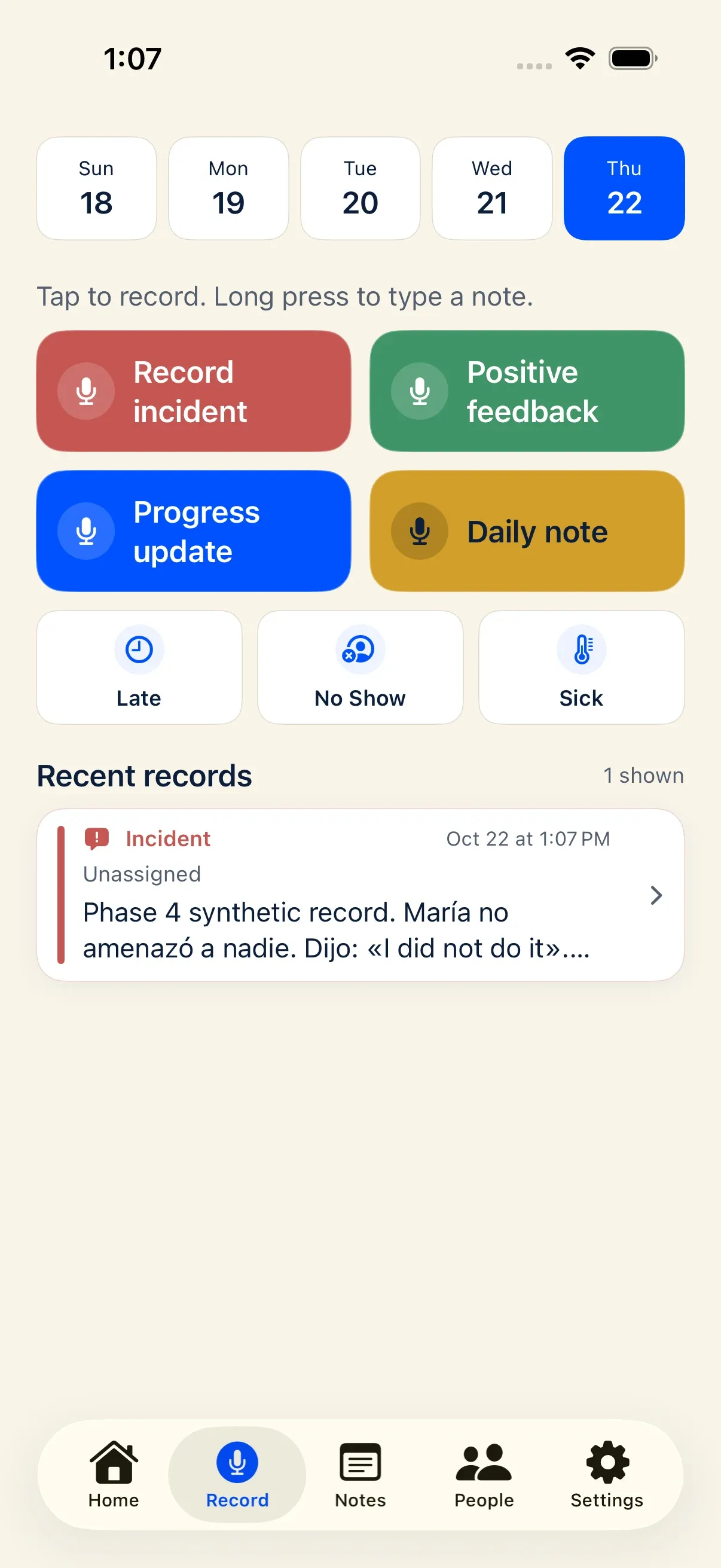
Section titled “Where is it?”The iPhone app is organized into five bottom tabs and opens directly to Record once you are signed in:
- Home: Displays your organization’s live company-wide stats, four-week note activity, team documentation coverage, and the Ask Docu-Coach button. Pull down to refresh.
- Record (Launch Tab):
- Fixed 5-day calendar strip: Shows today and the 4 preceding local days without horizontal scrolling.
- Save progress banner: Pinned directly below the calendar strip so upload status is always visible.
- 2×2 Capture grid: Tap to record voice; long-press to type a note. Reflects your custom button labels/colors if configured in web Settings → Capture.
- Attendance row: One-tap Late, No Show, and Sick logging (can be hidden in Settings).
- Recent records: Shows your 3–4 most recent captures for instant review.
- Notes: A segmented view switching between:
- Notes: Newest-first merged timeline (20 items per page) of your Incidents, Positive feedback, Progress updates, and Daily notes. Long-press any card to permanently delete it (with confirmation).
- To-Dos: Your private checklist of AI-extracted follow-ups and manual tasks.
- People: Searchable active roster with Add person (
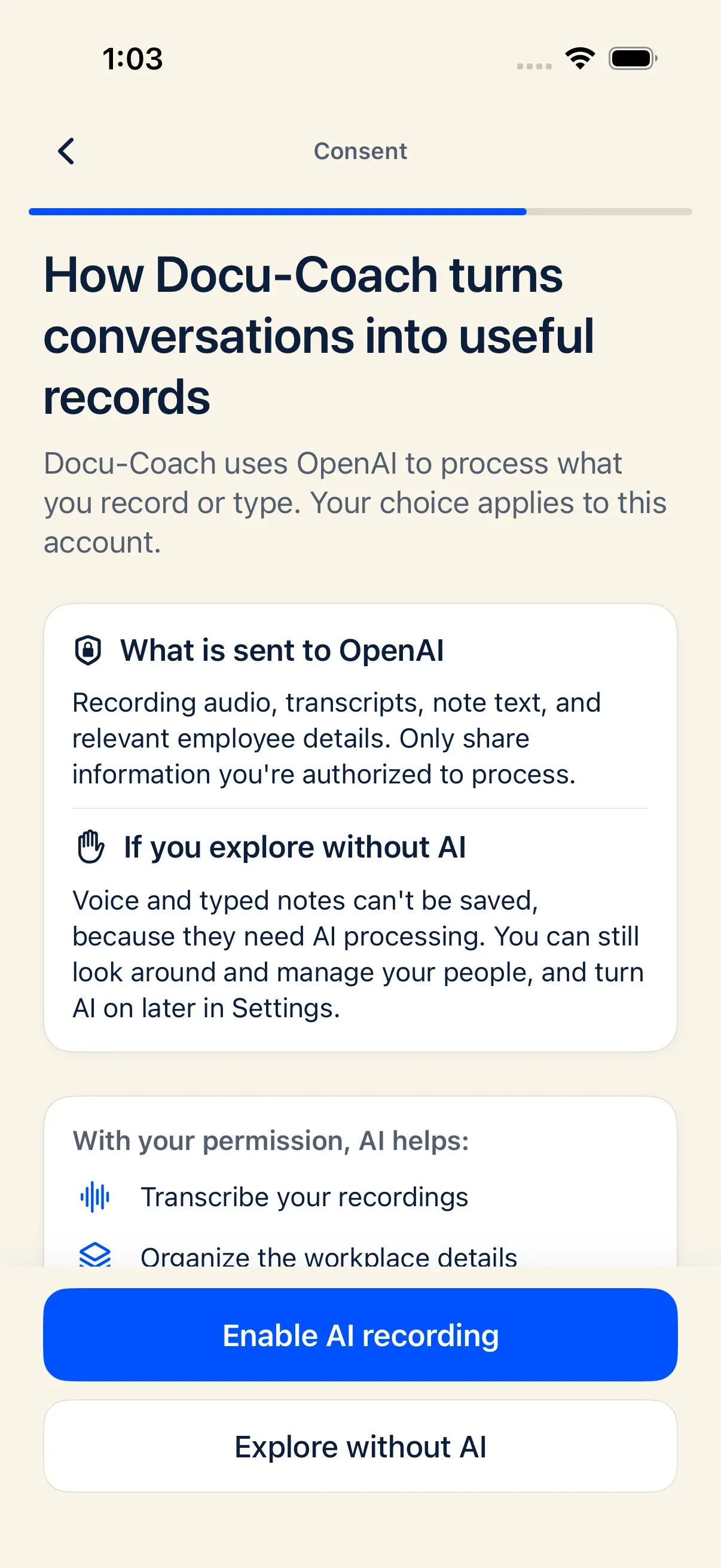
+). Tap any employee to view their recording counts, Attendance stat card (🤒 Sick, 🚫 No Show, ⏰ Late), Ask about this employee (with prefetched coaching topic cards), and dated timeline. Tap a timeline record to view details, edit prose, or change its type among Incident, Positive feedback, and Progress update. - Settings: Manage your account, AI privacy permission, Enable Spanish mode, Attendance quick actions visibility, Record sharing, Invite a manager, Privacy Policy, Support, and Delete account.
How do I use it?
Section titled “How do I use it?”First-use AI privacy consent
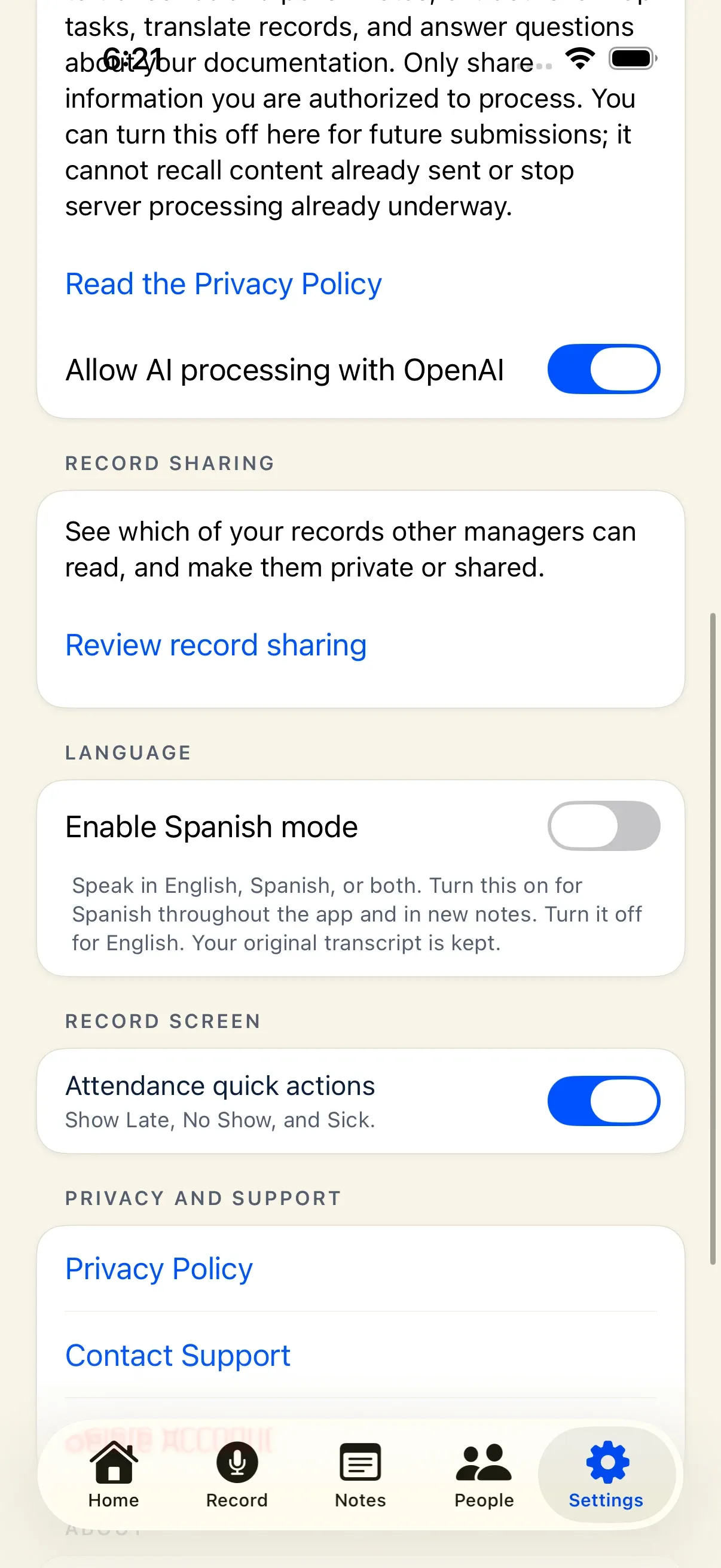
Section titled “First-use AI privacy consent”Before your first voice recording, typed note, or Ask Docu-Coach request, the iPhone app presents a clear disclosure explaining how OpenAI processes audio and text for transcription, note polishing, task extraction, and coaching answers:
- Tap Continue with OpenAI to enable AI processing for your account.
- Tap Not now / Explore without AI if you want to browse existing records first.
- You can turn AI privacy on or off at any time in Settings. Because recording and typed capture use AI processing, tapping or long-pressing a capture button while AI privacy is off shows a prompt: “AI processing should be turned on in Settings before recording.”
Live history sync while the app is open
Section titled “Live history sync while the app is open”While the iPhone app is in the foreground, it automatically reconciles your loaded history with the server every ~2 seconds (and supports pull-to-refresh on Home, Record, Notes, and People). If you delete a record on the web dashboard, it disappears from your open iPhone screen automatically within seconds.
Permissions, plans, and platform limitations
Section titled “Permissions, plans, and platform limitations”- Desktop management stays on the web: Features designed for wide screens—such as the full PIP Builder, HR Ready multi-section print/export views, bulk CSV imports/exports, Note Types catalog administration, and Company guidance handbook uploads—live in the web Management Dashboard (
/admin/*). - No in-app subscription purchases: Your iPhone app uses your existing Docu-Coach™ account and plan allowance.
What can go wrong?
Section titled “What can go wrong?”- “AI processing should be turned on in Settings before recording” modal: Tap Settings in the modal and toggle AI privacy on before starting a recording or typed note.
- Microphone permission alert: If iOS microphone access was declined, tap Open Settings in the alert and allow Microphone access for Docu-Coach™.